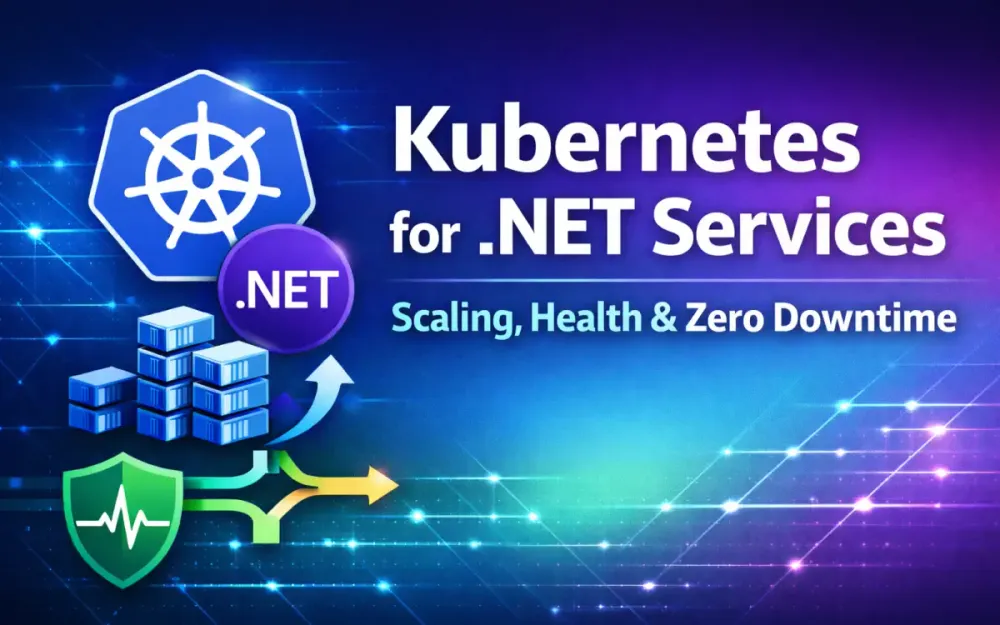
1 The Modern .NET Cloud-Native Landscape
Building .NET services for Kubernetes is not just about putting an ASP.NET Core app in a container. Kubernetes expects workloads to be disposable, observable, and elastic. If your service assumes stable hosts, fixed memory, or long-lived processes, it will behave unpredictably under real cluster conditions.
1.1 Evolution of .NET Runtimes: From .NET 6 to .NET 10+ Optimizations for Containers
.NET has changed significantly in how it behaves inside containers. Earlier .NET Core versions were container-capable but not container-aware. Today, the runtime understands CPU quotas, memory limits, and cgroup v2 boundaries, which is critical when every pod runs inside strict resource constraints.
Key improvements across .NET 6 through .NET 10+ include:
-
Accurate cgroup limit detection The GC now respects container memory limits instead of assuming full node memory. This reduces unexpected OOM kills.
-
Profile-Guided Optimization (PGO) and NativeAOT Dynamic PGO improves hot path performance over time. NativeAOT and ReadyToRun reduce startup latency, which directly impacts autoscaling. When using KEDA scale-to-zero, pods must start quickly — faster startup means shorter cold-start windows and faster readiness probe success.
-
Smaller runtime and trimmed images Trimming and reduced base image sizes shorten pull times and speed up rollouts.
-
Improved ASP.NET Core throughput Kestrel continues to reduce allocations and improve async scheduling, which directly affects how efficiently HPA scaling reacts to CPU pressure.
-
Better diagnostics inside containers Tools such as
dotnet-countersanddotnet-dumpwork reliably in constrained container environments, making production troubleshooting practical.
These changes directly influence how quickly pods become Ready, how predictable memory usage is under load, and how stable scaling behavior becomes under HPA or KEDA.
1.2 Designing for Kubernetes Instead of “Lifting and Shifting”
Many teams containerize an existing service without adjusting its runtime assumptions. Common issues include:
- Relying on local disk for durable state
- Treating startup and readiness as the same thing
- Returning HTTP 200 from health endpoints regardless of dependency state
- Ignoring resource limits and letting memory grow until OOMKill
In Kubernetes, pods are ephemeral. They can be restarted, rescheduled, or terminated at any time. Services must treat this as normal. That mindset shift is the foundation for everything else in this article.
1.3 The Three Pillars: Health, Autoscaling, and Zero-Downtime Rollouts
This guide focuses on three operational pillars:
-
Health and lifecycle management Your service must clearly signal when it is starting, healthy, degraded, or shutting down. Kubernetes uses this to decide traffic routing and restarts.
-
Autoscaling with HPA and KEDA Resource-based scaling (HPA) and event-driven scaling (KEDA) must align with how your .NET service consumes CPU, memory, and messages.
-
Zero-downtime rollouts Traffic shifting strategies ensure new versions deploy safely without breaking live traffic.
1.4 A Concrete Example: A Production-Ready .NET Pod
Instead of discussing pod anatomy in abstract terms, here is a realistic Deployment spec that wires in probes, resource governance, and autoscaling compatibility.
apiVersion: apps/v1
kind: Deployment
metadata:
  name: checkout-api
  labels:
    app: checkout-api
spec:
  replicas: 3
  selector:
    matchLabels:
      app: checkout-api
  template:
    metadata:
      labels:
        app: checkout-api
      annotations:
        prometheus.io/scrape: "true"
        prometheus.io/port: "8080"
    spec:
      terminationGracePeriodSeconds: 30
      containers:
      - name: api
        image: registry/checkout-api:2024.02.15
        ports:
        - containerPort: 8080
        env:
        - name: ASPNETCORE_URLS
          value: "http://+:8080"
        - name: DOTNET_GCHeapHardLimitPercent
          value: "80"
        resources:
          requests:
            cpu: 300m
            memory: 512Mi
          limits:
            cpu: 800m
            memory: 512Mi
        startupProbe:
          httpGet:
            path: /health/startup
            port: 8080
          failureThreshold: 20
          periodSeconds: 5
        livenessProbe:
          httpGet:
            path: /health/live
            port: 8080
          periodSeconds: 10
          timeoutSeconds: 2
        readinessProbe:
          httpGet:
            path: /health/ready
            port: 8080
          periodSeconds: 5
          timeoutSeconds: 2
What this achieves:
- Startup probe allows warm-up (JIT, EF migrations, cache priming) without triggering restarts.
- Liveness probe detects deadlocks or fatal hangs without depending on external systems.
- Readiness probe removes the pod from traffic if dependencies fail.
- Memory limit equals request ensures predictable scheduling and avoids node eviction.
- CPU headroom above request reduces throttling under burst load.
- GC hard limit aligns managed memory with Kubernetes limits.
This pod is now ready to participate in:
- HPA scaling based on CPU utilization
- KEDA scaling for event-driven workers
- Rolling updates without dropped traffic
- Safe node drains with termination grace periods
The key point: Kubernetes behavior is only as reliable as the signals and constraints your pod exposes. When health probes, resource limits, and runtime configuration align, autoscaling and zero-downtime rollouts become predictable instead of fragile.
2 Engineering Resilient Health and Lifecycle Management
Health management in Kubernetes is not about returning HTTP 200. It is about giving the platform accurate signals so it can make correct decisions about restarts, traffic routing, and scaling. If those signals are wrong, Kubernetes behaves correctly based on bad information — which leads to downtime.
2.1 Beyond HTTP 200: Implementing Microsoft.Extensions.Diagnostics.HealthChecks
The .NET health checks framework is powerful, but small mistakes can make it useless. A common issue is filtering checks by tag in the readiness endpoint without tagging the checks themselves. In that case, readiness always reports healthy — even if the database is down.
var builder = WebApplication.CreateBuilder(args);

builder.Services.AddHealthChecks()
    .AddSqlServer(
        builder.Configuration.GetConnectionString("Default"),
        tags: new[] { "ready" })
    .AddRedis(
        builder.Configuration.GetConnectionString("Redis"),
        tags: new[] { "ready" })
    .AddCheck<CustomDependencyCheck>(
        "custom-dependency",
        tags: new[] { "ready" });

var app = builder.Build();

// Readiness: checks only dependencies required to serve traffic
app.MapHealthChecks("/health/ready", new HealthCheckOptions
{
    Predicate = check => check.Tags.Contains("ready")
});

// Liveness: only verifies the process is responsive
app.MapHealthChecks("/health/live", new HealthCheckOptions
{
    Predicate = _ => false
});

app.Run();
Now the behavior is correct:
- If SQL Server or Redis fails, readiness returns unhealthy and the pod is removed from traffic.
- Liveness still returns healthy, so the pod is not restarted unnecessarily.
- Kubernetes routes around the problem instead of making it worse.
The separation between liveness and readiness is what enables zero-downtime rollouts later.
2.2 The Probing Trifecta
Kubernetes provides three probes: startup, liveness, and readiness. Each serves a different purpose. Mixing responsibilities between them causes unstable deployments.
2.2.1 Startup Probes: Handling Heavy JIT Compilation and Initial Data Seeding
Startup probes protect long initialization phases from being misinterpreted as failures. In .NET, startup may include JIT warm-up, EF Core migrations, cache priming, and large configuration hydration.
The probe must remain unhealthy until initialization finishes:
public class StartupInitializationCheck : IHealthCheck
{
    private static volatile bool _isReady;

    public static void MarkAsReady() => _isReady = true;

    public Task<HealthCheckResult> CheckHealthAsync(
        HealthCheckContext context,
        CancellationToken cancellationToken = default)
    {
        return Task.FromResult(
            _isReady
                ? HealthCheckResult.Healthy("Startup complete")
                : HealthCheckResult.Unhealthy("Still initializing"));
    }
}
Register it and trigger readiness once initialization completes:
builder.Services.AddHealthChecks()
    .AddCheck<StartupInitializationCheck>(
        "startup",
        tags: new[] { "startup" });

// ...

app.MapHealthChecks("/health/startup", new HealthCheckOptions
{
    Predicate = check => check.Tags.Contains("startup")
});

app.Lifetime.ApplicationStarted.Register(() =>
{
    StartupInitializationCheck.MarkAsReady();
});
Kubernetes configuration:
startupProbe:
  httpGet:
    path: /health/startup
    port: 8080
  failureThreshold: 30
  periodSeconds: 5
This prevents restarts during legitimate warm-up and ensures the pod does not receive traffic prematurely.
2.2.2 Liveness Probes: Detecting Deadlocks and Fatal Thread Crashes
Liveness should answer one question: is the process still responsive? It must execute quickly, avoid external calls, and avoid blocking I/O.
livenessProbe:
  httpGet:
    path: /health/live
    port: 8080
  periodSeconds: 10
  timeoutSeconds: 2
If a deadlock or severe thread pool starvation occurs, this endpoint will eventually fail and Kubernetes will restart the pod. That is the only time liveness should intervene.
If you include database checks in liveness, you create restart storms during dependency outages. That makes outages worse.
2.2.3 Readiness Probes: Managing Dependency Readiness
Readiness controls traffic routing. If the service cannot reliably serve requests, readiness must fail.
readinessProbe:
  httpGet:
    path: /health/ready
    port: 8080
  periodSeconds: 5
  timeoutSeconds: 2
Common readiness failure cases include connection pool exhaustion, external API timeouts, Redis cluster failover, and secret provider latency spikes.
When readiness fails, Kubernetes removes the pod from the service endpoint list. No restart occurs. Once the dependency recovers, readiness passes and traffic resumes automatically. This behavior is critical for rolling updates and scaling events.
2.3 Graceful Shutdown (SIGTERM): Draining Without Dropping Requests
When a pod is terminated — during rollout, scale-down, or node drain — Kubernetes sends SIGTERM and waits terminationGracePeriodSeconds before issuing SIGKILL.
Two problems often occur:
- The service continues accepting new traffic after SIGTERM.
- The process exits before load balancers stop routing traffic to it.
You must handle both.
Step 1: Stop Accepting New Requests
Configure Kestrel to allow existing connections to finish but not linger indefinitely:
builder.WebHost.ConfigureKestrel(options =>
{
    options.Limits.KeepAliveTimeout = TimeSpan.FromSeconds(30);
    options.Limits.RequestHeadersTimeout = TimeSpan.FromSeconds(15);
});
Then handle shutdown explicitly:
app.Lifetime.ApplicationStopping.Register(() =>
{
    OrderProcessor.StopAcceptingNewMessages();
});
Background workers should implement controlled shutdown:
public override async Task StopAsync(CancellationToken cancellationToken)
{
    _acceptingMessages = false;
    await _processor.CloseAsync();
    await base.StopAsync(cancellationToken);
}
Step 2: Account for Endpoint Deregistration Lag
There is a race condition between SIGTERM arriving, the pod being removed from the Service endpoints list, and external load balancers updating their routing tables. Traffic can still reach the pod briefly after SIGTERM.
Use a preStop hook to delay termination:
lifecycle:
  preStop:
    exec:
      command: ["/bin/sh", "-c", "sleep 10"]
And ensure:
terminationGracePeriodSeconds: 30The sleep allows iptables rules and external load balancers to stop routing traffic before the container exits. Without this, you will occasionally see dropped requests during rollouts.
2.4 Pod Disruption Budgets (PDB): Controlling Availability During Maintenance
Kubernetes performs voluntary disruptions during node upgrades, cluster autoscaling, and infrastructure maintenance. A Pod Disruption Budget defines how many pods must remain available.
Option 1: minAvailable
apiVersion: policy/v1
kind: PodDisruptionBudget
metadata:
  name: checkout-pdb
spec:
  minAvailable: 3
  selector:
    matchLabels:
      app: checkout
This guarantees at least three pods remain available at all times.
Option 2: maxUnavailable
spec:
  maxUnavailable: 1
This allows only one pod to be down at a time.
Trade-off: minAvailable works well when you know your required capacity floor. maxUnavailable works well when replica counts vary (for example, with HPA).
Without a PDB, Kubernetes may evict multiple pods simultaneously during maintenance, potentially taking your service offline even if autoscaling is configured correctly.
3 Resource Governance and Performance Tuning
Kubernetes enforces resource boundaries. .NET adapts to those boundaries at runtime. If the two are not aligned, you get OOM kills, CPU throttling, thread pool starvation, and unstable autoscaling behavior.
3.1 The “OOMKiller” Battle: Aligning .NET GC with K8s Limits
In Kubernetes, exceeding a memory limit results in immediate termination by the kernel OOM killer. There is no graceful recovery. The .NET GC must therefore operate inside a clearly defined memory envelope.
3.1.1 Server GC vs. Workstation GC in Constrained Environments
By default, Server GC is enabled in multi-core environments. It provides higher throughput by allocating larger segments and using dedicated GC threads — usually correct for API workloads. However, it consumes more memory.
Workstation GC may be preferable when memory limits are tight (512Mi or less), the workload is low throughput, or avoiding OOM is more important than peak throughput.
Override in runtimeconfig.json:
{
  "runtimeOptions": {
    "configProperties": {
      "System.GC.Server": false
    }
  }
}
Measure memory pressure before switching. Most API workloads benefit from Server GC unless the memory envelope is very small.
3.1.2 Controlling Heap Growth with GC Environment Variables
Setting a Kubernetes memory limit is not enough. The GC should be told explicitly how much memory it is allowed to use:
env:
  - name: DOTNET_GCHeapHardLimitPercent
    value: "75"
This caps the managed heap at 75% of container memory. The remaining space is available for native allocations, buffers, and runtime overhead.
For memory-constrained pods, add:
env:
  - name: DOTNET_GCConserveMemory
    value: "5"
DOTNET_GCConserveMemory (0–9) makes the GC more aggressive about compaction and segment trimming. It reduces fragmentation and unused space, especially useful for bursty workloads. Together, these settings reduce the risk of sudden OOM kills during traffic spikes.
3.2 Requests vs. Limits: The Hidden Lever Behind HPA Behavior
In Kubernetes, requests influence scheduling while limits enforce maximum usage. For HPA, what matters most is requests, because HPA calculates utilization as current CPU usage / requested CPU. This is explored in detail in Section 4.1.
The practical implication: if requests are too high, HPA rarely triggers. If requests are too low, HPA scales aggressively even under moderate load.
resources:
  requests:
    cpu: 200m
    memory: 512Mi
  limits:
    cpu: 800m
    memory: 512Mi
Example: if CPU usage reaches 140m and the HPA target is 70%:
140m / 200m = 70% → scaling triggersIf you had set the request to 500m, the same usage becomes:
140m / 500m = 28% → HPA does nothingEven though the pod may already be saturated. This is one of the most important tuning knobs in Kubernetes autoscaling.
CPU Limits and Throttling
When CPU usage exceeds the limit, Kubernetes throttles the container. Throttling often manifests as increased latency, thread pool starvation, and unstable response times.
Some latency-sensitive services choose to remove CPU limits entirely and rely only on requests:
resources:
  requests:
    cpu: 400m
    memory: 768Mi
  limits:
    memory: 768Mi
HPA still works because it calculates utilization relative to requests, not limits. However, without CPU limits, pods may consume more CPU under contention, which requires confidence in cluster capacity planning.
Preventing Thread Pool Starvation During Ramp-Up
During sudden traffic spikes or scale-out events, .NET’s thread pool may take time to ramp up worker threads. You can reduce ramp-up delay by setting a minimum worker thread count:
env:
  - name: COMPlus_ThreadPool_ForceMinWorkerThreads
    value: "100"
This forces the thread pool to start with a higher baseline, reducing latency spikes during cold scale-out. Use carefully — too high a value increases memory and scheduling overhead.
3.3 Ephemeral Storage
Filling /tmp or container writable layers can cause unexpected evictions. Keep logs on stdout and ship them externally. If you capture diagnostic dumps, define sufficient ephemeral storage requests:
resources:
  requests:
    ephemeral-storage: 1Gi
Treat this as a stability safeguard, not a scaling strategy.
4 Scaling Strategies: HPA for Resource-Based Elasticity
HPA is not magic — it is a control loop reacting to metrics. If the metrics are wrong or misunderstood, scaling will be unstable or ineffective. For .NET services, HPA works best when resource usage reflects real demand.
4.1 The Mechanics of the Horizontal Pod Autoscaler (HPA)
HPA periodically evaluates metrics (every ~15 seconds by default) and computes a desired replica count using:
desiredReplicas = currentReplicas × (currentUtilization / targetUtilization)Where:
currentUtilization = actual CPU usage / requested CPUHPA compares usage to requests, not limits. This makes CPU requests the primary scaling lever.
Example:
apiVersion: autoscaling/v2
kind: HorizontalPodAutoscaler
metadata:
  name: checkout-hpa
spec:
  scaleTargetRef:
    apiVersion: apps/v1
    kind: Deployment
    name: checkout
  minReplicas: 3
  maxReplicas: 15
  metrics:
  - type: Resource
    resource:
      name: cpu
      target:
        type: Utilization
        averageUtilization: 70
If a pod requests 200m and uses 140m, utilization is 70% — scaling triggers. If that same pod requested 500m, the 140m usage becomes 28% — HPA does nothing even though the pod may already be saturated.
CPU-based HPA works very well for CPU-bound APIs. It works poorly for async-heavy, I/O-bound services where CPU may remain low even when latency increases. In those cases, request rate or latency is often a better signal (see Section 4.3).
4.2 Scaling on CPU and Memory in .NET Workloads
For synchronous ASP.NET Core APIs, CPU is typically proportional to concurrency and HPA on CPU is stable.
Memory-based scaling requires more caution. The .NET GC expands and compacts the heap dynamically, and short-lived allocation bursts can temporarily increase memory usage without representing sustained load.
metrics:
- type: Resource
  resource:
    name: cpu
    target:
      type: Utilization
      averageUtilization: 65
- type: Resource
  resource:
    name: memory
    target:
      type: AverageValue
      averageValue: "450Mi"
This configuration scales when either CPU exceeds 65% of request or average memory exceeds 450Mi.
Use memory scaling primarily when requests involve large payloads, workers buffer data in memory, or GC tuning alone does not stabilize memory pressure. Before enabling memory-based HPA, verify real memory patterns with dotnet-counters and ensure DOTNET_GCHeapHardLimitPercent is properly configured. Otherwise, you may scale on transient GC growth.
4.3 Custom Metrics with OpenTelemetry and Prometheus Adapter
CPU is not always the best scaling signal. Async-heavy APIs may show low CPU but high latency. Order-processing systems may have growing backlogs with moderate CPU usage. In these cases, custom metrics are more accurate.
Step 1: Instrument the .NET Application
Use OpenTelemetry’s Meter API:
using System.Diagnostics.Metrics;

public static class CheckoutMetrics
{
    private static readonly Meter s_meter = new("Checkout.Metrics");

    public static readonly Counter<int> OrdersProcessed =
        s_meter.CreateCounter<int>("checkout_orders_processed_total");

    public static readonly ObservableGauge<int> PendingOrders =
        s_meter.CreateObservableGauge(
            "checkout_pending_orders_current",
            () => new Measurement<int>(OrderQueue.CurrentDepth));
}
In Program.cs:
builder.Services.AddOpenTelemetry()
    .WithMetrics(metrics =>
    {
        metrics.AddAspNetCoreInstrumentation()
               .AddMeter("Checkout.Metrics")
               .AddPrometheusExporter();
    });
Important distinction: counters (*_total) must be used with rate() in Prometheus. Gauges (*_current) can be used directly for scaling. For backlog-based scaling, a gauge is usually the correct choice.
Step 2: Prometheus Adapter Configuration
For a gauge:
rules:
  - seriesQuery: 'checkout_pending_orders_current'
    resources:
      overrides:
        namespace: { resource: "namespace" }
    name:
      as: "checkout_pending_orders"
    metricsQuery: 'avg(checkout_pending_orders_current{<<.LabelMatchers>>})'
For a counter:
metricsQuery: 'rate(checkout_orders_processed_total{<<.LabelMatchers>>}[2m])'Using a raw counter without rate() would be incorrect because counters only increase.
Step 3: Reference in HPA
metrics:
- type: Pods
  pods:
    metric:
      name: checkout_pending_orders
    target:
      type: AverageValue
      averageValue: "50"
Now scaling is based on actual backlog per pod — a much better signal for I/O-heavy systems.
4.4 Pitfalls of HPA: Flapping and Lag
Even with correct metrics, HPA requires tuning.
Flapping and Stabilization Windows
Frequent scale-up and scale-down cycles destabilize systems. Control this using behavior policies:
behavior:
  scaleUp:
    stabilizationWindowSeconds: 60
    policies:
    - type: Percent
      value: 100
      periodSeconds: 60
  scaleDown:
    stabilizationWindowSeconds: 300
    policies:
    - type: Percent
      value: 50
      periodSeconds: 60
This limits rapid scale-up bursts, prevents scale-down for five minutes after a spike, and reduces oscillation for workloads that need warm-up time.
Scaling Lag
Scaling is not instant:
- HPA detects load
- New pods start
- Startup probes pass
- Readiness probes pass
- Traffic begins flowing
Reducing cold-start time (via PGO or NativeAOT) directly improves scaling responsiveness. For .NET apps with startup initialization (JIT, cache warming), a non-zero scale-up stabilization window can prevent temporary spikes from over-provisioning the cluster.
5 Advanced Event-Driven Scaling with KEDA
Not all .NET workloads scale well with CPU-based HPA. A worker can sit at 20% CPU while a queue grows from 10 messages to 50,000. From Kubernetes’ perspective, nothing is wrong. From a business perspective, you are falling behind.
KEDA solves this gap by scaling based on external signals like queue depth, stream lag, or database row counts.
5.1 Why HPA Alone Falls Short for Message-Heavy Architectures
Consider a background worker processing Azure Service Bus messages. Each message triggers an async handler that spends most time awaiting I/O. CPU remains relatively flat while queue depth can grow rapidly during traffic spikes.
If you scale only on CPU:
- Backlog grows unnoticed
- Latency increases
- Scaling reacts too late
In this pattern, queue length — not CPU — represents real system pressure. That is where KEDA fits. It monitors external systems and adjusts replicas based on backlog or event volume.
5.2 Introduction to KEDA (Kubernetes Event-Driven Autoscaling)
KEDA extends Kubernetes with event-based scaling. It watches external sources and dynamically manages an HPA under the hood. You define a ScaledObject, and KEDA handles the scaling loop.
Queue-Based Example (Azure Service Bus)
apiVersion: keda.sh/v1alpha1
kind: ScaledObject
metadata:
  name: checkout-worker
spec:
  scaleTargetRef:
    name: checkout-worker
  minReplicaCount: 0
  maxReplicaCount: 20
  pollingInterval: 30
  cooldownPeriod: 300
  triggers:
  - type: azure-servicebus
    metadata:
      namespace: orders-namespace
      queueName: checkout-queue
      messageCount: "100"
    authenticationRef:
      name: servicebus-auth
Important tuning parameters:
pollingInterval: how often KEDA checks the queue.cooldownPeriod: how long KEDA waits before scaling down. Without it, scale-down can oscillate during fluctuating traffic.
Secure Authentication with TriggerAuthentication
Avoid embedding connection strings directly in environment variables. Use a Kubernetes Secret and TriggerAuthentication:
apiVersion: v1
kind: Secret
metadata:
  name: servicebus-secret
type: Opaque
stringData:
  connection: "<service-bus-connection-string>"
---
apiVersion: keda.sh/v1alpha1
kind: TriggerAuthentication
metadata:
  name: servicebus-auth
spec:
  secretTargetRef:
  - parameter: connection
    name: servicebus-secret
    key: connection
This is the production-safe pattern. It separates infrastructure credentials from application configuration and supports rotation without redeploying pods.
5.3 Scaling .NET Workers Based on Common Event Sources
5.3.1 Azure Service Bus / RabbitMQ Queue Depth
Queue-based scaling is the most common KEDA scenario. A typical .NET worker:
public class QueueWorker : BackgroundService
{
    private readonly ServiceBusProcessor _processor;

    public QueueWorker(ServiceBusClient client)
    {
        _processor = client.CreateProcessor("checkout-queue");
    }

    protected override async Task ExecuteAsync(CancellationToken stoppingToken)
    {
        _processor.ProcessMessageAsync += HandleMessage;
        _processor.ProcessErrorAsync += ErrorHandler;
        await _processor.StartProcessingAsync(stoppingToken);
    }
}
KEDA scales based on queue depth. messageCount: "100" means one replica per ~100 messages. If 1,000 messages arrive, KEDA increases replicas toward the defined maximum.
RabbitMQ example:
triggers:
- type: rabbitmq
  metadata:
    host: amqp://rabbitmq:5672
    queueName: checkout
    queueLength: "200"
  authenticationRef:
    name: rabbit-auth
5.3.2 SQL Server Table Counts or Redis Streams
Some systems persist pending work in a database table instead of a queue:
triggers:
- type: mssql
  metadata:
    query: "SELECT COUNT(*) FROM PendingOrders WHERE Status = 'New'"
    targetValue: "500"
  authenticationRef:
    name: sql-auth
Redis Streams example:
triggers:
- type: redis-streams
  metadata:
    address: redis:6379
    stream: orders
    consumerGroup: checkout
    pendingEntriesCount: "1000"
These patterns work well when backlog is stored in infrastructure systems rather than exposed as Prometheus metrics.
5.4 Scaling to Zero: Cold Starts and Activation Strategy
One of KEDA’s key features is scaling to zero. When minReplicaCount: 0, KEDA removes all pods when no events are detected and creates them again when demand appears.
minReplicaCount: 0— cost-efficient, but introduces cold startsminReplicaCount: 1— lower latency, higher baseline cost
Use scale-to-zero when workloads are bursty, latency requirements are relaxed, and startup time is short. Use a minimum of 1 when startup is heavy, messages must be processed immediately, or SLAs are strict.
Reducing Cold Start Time in .NET
- ReadyToRun compilation — reduces JIT cost at startup:
<PropertyGroup>
  <PublishReadyToRun>true</PublishReadyToRun>
</PropertyGroup>- Tiered PGO — improves performance after warm-up:
<PropertyGroup>
  <TieredPGO>true</TieredPGO>
</PropertyGroup>- Pre-warm critical paths using an
IHostedService:
public class WarmupService : IHostedService
{
    public async Task StartAsync(CancellationToken cancellationToken)
    {
        await Cache.PrimeAsync();
        await DependencyClient.PingAsync();
    }

    public Task StopAsync(CancellationToken cancellationToken) => Task.CompletedTask;
}
These techniques reduce readiness delay and make scale-to-zero practical for real workloads.
5.5 KEDA and HPA: Avoiding Controller Conflicts
A common production mistake is attaching a standalone HPA and a KEDA ScaledObject to the same Deployment. KEDA internally creates and manages its own HPA. If you define an additional HPA targeting the same resource, both controllers compete, leading to unstable replica counts.
- If using KEDA for a Deployment, do not define a separate HPA for it.
- If you need CPU-based scaling alongside event-driven scaling, configure it inside the KEDA
ScaledObjectso KEDA owns the scaling behavior.
6 Modern Traffic Shifting: Blue/Green and Canary Rollouts
Autoscaling keeps your service responsive under load. Health checks keep it stable. But neither protects you from a bad deployment. Zero-downtime rollouts require controlled traffic shifting between versions.
In Kubernetes, the recommended approach today is to use the Gateway API for routing and a progressive delivery controller (such as Argo Rollouts or Flagger) for automation. The key idea is simple: deploy the new version, control how traffic reaches it, and let health signals decide whether it is safe to proceed.
6.1 From Ingress to Gateway API
Ingress provided basic routing, but lacked a consistent, extensible model across vendors. The Gateway API introduces structured resources such as Gateway and HTTPRoute, which separate infrastructure from routing rules.
apiVersion: gateway.networking.k8s.io/v1
kind: Gateway
metadata:
  name: public-gateway
spec:
  gatewayClassName: istio
  listeners:
  - name: http
    port: 80
    protocol: HTTP
The HTTPRoute then defines how traffic is distributed across services. This separation is what enables safe canary and blue/green deployments.
(For .NET-native teams, YARP can act as a reverse proxy, but it is not a standard Gateway API implementation and is typically not used as the primary rollout mechanism in Kubernetes clusters.)
6.2 Canary Releases with Gateway API
Canary deployments gradually shift traffic to a new version while monitoring behavior. If errors increase or latency spikes, the rollout stops.
6.2.1 Header-Based Routing for Internal Testing
Header-based routing allows internal users or QA to test a new version without exposing it publicly:
apiVersion: gateway.networking.k8s.io/v1
kind: HTTPRoute
metadata:
  name: checkout-route
spec:
  parentRefs:
  - name: public-gateway
  hostnames:
  - "checkout.example.com"
  rules:
  - matches:
    - headers:
      - name: X-Canary
        value: "true"
    backendRefs:
    - name: checkout-v2
      port: 80
  - backendRefs:
    - name: checkout-v1
      port: 80
Requests with X-Canary: true go to checkout-v2. All other traffic goes to checkout-v1.
6.2.2 Weight-Based Traffic Splitting
Weighted routing distributes traffic proportionally between versions:
apiVersion: gateway.networking.k8s.io/v1
kind: HTTPRoute
metadata:
  name: checkout-route
spec:
  parentRefs:
  - name: public-gateway
  hostnames:
  - "checkout.example.com"
  rules:
  - backendRefs:
    - name: checkout-v1
      port: 80
      weight: 90
    - name: checkout-v2
      port: 80
      weight: 10
Initially, 10% of traffic reaches v2. After observing metrics and logs, you can update weights progressively: 90/10 → 70/30 → 50/50 → 0/100. This is safer than replacing pods in place because both versions run simultaneously.
Readiness probes directly influence rollout safety. If the new version fails its readiness probe, it never receives traffic and progressive controllers pause the rollout. This ties traffic shifting back to the health management in Section 2.
6.3 Blue/Green Deployments with Gateway API
Blue/Green deployments run two full environments. Instead of switching a Service selector (which can cause a brief endpoint disruption), you shift traffic at the Gateway layer.
Initial state:
backendRefs:
- name: checkout-blue
  port: 80
  weight: 100
- name: checkout-green
  port: 80
  weight: 0
After validation:
backendRefs:
- name: checkout-blue
  port: 80
  weight: 0
- name: checkout-green
  port: 80
  weight: 100
This change is atomic at the routing layer. There is no selector mutation and no endpoint recomputation race.
Rollback is equally simple: reverse the weights.
Blue/Green is ideal for:
- Schema changes
- Large refactors
- High-risk financial systems
The trade-off is cost — you run two full stacks simultaneously.
6.4 Automated Progressive Delivery with Argo Rollouts and Flagger
Manually adjusting weights does not scale. Progressive delivery controllers automate this process using metrics.
Argo Rollouts with Analysis
apiVersion: argoproj.io/v1alpha1
kind: Rollout
metadata:
  name: checkout
spec:
  replicas: 6
  strategy:
    canary:
      steps:
      - setWeight: 10
      - pause: { duration: 2m }
      - analysis:
          templates:
          - templateName: success-rate
      - setWeight: 50
      - pause: { duration: 5m }
The analysis template defines the quality gate:
apiVersion: argoproj.io/v1alpha1
kind: AnalysisTemplate
metadata:
  name: success-rate
spec:
  metrics:
  - name: http-success-rate
    interval: 30s
    successCondition: result[0] > 0.99
    provider:
      prometheus:
        address: http://prometheus.monitoring:9090
        query: |
          sum(rate(http_requests_total{status!~"5.."}[2m]))
          /
          sum(rate(http_requests_total[2m]))
If success rate drops below 99%, the rollout fails, traffic weight does not increase, and the system can automatically roll back. This is where health probes and metrics meet rollout logic.
Flagger as an Alternative
Flagger provides similar progressive delivery capabilities and integrates directly with Gateway API:
apiVersion: flagger.app/v1beta1
kind: Canary
metadata:
  name: checkout
spec:
  targetRef:
    apiVersion: apps/v1
    kind: Deployment
    name: checkout
  service:
    gatewayRefs:
    - name: public-gateway
  analysis:
    interval: 1m
    threshold: 5
    metrics:
    - name: success-rate
      thresholdRange:
        min: 99
Flagger is often preferred in Gateway API-centric clusters, while Argo Rollouts is common in GitOps-heavy environments.
7 Production Readiness Checklist
Before going live, validate the three pillars covered in this article. This is a focused checklist — each item references the section where the full implementation is covered.
Health and Lifecycle (Section 2)
- Startup probe handles initialization only —
failureThreshold × periodSecondsmust exceed real warmup time - Liveness never calls external dependencies — only detects process-level failures like deadlocks
- Readiness checks only dependencies required to serve traffic — avoid dependency explosion from non-critical downstream services
preStophook andterminationGracePeriodSecondsconfigured for graceful shutdown- Background workers respect cancellation tokens and stop accepting new messages on SIGTERM
- PDB defined to prevent simultaneous pod eviction during node maintenance
Common anti-pattern to avoid: Including database checks in the liveness probe. During a database outage, this causes restart storms — every pod restarts, increasing connection pressure, and making the outage worse. Readiness should handle dependency failures; liveness should only detect process-level hangs.
Verify Probe Timeouts
For ASP.NET Core APIs:
timeoutSecondstoo low (e.g., 1s) can cause false failures under CPU pressureperiodSecondstoo high delays detection- Only check dependencies that are required to serve traffic in readiness — if your service calls five downstream APIs but only two are critical, limit readiness checks to those two
Verify Shutdown Behavior
Simulate a pod termination under load:
kubectl delete pod <pod-name>Watch for: dropped requests, incomplete operations in logs, readiness failing immediately after SIGTERM. If pods are restarting during deployments, check terminationGracePeriodSeconds, preStop hook, and that long-running background workers properly respect cancellation tokens.
Autoscaling (Sections 3–5)
- CPU requests sized deliberately — this is the HPA scaling baseline, not just a scheduling hint
DOTNET_GCHeapHardLimitPercentconfigured to prevent OOM kills before GC collects- Memory limit equals memory request to avoid eviction surprises
- HPA
behavior.scaleDown.stabilizationWindowSecondsset to prevent flapping - For queue-based workers: KEDA
ScaledObjectwith appropriatecooldownPeriod - No standalone HPA and KEDA
ScaledObjecttargeting the same Deployment - Scale-to-zero decision made explicitly based on startup time vs. SLA requirements
HPA Not Scaling?
Verify the metrics pipeline:
kubectl get deployment metrics-server -n kube-system
kubectl describe hpa checkout-hpa
Remember: utilization = usage / request. If requests are too high, utilization never crosses the threshold.
KEDA Not Reacting?
kubectl describe scaledobject checkout-workerCommon issue: the scaler cannot authenticate or cannot reach the external system (Service Bus, Redis, SQL), so scaling never triggers. Verify TriggerAuthentication and network connectivity.
Zero-Downtime Rollouts (Section 6)
- New version passes readiness probe before receiving any traffic
- Gateway API
HTTPRouteweights used for canary or blue/green traffic shifting - Argo Rollouts or Flagger analysis template configured with real Prometheus metrics
- PDB constraints do not stall rollouts —
minAvailableshould be less than total replicas - Rollback path tested: reverse weights for blue/green, automatic rollback for canary
If a rollout proceeds without metrics evaluation, it is not progressive delivery — it is just automated traffic shifting. Always verify that analysis queries return real data in staging.
Supporting Infrastructure
Security hardening, secret management, structured logging, and tracing matter but are supporting layers:
- Use non-root containers
- Store credentials in Kubernetes Secrets or external secret managers
- Export logs and metrics to a centralized platform
These do not directly control health, scaling, or rollouts — but without them, diagnosing failures in those systems becomes extremely difficult.
Quick Troubleshooting
| Symptom | Check |
|---|---|
| Pods restarting during deployment | Liveness probe, shutdown logic, terminationGracePeriodSeconds |
| HPA not scaling | CPU requests, metrics-server, kubectl describe hpa |
| KEDA not scaling | ScaledObject status, TriggerAuthentication, scaler connectivity |
| Rollout stuck | Readiness probe on new version, PDB constraints, analysis metrics |
8 Real-World Implementation: The Reference Architecture
This section ties everything together. Instead of looking at health, autoscaling, and rollouts in isolation, here is how the pieces interact in a realistic .NET production system.
8.1 Scenario: A High-Throughput E-commerce Checkout Service
Consider a checkout service with two components:
- Checkout API (ASP.NET Core) — handles synchronous payment and order submission requests.
- Order Worker (.NET BackgroundService) — processes asynchronous order events from Azure Service Bus.
Traffic characteristics:
- Spikes during campaigns and promotions
- Strict latency requirements for payment authorization
- Backlog growth during peak events
- High risk during deployments (financial transactions)
This service uses:
- Startup, readiness, and liveness probes for lifecycle control
- HPA for API CPU-based scaling
- KEDA for queue-based worker scaling
- Gateway API for canary traffic shifting
- PDB to maintain availability during node drains or rollouts
The architecture is intentionally layered so that each problem has a specific solution.
8.2 Walking Through the Production Helm Values
A realistic production values.yaml reflects the tuning decisions from earlier sections. Each value maps back to a specific recommendation covered previously.
replicaCount: 6

image:
  repository: registry/checkout
  tag: "2026.02.15"
  pullPolicy: IfNotPresent

env:
  ASPNETCORE_ENVIRONMENT: "Production"
  DOTNET_GCHeapHardLimitPercent: "80"
  DOTNET_GCConserveMemory: "5"

resources:
  requests:
    cpu: 400m
    memory: 768Mi
  limits:
    cpu: 1000m
    memory: 768Mi

probes:
  startup:
    path: /health/startup
    failureThreshold: 20
    periodSeconds: 5
  liveness:
    path: /health/live
    periodSeconds: 10
  readiness:
    path: /health/ready
    periodSeconds: 5

autoscaling:
  enabled: true
  minReplicas: 6
  maxReplicas: 20
  targetCPUUtilizationPercentage: 65

pdb:
  minAvailable: 4
Important observations:
- CPU request (400m) defines the HPA scaling baseline
- Memory limit equals request to avoid eviction surprises
- GC settings align managed heap behavior with container limits
- Startup probe protects JIT and initialization
- Readiness probe gates traffic during rollouts
- PDB ensures at least four pods remain available during rollouts or node drains
This configuration directly supports autoscaling stability and zero-downtime rollouts.
8.3 End-to-End Canary Rollout Walkthrough
Here is how a canary deployment of checkout-v2 flows through all three pillars:
-
Deploy — New pods for
checkout-v2are created. Startup probe begins running. Pods are not eligible for traffic yet. -
Startup probe passes — Initialization completes (JIT, cache priming). Kubernetes transitions to liveness/readiness checks.
-
Readiness probe passes — Database and Redis checks succeed. Pod endpoints are registered and
checkout-v2is eligible for traffic. Weight is still 0%. -
Gateway shifts 5% traffic — The
HTTPRouteis updated:
rules:
- backendRefs:
  - name: checkout-v1
    port: 80
    weight: 95
  - name: checkout-v2
    port: 80
    weight: 5
Only 5% of requests now reach v2. If readiness fails at any point, the Gateway stops routing to those pods automatically and canary traffic effectively drops to zero.
-
Argo Rollouts runs analysis — Prometheus query evaluates success rate for v2 traffic. If success rate drops below 99%, the rollout pauses and can roll back automatically.
-
Traffic weight increases — If metrics remain healthy: 5% → 25% → 50% → 100%.
checkout-v2becomes the primary version.
Throughout this process:
- HPA continues scaling the API based on CPU
- KEDA continues scaling workers based on queue depth
- PDB ensures minimum availability
- Readiness probes gate traffic safely
All three pillars work together.
8.4 Quick Reference: Which Feature Solves Which Problem
| Problem | K8s Feature | .NET Integration |
|---|---|---|
| Slow startup | Startup Probe | IHealthCheck with initialization flag |
| Traffic during dependency failure | Readiness Probe | Tagged dependency health checks |
| Process deadlock/crash | Liveness Probe | Lightweight /health/live endpoint |
| CPU-driven scaling | HPA | Proper CPU requests tuning |
| Queue backlog scaling | KEDA ScaledObject | BackgroundService worker |
| Cold scale-to-zero worker | KEDA + ReadyToRun/PGO | PublishReadyToRun + warmup service |
| Zero-downtime deployment | Gateway API + PDB | Graceful shutdown + readiness gating |
| Safe rollback | Argo/Flagger analysis | Prometheus success-rate metrics |
8.5 Key Takeaways for .NET Teams
-
Separate liveness from readiness. Never check dependencies in liveness. Restart only when the process is broken.
-
Tune CPU requests deliberately. HPA scales on usage relative to requests. This is your primary scaling lever.
-
Use KEDA for queue-driven workers. Use HPA for request-driven APIs. Do not attach both independently to the same Deployment.
-
Gate rollouts on readiness and metrics. Traffic should only shift after readiness passes and automated analysis confirms stability.
-
Test failure paths before production. Simulate pod termination, dependency outages, and failed rollouts in staging.
Kubernetes will do exactly what you configure it to do. When health checks are accurate, scaling signals are meaningful, and traffic shifting is controlled, .NET services can scale and deploy safely even under peak load.