Executive Summary / Abstract
For decades, business intelligence (BI) has been dominated by static dashboards and manual interpretation. While these dashboards excel at visualizing what happened, they fall short in explaining why it happened or what should be done next. Organizations spend significant analyst hours turning raw charts into digestible narratives for decision-makers.
This article introduces a paradigm shift: the Self-Writing Report. By integrating Azure OpenAI, Power BI, and Azure SQL Database, we can create a system where artificial intelligence acts as a tireless junior analyst—summarizing movements, detecting anomalies, and drafting plain-language insights directly inside BI dashboards.
We provide a comprehensive architectural blueprint for building this capability. From data preparation in T-SQL, through prompt engineering and orchestration with Azure Logic Apps or Functions, to presentation in Power BI, this guide demonstrates how to move from reactive, analyst-driven reporting to proactive, AI-driven commentary.
Our audience—Senior Developers, Data Engineers, BI Leads, and Solution Architects—will learn the technical depth required to implement such a system, with practical C#, Python, and SQL code examples throughout. Beyond the proof of concept, we also cover governance, cost management, scalability, and forward-looking extensions such as automated executive briefings and multimodal AI.
The promise is clear: faster insights, democratized analysis, and reduced reporting overhead. This is not about replacing analysts, but augmenting them with AI-driven narrative intelligence embedded directly into business workflows.
1 Introduction: The End of the Static Dashboard
1.1 The Dashboard Dilemma
Dashboards are the cornerstone of modern BI, yet they remain fundamentally limited. A typical Power BI or Tableau dashboard tells you: “Sales increased by 12% last quarter.” Useful? Yes. Actionable? Not necessarily. The challenge lies in interpretation. A dashboard rarely explains why sales increased (perhaps due to a new campaign, a seasonal spike, or a pricing change) or what action should follow (expand the campaign, diversify the offering, or raise inventory).
Analysts bridge this gap by extracting data, running supplementary queries, and drafting explanatory emails or slide decks. This manual cycle slows decision-making and introduces subjective bias. Worse, static dashboards remain narratively poor—they lack the contextual glue that executives crave when scanning trends at a glance.
Pitfall: Treating dashboards as a one-stop solution for decision-making. In reality, they are visual instruments, not narrative interpreters.
1.2 The Vision: From Data to Narrative
Imagine a system that doesn’t just chart the numbers but writes the story behind them. Instead of staring at a sales chart, a regional manager could read:
“North America outperformed other regions with a 15% uplift, primarily due to the holiday campaign. However, Europe lagged by 7%, driven by supply chain delays. If unaddressed, projected Q1 sales may fall short by $2.3M.”
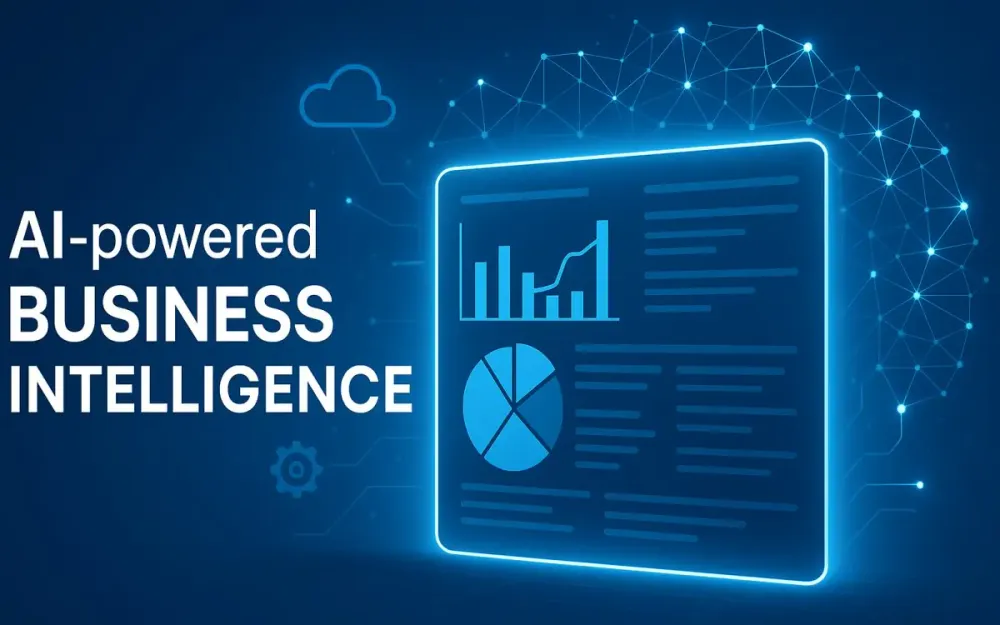
This is the essence of a Self-Writing Report—an AI-powered layer that dynamically generates human-readable commentary alongside visuals. It works as a junior analyst at scale, highlighting anomalies, summarizing performance, and providing actionable insights directly in Power BI.
With the maturity of Azure OpenAI and the flexibility of Power BI, this vision is not futuristic—it’s implementable today.
Pro Tip: Frame the Self-Writing Report not as a replacement for analysts, but as a force multiplier. Analysts can shift focus from descriptive reporting to prescriptive strategy.
1.3 Who This Article Is For
This guide is designed for technical practitioners who architect, build, and scale enterprise BI solutions. Specifically:
- Senior Developers & Data Engineers: who need to prepare and transform data pipelines.
- BI Leads & Power BI Architects: responsible for shaping dashboards and embedding AI-driven narratives.
- Solution Architects & Cloud Engineers: tasked with integrating Azure services, ensuring governance, scalability, and cost efficiency.
We assume familiarity with SQL, cloud-native architecture, and BI concepts. Knowledge of Azure OpenAI or prompt engineering is beneficial but not required—we cover these concepts from first principles.
1.4 The Technology Stack at a Glance
Delivering a Self-Writing Report requires a carefully orchestrated Azure-based architecture. The core components include:
- Power BI – the visualization canvas where insights are displayed.
- Azure OpenAI Service – the reasoning engine (GPT-4 / GPT-4o) that generates plain-language commentary.
- Azure SQL Database – the data foundation for both source facts and generated insights.
- Azure Logic Apps / Azure Functions – the orchestration layer that automates data aggregation, AI calls, and persistence.
Supporting services include Azure Key Vault (for secrets), Managed Identities (for secure connections), and Azure Monitor (for performance tracking).
This stack ensures enterprise readiness: secure, scalable, and cost-controllable.
2 Foundational Concepts: The Building Blocks of AI-Powered BI
2.1 Power BI as a Dynamic Visualization Canvas
Power BI has evolved far beyond its early reputation as “Excel on steroids.” It is a composable business intelligence platform, capable of hosting not just visuals but also interactive narratives, AI-powered commentary, and embedded workflows.
In the Self-Writing Report pattern, Power BI plays the role of narrative host rather than analyst. The models and orchestration services do the heavy lifting, while Power BI makes those insights consumable, filterable, and interactive.
Practical scenarios include:
- Smart Narrative visual: Microsoft’s built-in feature that generates textual summaries of charts. In our architecture, this can be overridden or augmented by AI-authored text stored in SQL.
- Card and KPI visuals: Useful for showing AI-generated executive summaries (“Revenue up 12% QoQ, driven by APAC demand”).
- Custom visuals with JSON rendering: Developers can create visuals that parse AI-returned JSON, showing bullet lists of trends and anomalies.
- Conditional formatting with AI tags: For example, an anomaly flagged by the AI can be highlighted in red or annotated directly in the chart.
Pitfall: A common mistake is pushing too much business logic into Power BI (via DAX or Power Query). This leads to brittle reports and duplicated logic. The better practice is:
- Use SQL/Functions for pre-aggregation & data shaping.
- Use AI for narrative reasoning.
- Use Power BI strictly for presentation.
Pro Tip: Think of Power BI as the “stage” and Azure OpenAI as the “scriptwriter.” The SQL database is the “research assistant” preparing clean notes.
2.2 Azure OpenAI Service: The Reasoning Engine
2.2.1 What It Is and How It Differs from Public APIs
Azure OpenAI Service delivers the same cutting-edge models available via OpenAI, but wrapped in enterprise-grade Azure controls. This matters deeply in BI contexts because the data being analyzed—sales, finance, operations—is often regulated and business-critical.
Key differences from the public API:
- Security-first deployment: Private endpoints, VNets, and Azure Firewall integration keep data from traversing the public internet.
- Compliance guarantees: Certifications (ISO 27001, HIPAA, GDPR) make it usable in finance, healthcare, and government sectors.
- Identity integration: Instead of raw API keys, Azure resources can authenticate to the service using Managed Identities, simplifying governance and eliminating credential sprawl.
- Regional hosting: Customers can choose to keep data residency in specific Azure regions, critical for regulatory compliance.
Trade-off: While public APIs sometimes receive models first, Azure OpenAI provides the stability, SLAs, and enterprise controls required for production BI workloads.
2.2.2 Understanding Generative Pre-trained Transformers (GPT)
At its core, a GPT model is a sequence predictor trained on massive amounts of text and code. But when framed correctly, it behaves like a general reasoning engine.
In BI applications, GPT is not answering chit-chat questions. Instead, it is tasked as a junior analyst:
- Interpreting aggregated sales data.
- Spotting trends and anomalies.
- Drafting business-ready commentary.
- Returning structured outputs (e.g., JSON) that downstream systems can parse.
The key lies in prompt engineering—designing precise roles, contexts, and constraints. For example:
{
  "role": "business_analyst",
  "task": "analyze sales data",
  "constraints": "respond with JSON including executiveSummary, positiveTrends, anomalies",
  "data": {...}
}
Incorrect: Sending GPT 10,000 rows of raw sales transactions. Correct: Sending GPT a pre-aggregated JSON (e.g., sales by region, product, and week), with clear instructions to generate structured insights.
2.2.3 Model Selection (as of late 2025)
Model choice has a direct impact on cost, latency, and accuracy. As of August 2025, the most relevant Azure OpenAI models are:
-
GPT-4 (1106-preview and successors):
- Still the most reliable for structured text and JSON.
- Excellent for summarization, anomaly detection, and insight generation.
- Higher latency and cost than lightweight models.
-
GPT-4o (2025 “Omni” series):
- Multimodal (text, code, and image input).
- Ideal for scenarios where users upload a chart or screenshot and request narrative analysis.
- Faster and cheaper than GPT-4 for mixed workloads.
-
GPT-4 Turbo (production-tuned):
- A cost-effective, lower-latency variant of GPT-4 optimized for large-scale batch reporting.
- Recommended when generating thousands of insights nightly (e.g., per region, per department).
-
Phi-3 (Microsoft small language model, Azure-native):
- Compact, cheaper, and optimized for on-device or constrained environments.
- Can be paired with GPT-4 for a “two-tiered” workflow: Phi-3 for pre-filtering/aggregation, GPT-4 for final commentary.
Pro Tip:
- Use GPT-4 Turbo for scheduled bulk reporting (end-of-week insights).
- Use GPT-4o for interactive, multimodal, user-triggered scenarios.
- Keep Phi-3 in your toolbox for cost-sensitive preprocessing.
2.3 Azure SQL Database: The Data & Insights Hub
If Power BI is the canvas and GPT is the analyst, Azure SQL Database is the newsroom archive—the place where facts and AI-authored stories live side by side.
Why SQL is indispensable in AI-powered BI:
-
Aggregation & Preprocessing: Large Language Models (LLMs) can’t handle raw fact tables with millions of rows. SQL helps by producing pre-aggregated slices—weekly revenue, YoY growth, anomaly markers—before passing them to AI.
-
Example:
SELECT
  Region,
  SUM(SalesAmount) AS TotalSales,
  SUM(Quantity) AS UnitsSold,
  SUM(SalesAmount) - LAG(SUM(SalesAmount)) OVER (PARTITION BY Region ORDER BY FiscalWeek) AS WoWChange
FROM FactSales
GROUP BY Region, FiscalWeek;
-
-
Persistence of Insights: AI-generated narratives are not ephemeral. By storing them in SQL (
GeneratedInsightstable), organizations can:- Track insights historically.
- Compare AI commentary against business outcomes.
- Audit or retrain prompts using real outputs.
-
Governance & Security: SQL enforces access control, row-level security, and auditing—all critical when AI is summarizing sensitive business data.
A minimal schema includes:
-
FactSales– transaction-level data. -
DimDate,DimProduct,DimRegion– descriptive metadata. -
GeneratedInsights– AI outputs with columns like:InsightID(PK)ReportNamePeriodStartDate,PeriodEndDateSummaryText(narrative)KeyTrendsJSON,AnomalyDetailsJSON
Note: Treat SQL as the hub of truth where machine-generated insights join human-curated facts. This enables versioning, reproducibility, and accountability—all crucial for enterprise BI.
3 The Architectural Blueprint: A High-Level Design
3.1 The End-to-End Vision
The Self-Writing Report is not a single feature but an end-to-end system. It combines the strengths of data engineering, AI reasoning, orchestration, and business intelligence into a continuous pipeline. Conceptually, the architecture resembles an assembly line: data flows in raw, gets cleaned and aggregated, passes through an AI reasoning stage, and emerges as narrative insights rendered in Power BI.
A high-level workflow unfolds as follows:
- Raw data ingestion: Operational and transactional data lands in Azure SQL Database or a warehouse such as Synapse/Fabric.
- Data preparation: SQL Stored Procedures transform this into compact summaries suitable for AI prompts.
- Orchestration: Azure Logic Apps or Functions trigger aggregation, invoke AI, and store results.
- AI reasoning: Azure OpenAI Service interprets the summaries, identifies trends, and generates narrative commentary in JSON form.
- Insight persistence: Results are stored in a dedicated SQL table for traceability.
- Presentation: Power BI queries this table in DirectQuery mode, ensuring commentary is dynamic and synchronized with data slices.
Think of the workflow as a relay race: SQL prepares the baton (aggregated data), Azure Functions pass it to OpenAI, OpenAI enriches it with narrative, and SQL stores the result for Power BI to display. Each component specializes in what it does best.
Pro Tip: Treat this system as modular. Each stage should be independently replaceable (e.g., Logic App replaced with a Function, SQL replaced with Fabric Lakehouse) without breaking the rest of the pipeline.
3.2 Component Breakdown & Responsibilities
3.2.1 Data Ingestion & Storage
The foundation of insights is raw data. In most enterprises, this originates from ERP, CRM, e-commerce, IoT telemetry, or other transactional systems. The ingestion layer funnels it into a centralized, queryable store.
Options include:
- Azure SQL Database: Best for mid-sized transactional workloads, especially when near-real-time refresh is required.
- Azure Synapse or Microsoft Fabric Lakehouse: Suited for large-scale, multi-source analytical workloads.
- Hybrid architecture: Use Fabric for historical/large datasets and SQL Database for near-real-time operational insights.
Example schema for a retail sales system in Azure SQL:
CREATE TABLE FactSales (
    SalesID INT IDENTITY PRIMARY KEY,
    ProductID INT NOT NULL,
    RegionID INT NOT NULL,
    DateKey INT NOT NULL,
    Quantity INT NOT NULL,
    SalesAmount DECIMAL(18,2) NOT NULL,
    CreatedAt DATETIME2 DEFAULT SYSDATETIME()
);

CREATE TABLE DimProduct (
    ProductID INT PRIMARY KEY,
    ProductName NVARCHAR(200),
    Category NVARCHAR(100),
    Brand NVARCHAR(100)
);

CREATE TABLE DimRegion (
    RegionID INT PRIMARY KEY,
    RegionName NVARCHAR(100),
    Country NVARCHAR(100)
);
Pitfall: Storing raw, unaggregated data in tables that are directly queried by AI. The AI will choke on millions of rows. Always pre-aggregate before calling OpenAI.
Trade-off: While Fabric or Synapse scales better for enterprise-wide ingestion, SQL Database offers simplicity, lower latency, and tighter integration with Logic Apps and Functions.
3.2.2 The Orchestration Layer (The Conductor)
The orchestration layer is the conductor of the symphony—ensuring each service plays at the right time. Azure provides two main instruments here:
-
Azure Logic Apps:
- Low-code/no-code orchestration.
- Ideal for business-friendly workflows (scheduled refreshes, email notifications, approvals).
- Easy integration with SQL, Key Vault, and Power BI triggers.
-
Azure Functions:
- Code-first, event-driven.
- Best for custom logic, complex error handling, or high-volume parallel workloads.
- Supports C#, Python, JavaScript, and more.
Comparison example:
- Use Logic Apps for weekly scheduled “generate report” pipelines where business stakeholders might want to edit the workflow visually.
- Use Functions for real-time, on-demand analysis triggered by user interactions in Power BI.
C# example of a simple Azure Function orchestrating OpenAI calls:
[FunctionName("GenerateInsights")]
public static async Task<IActionResult> Run(
    [HttpTrigger(AuthorizationLevel.Function, "post")] HttpRequest req,
    [Sql("dbo.usp_AggregateSalesForAI", CommandType.StoredProcedure,
        ConnectionStringSetting = "SqlConnectionString")] IEnumerable<SalesSummary> summaries,
    ILogger log)
{
    var client = new HttpClient();
    var openAiUrl = Environment.GetEnvironmentVariable("OpenAiEndpoint");
    var apiKey = Environment.GetEnvironmentVariable("OpenAiApiKey");

    var payload = new {
        model = "gpt-4-turbo",
        messages = new [] {
            new { role = "system", content = "You are a BI analyst generating insights." },
            new { role = "user", content = $"Analyze this data: {JsonConvert.SerializeObject(summaries)}" }
        }
    };

    client.DefaultRequestHeaders.Add("Authorization", $"Bearer {apiKey}");
    var response = await client.PostAsync(openAiUrl,
        new StringContent(JsonConvert.SerializeObject(payload), Encoding.UTF8, "application/json"));
    var content = await response.Content.ReadAsStringAsync();

    // Store results back into SQL
    // (would call usp_SaveInsight here)

    return new OkObjectResult(content);
}
Pro Tip: Use Functions for real-time, user-triggered workloads, and Logic Apps for scheduled or business-driven workflows. Many enterprises use both side by side.
3.2.3 The Data Preparation Layer (The Prep Kitchen)
Raw data is too noisy for AI. The data prep stage transforms millions of transactions into digestible summaries. This step is the kitchen where ingredients are chopped, prepped, and presented to the AI chef.
Typical techniques:
- Pre-aggregation: Summing sales by region, product, and week.
- Window functions: Computing period-over-period growth.
- Flagging anomalies: Pre-compute z-scores or deviation thresholds.
T-SQL example using GROUPING SETS and LAG:
CREATE OR ALTER PROCEDURE usp_AggregateSalesForAI
AS
BEGIN
    SET NOCOUNT ON;

    SELECT
        d.RegionName,
        p.Category,
        dt.FiscalWeek,
        SUM(f.SalesAmount) AS TotalSales,
        SUM(f.Quantity) AS UnitsSold,
        (SUM(f.SalesAmount) -
         LAG(SUM(f.SalesAmount)) OVER (PARTITION BY d.RegionName, p.Category ORDER BY dt.FiscalWeek)) AS WoWChange
    FROM FactSales f
    JOIN DimProduct p ON f.ProductID = p.ProductID
    JOIN DimRegion d ON f.RegionID = d.RegionID
    JOIN DimDate dt ON f.DateKey = dt.DateKey
    GROUP BY GROUPING SETS (
        (d.RegionName, p.Category, dt.FiscalWeek),
        (d.RegionName, dt.FiscalWeek)
    )
    FOR JSON PATH, ROOT('SalesSummary');
END
This produces compact JSON ready for OpenAI.
Pitfall: Sending raw row-level data directly to AI increases cost (token usage) and degrades reasoning quality. Always summarize in SQL first.
3.2.4 The Intelligence Layer (The Brain)
Here lies the reasoning step: invoking Azure OpenAI to transform structured JSON into human-readable commentary and structured insights.
The orchestration layer passes aggregated JSON into a carefully engineered prompt. The AI returns a JSON object with multiple sections—executive summary, trends, anomalies—that SQL can easily parse.
Python example for calling Azure OpenAI with structured prompts:
import os
import openai
import pyodbc
import json

openai.api_key = os.getenv("AZURE_OPENAI_KEY")
openai.api_base = os.getenv("AZURE_OPENAI_ENDPOINT")
openai.api_type = "azure"
openai.api_version = "2024-08-01-preview"

# Step 1: Get aggregated data from SQL
conn = pyodbc.connect(os.getenv("SQL_CONN"))
cursor = conn.cursor()
cursor.execute("EXEC usp_AggregateSalesForAI")
rows = cursor.fetchall()
data_payload = [dict(zip([column[0] for column in cursor.description], row)) for row in rows]

# Step 2: Call OpenAI
response = openai.ChatCompletion.create(
    engine="gpt-4-turbo",
    messages=[
        {"role": "system", "content": "You are a senior BI analyst."},
        {"role": "user", "content": f"Analyze this sales summary JSON: {json.dumps(data_payload)}. Respond in JSON with keys executiveSummary, trends, anomalies."}
    ]
)

insights = response['choices'][0]['message']['content']
print(insights)
Note: Keep prompts structured and predictable to ensure reliable automation. Always specify required JSON keys.
3.2.5 The Insight Persistence Layer
The insights generated by AI need a permanent home. Without persistence, each query would regenerate commentary inconsistently, and there would be no audit trail.
SQL schema for persisting insights:
CREATE TABLE GeneratedInsights (
    InsightID INT IDENTITY PRIMARY KEY,
    ReportName NVARCHAR(200) NOT NULL,
    DateGenerated DATETIME2 DEFAULT SYSDATETIME(),
    PeriodStartDate DATE,
    PeriodEndDate DATE,
    SummaryText NVARCHAR(MAX),
    KeyTrendsJSON NVARCHAR(MAX),
    AnomalyDetailsJSON NVARCHAR(MAX)
);
Stored procedure for saving AI responses:
CREATE OR ALTER PROCEDURE usp_SaveInsight
    @ReportName NVARCHAR(200),
    @PeriodStart DATE,
    @PeriodEnd DATE,
    @InsightJSON NVARCHAR(MAX)
AS
BEGIN
    INSERT INTO GeneratedInsights (ReportName, PeriodStartDate, PeriodEndDate, SummaryText, KeyTrendsJSON, AnomalyDetailsJSON)
    SELECT
        @ReportName,
        @PeriodStart,
        @PeriodEnd,
        JSON_VALUE(@InsightJSON, '$.executiveSummary'),
        JSON_QUERY(@InsightJSON, '$.trends'),
        JSON_QUERY(@InsightJSON, '$.anomalies');
END
Pro Tip: By storing both the raw AI JSON and a text summary, you support both machine queries and human readability.
3.2.6 The Presentation Layer
The final layer is Power BI, which consumes the stored insights and displays them alongside visuals. By using DirectQuery against the GeneratedInsights table, reports remain dynamic.
Examples:
- A Smart Narrative visual that displays
GeneratedInsights.SummaryText. - A Card visual showing key anomalies flagged in the last week.
- DAX measure binding:
SelectedInsight =
    MAX(GeneratedInsights[SummaryText])
Filtered by slicers (e.g., PeriodEndDate) so that the commentary updates interactively.
Trade-off: DirectQuery ensures real-time access but may add latency. For highly static reports, Import mode with periodic refresh may be more performant.
Pitfall: Avoid overloading visuals with too much free text. Instead, show an executive summary and allow drill-through into detailed AI commentary.
4 The Data Foundation: Preparing Data for the AI Analyst (T-SQL Deep Dive)
4.1 Designing the Database Schema
Every successful Self-Writing Report begins with a solid database schema. This schema must balance three priorities: (1) storing raw data efficiently, (2) enabling performant aggregations for AI preparation, and (3) persisting AI-generated insights for later retrieval. Unlike traditional BI systems where fact and dimension modeling is the end goal, here we also need to provision narrative persistence structures for AI outputs.
4.1.1 Source Data Tables (e.g., FactSales, DimDate, DimProduct)
The fact and dimension model remains the backbone for analytics. Fact tables store high-granularity data, while dimensions provide descriptive context. For our example—retail sales reporting—the schema looks like this:
CREATE TABLE DimDate (
    DateKey INT NOT NULL PRIMARY KEY, -- YYYYMMDD format
    FullDate DATE NOT NULL,
    FiscalYear INT NOT NULL,
    FiscalQuarter INT NOT NULL,
    FiscalMonth INT NOT NULL,
    FiscalWeek INT NOT NULL,
    DayOfWeekName NVARCHAR(20) NOT NULL
);

CREATE TABLE DimProduct (
    ProductID INT NOT NULL PRIMARY KEY,
    ProductName NVARCHAR(200) NOT NULL,
    Category NVARCHAR(100) NOT NULL,
    SubCategory NVARCHAR(100),
    Brand NVARCHAR(100),
    LaunchDate DATE
);

CREATE TABLE DimRegion (
    RegionID INT NOT NULL PRIMARY KEY,
    RegionName NVARCHAR(100) NOT NULL,
    Country NVARCHAR(100),
    Market NVARCHAR(100)
);

CREATE TABLE FactSales (
    SalesID BIGINT IDENTITY PRIMARY KEY,
    DateKey INT NOT NULL FOREIGN KEY REFERENCES DimDate(DateKey),
    ProductID INT NOT NULL FOREIGN KEY REFERENCES DimProduct(ProductID),
    RegionID INT NOT NULL FOREIGN KEY REFERENCES DimRegion(RegionID),
    Quantity INT NOT NULL,
    SalesAmount DECIMAL(18,2) NOT NULL,
    DiscountAmount DECIMAL(18,2) DEFAULT 0,
    CreatedAt DATETIME2 DEFAULT SYSDATETIME()
);
Pro Tip: Always design FactSales with surrogate keys (DateKey, ProductID, RegionID) for join efficiency. AI workflows often rely on time-series aggregations, making DimDate critical for period-based analysis.
Pitfall: Avoid over-normalizing dimensions. For AI-driven narratives, having concise but descriptive fields (e.g., RegionName, Category) is better than deeply nested hierarchies that complicate JSON payload generation.
4.1.2 The GeneratedInsights Table
The GeneratedInsights table is the “AI notebook” where narrative outputs live. It should support both human readability (text summaries) and machine readability (structured JSON).
CREATE TABLE GeneratedInsights (
    InsightID INT IDENTITY PRIMARY KEY,
    ReportName NVARCHAR(200) NOT NULL,
    DateGenerated DATETIME2 DEFAULT SYSDATETIME(),
    PeriodStartDate DATE NOT NULL,
    PeriodEndDate DATE NOT NULL,
    SummaryText NVARCHAR(MAX) NOT NULL,
    KeyTrendsJSON NVARCHAR(MAX) NULL,
    AnomalyDetailsJSON NVARCHAR(MAX) NULL,
    RawResponseJSON NVARCHAR(MAX) NULL
);SummaryTextis short and human-friendly (e.g., “Revenue grew 12% QoQ, led by APAC.”).KeyTrendsJSONcaptures structured arrays of trends.AnomalyDetailsJSONholds deviations or alerts.RawResponseJSONstores the full AI output for traceability and reprocessing.
Note: Keeping the raw JSON is essential for governance. If the AI model evolves, historical outputs can be re-parsed or compared for drift analysis.
4.2 The Art of Pre-Aggregation
Language models like GPT-4 and GPT-4o operate under token limits. Passing 1M+ rows of raw fact data is both impractical and expensive. The trick is pre-aggregating the data into compact, AI-digestible summaries. This requires SQL fluency with grouping sets, window functions, and compact JSON serialization.
Using GROUP BY CUBE or GROUPING SETS to Create Rich Summary Tables
With GROUPING SETS, you can compute multiple levels of aggregation in a single pass—ideal for generating summary payloads for AI.
CREATE OR ALTER VIEW vw_SalesSummary AS
SELECT
    d.FiscalWeek,
    r.RegionName,
    p.Category,
    SUM(f.SalesAmount) AS TotalSales,
    SUM(f.Quantity) AS UnitsSold
FROM FactSales f
JOIN DimDate d ON f.DateKey = d.DateKey
JOIN DimRegion r ON f.RegionID = r.RegionID
JOIN DimProduct p ON f.ProductID = p.ProductID
GROUP BY GROUPING SETS (
    (d.FiscalWeek, r.RegionName, p.Category),
    (d.FiscalWeek, r.RegionName),
    (d.FiscalWeek)
);
This generates multi-grain summaries: by week/region/category, by week/region, and overall by week. The AI can then reason about both detailed and high-level trends without requiring row-level data.
Trade-off: GROUPING SETS reduce query complexity but increase intermediate row counts. For very large datasets, pre-materialize this view into a staging table refreshed daily.
Using Window Functions (LAG, LEAD) for Period-over-Period Changes
AI models benefit when deltas and growth rates are computed in advance. Window functions provide this efficiently.
SELECT
    r.RegionName,
    d.FiscalWeek,
    SUM(f.SalesAmount) AS TotalSales,
    SUM(f.SalesAmount) -
      LAG(SUM(f.SalesAmount)) OVER (PARTITION BY r.RegionName ORDER BY d.FiscalWeek) AS WoWChange,
    (SUM(f.SalesAmount) -
      LAG(SUM(f.SalesAmount)) OVER (PARTITION BY r.RegionName ORDER BY d.FiscalWeek)) * 1.0 /
      NULLIF(LAG(SUM(f.SalesAmount)) OVER (PARTITION BY r.RegionName ORDER BY d.FiscalWeek), 0) * 100 AS WoWPercentChange
FROM FactSales f
JOIN DimDate d ON f.DateKey = d.DateKey
JOIN DimRegion r ON f.RegionID = r.RegionID
GROUP BY r.RegionName, d.FiscalWeek;
This outputs week-over-week changes, both absolute and percentage. Instead of asking the AI to compute ratios, we pre-compute and pass clean metrics.
Pitfall: Do not assume AI will calculate deltas reliably. Even though GPT models can compute, they are not deterministic in arithmetic. Always provide pre-computed KPIs in the payload.
4.3 Crafting the AI Payload with T-SQL
Once the summaries are prepared, they must be serialized into a compact JSON structure—the language the AI understands best. SQL Server’s FOR JSON PATH is the linchpin here.
4.3.1 The Power of FOR JSON PATH
FOR JSON PATH enables SQL results to be output as structured JSON, with nested arrays and objects. This allows us to feed AI models a self-contained, machine-readable snapshot.
Example stored procedure:
CREATE OR ALTER PROCEDURE usp_AggregateSalesForAI
    @StartDate DATE,
    @EndDate DATE
AS
BEGIN
    SET NOCOUNT ON;

    SELECT
        r.RegionName,
        p.Category,
        d.FiscalWeek,
        SUM(f.SalesAmount) AS TotalSales,
        SUM(f.Quantity) AS UnitsSold,
        SUM(f.SalesAmount) -
          LAG(SUM(f.SalesAmount)) OVER (PARTITION BY r.RegionName, p.Category ORDER BY d.FiscalWeek) AS WoWChange,
        (SUM(f.SalesAmount) -
          LAG(SUM(f.SalesAmount)) OVER (PARTITION BY r.RegionName, p.Category ORDER BY d.FiscalWeek)) * 1.0 /
          NULLIF(LAG(SUM(f.SalesAmount)) OVER (PARTITION BY r.RegionName, p.Category ORDER BY d.FiscalWeek), 0) * 100 AS WoWPercentChange
    FROM FactSales f
    JOIN DimDate d ON f.DateKey = d.DateKey
    JOIN DimRegion r ON f.RegionID = r.RegionID
    JOIN DimProduct p ON f.ProductID = p.ProductID
    WHERE d.FullDate BETWEEN @StartDate AND @EndDate
    GROUP BY r.RegionName, p.Category, d.FiscalWeek
    FOR JSON PATH, ROOT('SalesSummary'), INCLUDE_NULL_VALUES;
END
When executed, this procedure returns JSON such as:
{
  "SalesSummary": [
    {
      "RegionName": "North America",
      "Category": "Electronics",
      "FiscalWeek": 202532,
      "TotalSales": 120000.00,
      "UnitsSold": 1540,
      "WoWChange": 20000.00,
      "WoWPercentChange": 20.0
    },
    {
      "RegionName": "Europe",
      "Category": "Clothing",
      "FiscalWeek": 202532,
      "TotalSales": 80000.00,
      "UnitsSold": 1025,
      "WoWChange": -5000.00,
      "WoWPercentChange": -5.8
    }
  ]
}
This JSON is compact, consistent, and ready for AI ingestion. By pre-structuring the payload, we ensure the AI can focus on interpretation, not data wrangling.
Pro Tip: Keep JSON depth shallow (2–3 levels max). Deeply nested objects may exceed token limits or confuse the reasoning engine.
Note: Always include INCLUDE_NULL_VALUES so that the AI sees explicit absence of data instead of missing fields, which improves reasoning about “no change” scenarios.
5 The Intelligence Layer: Prompt Engineering for Business Insights
5.1 It’s All About the Prompt
The prompt is the blueprint for how the AI interprets data. A vague instruction such as “Summarize this sales data” produces equally vague results. By contrast, a precise, role-specific, and structured prompt transforms the AI from a casual summarizer into a methodical business analyst.
In this architecture, prompt design is not a one-off exercise but an iterative engineering discipline. Prompts must evolve alongside reporting needs, stakeholder expectations, and model behavior. For production readiness, prompts should be:
- Contextual: tailored to the business scenario.
- Structured: specifying the output format (usually JSON).
- Constrained: guiding the AI to focus on quantifiable, actionable insights.
- Tested: validated against known data scenarios.
Pitfall: Treating prompt engineering as optional. In production, poorly engineered prompts lead to inconsistent outputs, parsing errors, or narratives that fail to align with business expectations.
Pro Tip: Maintain your prompts in version-controlled repositories (e.g., Git). This ensures traceability, rollback, and continuous improvement as the system evolves.
5.2 The Anatomy of a High-Fidelity Prompt
Crafting a strong prompt involves more than asking the model to “explain the data.” Each component—role, context, payload, task, and structure—must be intentional. Let’s break this down.
5.2.1 Role-Playing
Assigning the AI a persona dramatically improves quality. Instead of the model behaving like a conversational bot, it adopts the mindset of a professional analyst.
Example:
You are an expert business analyst at a multinational retail company.
Your task is to analyze weekly sales performance and provide concise, executive-ready insights.
Note: Role-playing primes the AI to adopt a professional tone and focus on decision-making, not casual commentary.
5.2.2 Providing Context
Context guides the AI to frame its analysis appropriately. Without it, the model may misinterpret trends or exaggerate significance.
Example:
The following data represents weekly aggregated sales across regions and product categories.
The business is highly seasonal, with strong Q4 performance.
Executives need a summary that highlights the most critical movements.
Trade-off: More context improves accuracy but increases token usage. Balance verbosity with cost efficiency.
5.2.3 The Data Payload
This is the compact JSON produced in Section 4. The key is passing summaries, not transactions.
Example payload:
{
  "SalesSummary": [
    {
      "RegionName": "North America",
      "Category": "Electronics",
      "FiscalWeek": 202532,
      "TotalSales": 120000.00,
      "UnitsSold": 1540,
      "WoWChange": 20000.00,
      "WoWPercentChange": 20.0
    },
    {
      "RegionName": "Europe",
      "Category": "Clothing",
      "FiscalWeek": 202532,
      "TotalSales": 80000.00,
      "UnitsSold": 1025,
      "WoWChange": -5000.00,
      "WoWPercentChange": -5.8
    }
  ]
}
Pro Tip: If your payload exceeds token limits, filter to the top N categories/regions by revenue before sending to the model. Keep the narrative focused.
5.2.4 The Task & Constraints
This section dictates the exact analysis required, preventing the model from wandering into irrelevant detail.
Example:
Analyze the provided JSON data.
Identify the top 3 positive trends and the top 2 anomalies.
Be concise, data-driven, and quantify impacts in dollar or percentage terms.
Avoid generic statements like "sales are good." Focus on specific, measurable changes.
Pitfall: Vague tasks such as “Find anomalies” can lead to superficial answers. Always specify the number of items and the criteria for relevance.
5.2.5 Defining the Output Structure
This is the most important step for automation reliability. By enforcing strict JSON structure, downstream systems (SQL, Power BI) can parse results without ambiguity.
Example:
Your response MUST be a valid JSON object with the following keys:
- executiveSummary: a 3-sentence paragraph written for executives.
- positiveTrends: an array of strings highlighting the top 3 improvements.
- detectedAnomalies: an array of strings highlighting the top 2 risks or declines.
Expected AI output:
{
  "executiveSummary": "North America electronics surged 20% week-over-week, contributing $20K incremental revenue. Europe clothing fell 5.8%, driven by supply constraints. Overall, weekly revenue increased by 7% across all regions.",
  "positiveTrends": [
    "North America electronics up 20% WoW (+$20K).",
    "APAC apparel growth sustained at 12% for 3rd consecutive week.",
    "Overall weekly revenue grew 7%."
  ],
  "detectedAnomalies": [
    "Europe clothing sales dropped 5.8% (-$5K).",
    "South America home goods underperformed despite promotions (-3%)."
  ]
}
Pro Tip: Add a validation step (e.g., JSON schema validation in Python or C#) to catch malformed outputs before persisting them in SQL.
5.3 Making the API Call
Once the prompt is engineered, we need to send it to Azure OpenAI. This can be done from Azure Functions, Logic Apps, or even direct client apps. The key is wrapping the JSON payload and prompt together.
Example: Python (Azure Function)
import os
import json
import openai
import pyodbc
from azure.identity import DefaultAzureCredential

# Azure OpenAI setup
openai.api_type = "azure"
openai.api_version = "2024-08-01-preview"
openai.api_base = os.getenv("AZURE_OPENAI_ENDPOINT")
openai.api_key = os.getenv("AZURE_OPENAI_KEY")

def main(req):
    # Step 1: Fetch aggregated data from SQL
    conn = pyodbc.connect(os.getenv("SQL_CONN"))
    cursor = conn.cursor()
    cursor.execute("EXEC usp_AggregateSalesForAI @StartDate='2025-08-01', @EndDate='2025-08-07'")
    data_payload = cursor.fetchall()
    cols = [col[0] for col in cursor.description]
    rows = [dict(zip(cols, row)) for row in data_payload]

    # Step 2: Construct the prompt
    messages = [
        {"role": "system", "content": "You are an expert business analyst."},
        {"role": "user", "content": f"""
            Analyze the following weekly sales summary JSON:
            {json.dumps(rows)}
            Provide insights as valid JSON with keys: executiveSummary, positiveTrends, detectedAnomalies.
        """}
    ]

    # Step 3: Call Azure OpenAI
    response = openai.ChatCompletion.create(
        engine="gpt-4-turbo",
        messages=messages,
        temperature=0.2
    )

    return response['choices'][0]['message']['content']
Note: temperature=0.2 reduces creativity, making outputs more consistent—a critical factor in automated pipelines.
Example: Logic App HTTP Action
In Logic Apps, you can use the HTTP action with a POST body like:
{
  "model": "gpt-4-turbo",
  "messages": [
    { "role": "system", "content": "You are an expert BI analyst." },
    { "role": "user", "content": "Analyze this sales JSON: @{body('Execute_stored_procedure')}" }
  ]
}
Pro Tip: For large payloads, compress JSON or paginate summaries across multiple API calls. Merge results in SQL for downstream use.
5.4 Processing the AI’s Response in SQL
Once the AI returns a JSON string, it must be parsed and persisted. SQL Server’s OPENJSON function allows shredding JSON into relational rows.
Example: T-SQL Stored Procedure
CREATE OR ALTER PROCEDURE usp_SaveInsight
    @ReportName NVARCHAR(200),
    @PeriodStart DATE,
    @PeriodEnd DATE,
    @InsightJSON NVARCHAR(MAX)
AS
BEGIN
    SET NOCOUNT ON;

    DECLARE @executiveSummary NVARCHAR(MAX),
            @trends NVARCHAR(MAX),
            @anomalies NVARCHAR(MAX);

    -- Parse the JSON response
    SELECT
        @executiveSummary = JSON_VALUE(@InsightJSON, '$.executiveSummary'),
        @trends = JSON_QUERY(@InsightJSON, '$.positiveTrends'),
        @anomalies = JSON_QUERY(@InsightJSON, '$.detectedAnomalies');

    -- Insert into GeneratedInsights table
    INSERT INTO GeneratedInsights
    (ReportName, PeriodStartDate, PeriodEndDate, SummaryText, KeyTrendsJSON, AnomalyDetailsJSON, RawResponseJSON)
    VALUES
    (@ReportName, @PeriodStart, @PeriodEnd, @executiveSummary, @trends, @anomalies, @InsightJSON);
END
Example Execution
EXEC usp_SaveInsight
    @ReportName = 'Weekly Sales Report',
    @PeriodStart = '2025-08-01',
    @PeriodEnd = '2025-08-07',
    @InsightJSON = N'{
        "executiveSummary": "North America surged 20% while Europe declined 6%.",
        "positiveTrends": ["North America electronics +20%", "APAC clothing sustained growth"],
        "detectedAnomalies": ["Europe clothing -6%", "South America home goods underperformed"]
    }';
The data is now queryable in SQL and available for DirectQuery in Power BI.
Pitfall: Never trust the AI to always return perfectly valid JSON. Implement validation logic in Functions or Logic Apps before passing the output into SQL to avoid runtime errors.
Pro Tip: Store both the structured values and the raw JSON. The structured values feed Power BI; the raw JSON allows for reprocessing or schema evolution.
6 The Presentation Layer: Weaving Narratives into Power BI
6.1 Connecting Power BI to Insights
Once the intelligence pipeline is generating structured insights and persisting them into SQL, the final step is to bring those insights to life in Power BI. This involves connecting Power BI directly to the GeneratedInsights table in DirectQuery mode.
To establish the connection:
- Open Power BI Desktop.
- Select Get Data > Azure > Azure SQL Database.
- Enter the server name and database. Use Azure Active Directory authentication with Managed Identity for security.
- Select the
GeneratedInsightstable and load it in DirectQuery mode.
Using DirectQuery ensures that every refresh in Power BI retrieves the latest AI-generated commentary without requiring dataset re-imports. This makes insights appear as soon as the orchestration layer writes them into SQL.
Pro Tip: If you’re dealing with historical reports (e.g., month-end summaries), you may prefer Import mode for performance, refreshing the dataset daily. Use DirectQuery for live or near-real-time reporting scenarios where commentary evolves frequently.
Pitfall: DirectQuery can cause slower visuals if the underlying SQL queries are not indexed properly. Always index PeriodEndDate and ReportName in the GeneratedInsights table, since these are the most common filter keys in Power BI.
6.2 Visualizing Text: Best Practices
Displaying AI-generated text is different from showing charts or numbers. Text visuals need to balance readability with interactivity. Power BI offers several native and extensible options.
Using the Native “Smart Narrative” Visual
The Smart Narrative visual automatically generates summaries based on visuals in the report. In the Self-Writing Report design, however, we don’t rely on Smart Narrative to generate the text—we bind it to the AI-authored commentary.
Steps:
- Insert a Smart Narrative visual.
- Replace its default auto-generated narrative with a measure that pulls text from the
GeneratedInsightstable. - Style it for readability—larger font sizes, executive-friendly layout.
Pro Tip: Use Smart Narrative only as a presentation container, not a generator. Let Azure OpenAI produce the insights, and let Power BI display them.
Using Simple “Card” or “Text Box” Visuals Populated by DAX Measures
For short executive summaries, Card or Text Box visuals can be cleaner. These can be bound directly to DAX measures.
DAX Example:
SelectedInsight =
    MAX(GeneratedInsights[SummaryText])
Bind this measure to a Card visual, and the card will show the AI-generated executive summary for the currently filtered context.
Note: For multi-line summaries, Text Box visuals are preferable. Use dynamic titles or measures to populate them with filtered results.
Leveraging Custom Visuals from AppSource
For advanced presentation needs, AppSource offers visuals like:
- Word Cloud: Turn key AI-detected terms into a visual emphasis.
- Narrative Text Box: Custom visual that supports rich formatting of AI-generated JSON commentary.
- Bullet Chart with Commentary: Combine numeric KPIs with inline narrative.
Trade-off: Custom visuals provide richer experiences but may introduce governance concerns. Always validate vendor reliability before deploying in enterprise environments.
6.3 Creating a Dynamic & Interactive Report
Static narratives defeat the purpose of automation. A Self-Writing Report should be dynamic, adapting to user interactions such as date filters, region selections, or product drilldowns.
6.3.1 Using Slicers (e.g., by Date)
Suppose the GeneratedInsights table includes PeriodEndDate. Adding a slicer on this column allows business users to select the reporting period, which in turn updates both visuals and the associated AI commentary.
Steps:
- Add a Date Slicer for
PeriodEndDate. - Ensure relationships are properly set between
GeneratedInsightsand the main fact tables (FactSales). - Bind narrative visuals (Card, Text Box, or Smart Narrative) to measures that respond to the slicer context.
DAX Example:
SelectedInsight =
CALCULATE(
    MAX(GeneratedInsights[SummaryText]),
    FILTER(
        GeneratedInsights,
        GeneratedInsights[PeriodEndDate] = MAX(DimDate[FullDate])
    )
)
This measure ensures that when a user selects a week or month in the slicer, the corresponding AI commentary is displayed.
Pro Tip: Provide a default selection (e.g., most recent week). Without it, the narrative may appear blank when no filter is applied.
Adding Interactivity Across Dimensions
You can extend the concept beyond dates:
- Region slicers filter insights by
RegionName. - Category slicers filter by
Product Category. - Drill-through pages show detailed AI commentary for a selected category or region.
For example, a regional manager clicks on “Europe”, and the narrative updates to highlight anomalies and trends relevant only to that region.
Combining Charts with Commentary
One powerful technique is to align charts and commentary side by side. Example layout:
- Left: Sales trend line chart (FactSales).
- Right: Executive summary text card (GeneratedInsights).
- Below: Bullet points of anomalies (bound to
AnomalyDetailsJSON).
Pitfall: Avoid overwhelming users with multiple blocks of text. Instead, keep the executive summary short, and let users drill into anomalies or trends for deeper context.
Enhancing with Conditional Formatting
Conditional formatting allows you to visually flag text based on AI outputs. For example, highlight negative anomalies in red.
DAX Example:
InsightColor =
IF(
    CONTAINSSTRING( MAX(GeneratedInsights[SummaryText]), "decline" ),
    "Red",
    "Black"
)
Bind this measure to conditional text color formatting in a Card or Text Box. Executives will instantly see risk-related commentary highlighted in red.
7 End-to-End Implementation Walkthrough: A Real-World Scenario
7.1 The Use Case
To ground the concepts, let’s walk through an end-to-end build for a fictional e-commerce company called Global Retail. Global Retail operates across North America, Europe, APAC, and South America, selling products in multiple categories such as Electronics, Apparel, and Home Goods.
The business problem is familiar: executives want a weekly sales dashboard. The dashboard should not only show charts but also auto-generate plain-language insights: highlighting strong performance areas, warning of anomalies, and suggesting focus regions for the next week.
The implementation will follow the full Self-Writing Report pipeline:
- SQL data layer: fact and dimension tables plus the
GeneratedInsightsstore. - T-SQL aggregation: a stored procedure to compact data into JSON payloads.
- Azure Logic App: scheduled orchestration that invokes SQL, calls Azure OpenAI, and persists results.
- Power BI: the visualization canvas where executives consume numbers and narrative.
By the end, we’ll have a dashboard where a CFO can see not just “Sales up 8%” but “North America Electronics drove an additional $150K, while Europe Apparel declined 4% due to promotions underperforming.”
7.2 Step-by-Step Build
Step 1: SQL Script to Create the Tables
The foundation begins with fact and dimension tables for transactions, and an insights table for AI outputs.
-- Dimension: Date
CREATE TABLE DimDate (
    DateKey INT NOT NULL PRIMARY KEY, -- format YYYYMMDD
    FullDate DATE NOT NULL,
    FiscalYear INT NOT NULL,
    FiscalQuarter INT NOT NULL,
    FiscalMonth INT NOT NULL,
    FiscalWeek INT NOT NULL,
    DayOfWeekName NVARCHAR(20) NOT NULL
);

-- Dimension: Product
CREATE TABLE DimProduct (
    ProductID INT NOT NULL PRIMARY KEY,
    ProductName NVARCHAR(200),
    Category NVARCHAR(100),
    SubCategory NVARCHAR(100),
    Brand NVARCHAR(100)
);

-- Dimension: Region
CREATE TABLE DimRegion (
    RegionID INT NOT NULL PRIMARY KEY,
    RegionName NVARCHAR(100),
    Country NVARCHAR(100),
    Market NVARCHAR(100)
);

-- Fact: Sales
CREATE TABLE FactSales (
    SalesID BIGINT IDENTITY PRIMARY KEY,
    DateKey INT NOT NULL FOREIGN KEY REFERENCES DimDate(DateKey),
    ProductID INT NOT NULL FOREIGN KEY REFERENCES DimProduct(ProductID),
    RegionID INT NOT NULL FOREIGN KEY REFERENCES DimRegion(RegionID),
    Quantity INT NOT NULL,
    SalesAmount DECIMAL(18,2) NOT NULL,
    DiscountAmount DECIMAL(18,2) DEFAULT 0,
    CreatedAt DATETIME2 DEFAULT SYSDATETIME()
);

-- AI Output: Generated Insights
CREATE TABLE GeneratedInsights (
    InsightID INT IDENTITY PRIMARY KEY,
    ReportName NVARCHAR(200) NOT NULL,
    DateGenerated DATETIME2 DEFAULT SYSDATETIME(),
    PeriodStartDate DATE NOT NULL,
    PeriodEndDate DATE NOT NULL,
    SummaryText NVARCHAR(MAX),
    KeyTrendsJSON NVARCHAR(MAX),
    AnomalyDetailsJSON NVARCHAR(MAX),
    RawResponseJSON NVARCHAR(MAX)
);
Pro Tip: Add indexes on FactSales(DateKey) and GeneratedInsights(PeriodEndDate) to accelerate queries for weekly reporting.
Step 2: T-SQL Stored Procedure (usp_AggregateSalesForAI)
Now we aggregate raw sales into a compact JSON snapshot for AI to consume.
CREATE OR ALTER PROCEDURE usp_AggregateSalesForAI
    @StartDate DATE,
    @EndDate DATE
AS
BEGIN
    SET NOCOUNT ON;

    SELECT
        r.RegionName,
        p.Category,
        d.FiscalWeek,
        SUM(f.SalesAmount) AS TotalSales,
        SUM(f.Quantity) AS UnitsSold,
        SUM(f.SalesAmount) -
            LAG(SUM(f.SalesAmount)) OVER (PARTITION BY r.RegionName, p.Category ORDER BY d.FiscalWeek) AS WoWChange,
        (SUM(f.SalesAmount) -
            LAG(SUM(f.SalesAmount)) OVER (PARTITION BY r.RegionName, p.Category ORDER BY d.FiscalWeek)) * 1.0 /
            NULLIF(LAG(SUM(f.SalesAmount)) OVER (PARTITION BY r.RegionName, p.Category ORDER BY d.FiscalWeek), 0) * 100 AS WoWPercentChange
    FROM FactSales f
    JOIN DimDate d ON f.DateKey = d.DateKey
    JOIN DimRegion r ON f.RegionID = r.RegionID
    JOIN DimProduct p ON f.ProductID = p.ProductID
    WHERE d.FullDate BETWEEN @StartDate AND @EndDate
    GROUP BY r.RegionName, p.Category, d.FiscalWeek
    FOR JSON PATH, ROOT('SalesSummary'), INCLUDE_NULL_VALUES;
END
Pitfall: If the payload is too large, consider restricting categories or regions to top performers, or aggregate at a higher grain (e.g., Region + Week).
Step 3: Building the Azure Logic App
The orchestration ensures this process runs every week automatically.
3.1 Recurrence Trigger Configure the Logic App to run every Monday at 8 AM, after the previous week closes.
3.2 Execute SQL Stored Procedure Use the SQL Server connector:
- Action: Execute stored procedure.
- Procedure:
usp_AggregateSalesForAI. - Parameters:
@StartDate = last Monday,@EndDate = last Sunday.
3.3 Azure OpenAI “Generate Completion” Action Insert an HTTP action that posts to the Azure OpenAI endpoint with a structured prompt.
Example JSON body:
{
  "model": "gpt-4-turbo",
  "messages": [
    {
      "role": "system",
      "content": "You are an expert BI analyst writing a weekly performance summary."
    },
    {
      "role": "user",
      "content": "Analyze this JSON sales data and return structured insights: @{body('Execute_stored_procedure')}"
    }
  ],
  "temperature": 0.2
}
Note: Logic Apps support inline references like @{body('Execute_stored_procedure')}, allowing you to directly pass SQL output into the prompt.
3.4 Parse JSON Add a Parse JSON step to validate the AI response. Define a schema with fields:
executiveSummary(string)positiveTrends(array)detectedAnomalies(array)
3.5 Execute SQL Stored Procedure (usp_SaveInsight)
Finally, call another SQL Stored Procedure to persist insights.
CREATE OR ALTER PROCEDURE usp_SaveInsight
    @ReportName NVARCHAR(200),
    @PeriodStart DATE,
    @PeriodEnd DATE,
    @InsightJSON NVARCHAR(MAX)
AS
BEGIN
    INSERT INTO GeneratedInsights
    (ReportName, PeriodStartDate, PeriodEndDate, SummaryText, KeyTrendsJSON, AnomalyDetailsJSON, RawResponseJSON)
    SELECT
        @ReportName,
        @PeriodStart,
        @PeriodEnd,
        JSON_VALUE(@InsightJSON, '$.executiveSummary'),
        JSON_QUERY(@InsightJSON, '$.positiveTrends'),
        JSON_QUERY(@InsightJSON, '$.detectedAnomalies'),
        @InsightJSON;
END
Logic App maps parsed JSON fields to parameters and executes usp_SaveInsight.
Pro Tip: Always log both the parsed values and the raw AI response. This protects against schema drift if the model slightly changes formatting.
Step 4: Building the Power BI Report
With insights stored, the final step is crafting a dashboard that blends numbers with narrative.
-
Connect Power BI to Azure SQL
- Choose DirectQuery.
- Import
GeneratedInsights,FactSales, and supporting dimensions.
-
Executive Summary Visual
- Add a Card visual.
- Measure:
SelectedSummary = CALCULATE( MAX(GeneratedInsights[SummaryText]), FILTER( GeneratedInsights, GeneratedInsights[PeriodEndDate] = MAX(DimDate[FullDate]) ) )- This dynamically shows the latest executive summary for the filtered period.
-
Anomalies Visual
- Create a table visual.
- Bind it to
GeneratedInsights[AnomalyDetailsJSON]. - Use Power Query’s
JSON.Documentfunction to expand anomalies into rows.
-
Positive Trends Visual
- Similarly, expand
KeyTrendsJSONinto rows. - Display as bullet points in a table or custom “Narrative Text” visual.
- Similarly, expand
-
Interactivity with Slicers
- Add a Date Slicer (
PeriodEndDate). - Add a Region Slicer.
- Now when executives choose a week and region, both charts and AI commentary adjust accordingly.
- Add a Date Slicer (
Trade-off: DirectQuery keeps insights fresh but may slow visuals. For monthly executive decks, consider Import mode with daily refresh.
8 Architecting for Production: Beyond the Proof of Concept
8.1 Security & Governance
A proof-of-concept is often forgiven for shortcuts—hard-coded keys, open endpoints, ad-hoc connections—but production systems are not. The Self-Writing Report, by design, touches sensitive data and produces executive-facing outputs. This means that security, governance, and responsible AI controls must be first-class citizens in the architecture.
Using Managed Identities
Managed Identities in Azure allow services like Logic Apps, Functions, and Power BI service principals to authenticate securely without storing passwords or connection strings. Instead, Azure automatically rotates credentials and enforces least-privilege access.
Example: Configuring a Logic App to call Azure SQL without embedding a connection string.
{
  "type": "connectionReference",
  "connection": {
    "name": "@parameters('$connections')['azuresql']['connectionId']"
  },
  "authentication": {
    "type": "ManagedServiceIdentity"
  }
}
Pro Tip: Always assign Database Roles (e.g., db_datareader, db_datawriter) to managed identities instead of granting db_owner. This reduces blast radius if credentials are ever compromised.
Storing API Keys in Azure Key Vault
Even with managed identities, some secrets (like Azure OpenAI API keys when not using identity-based access) still exist. The correct practice is storing them in Azure Key Vault. Logic Apps and Functions can retrieve keys dynamically at runtime.
C# example using DefaultAzureCredential:
var credential = new DefaultAzureCredential();
var client = new SecretClient(new Uri("https://myvault.vault.azure.net/"), credential);
KeyVaultSecret secret = client.GetSecret("AzureOpenAIKey");
string apiKey = secret.Value;
Pitfall: Hardcoding keys in code or configuration files. This makes rotation difficult and often leads to accidental exposure in Git repositories.
Implementing Private Endpoints
All communication between Azure SQL Database, Logic Apps, and Azure OpenAI should remain inside the Azure backbone. Private Endpoints allow you to map services into your virtual network (VNet) so that no traffic flows over the public internet.
Note: Combine Private Endpoints with Network Security Groups (NSGs) to explicitly whitelist which subnets can call the services.
Responsible AI: Logging and Content Safety
AI introduces risks that BI teams never had to think about: biased narratives, hallucinated anomalies, or outputs that misrepresent data. Responsible AI demands auditability and safety checks.
-
Log prompts and responses in an audit table:
CREATE TABLE AIPromptAudit ( AuditID INT IDENTITY PRIMARY KEY, Timestamp DATETIME2 DEFAULT SYSDATETIME(), Prompt NVARCHAR(MAX), Response NVARCHAR(MAX), UserID NVARCHAR(100) ); -
Implement Azure AI Content Safety to scan responses for sensitive or inappropriate content before storing in
GeneratedInsights.
Trade-off: More logging means higher storage costs. Use retention policies—retain 90 days in hot storage, then archive to Blob for compliance.
8.2 Cost Management & Optimization
Running AI-driven reporting in production requires more than accuracy—it requires financial stewardship. Token costs, database scaling, and orchestration execution add up quickly if left unchecked.
Estimating Azure OpenAI Token Costs
Azure OpenAI pricing is based on input and output tokens. For GPT-4 Turbo (as of late 2025), input tokens cost less than output tokens.
Example calculation:
- Weekly report per region (4 regions).
- Average 3,000 tokens per request (input + output).
- $0.002 per 1,000 input tokens, $0.004 per 1,000 output tokens.
If each report uses ~3,000 tokens → ~ $0.009 per report. For 52 weeks × 4 regions = ~$1.87 per year. Even scaled to hundreds of departments, this remains affordable compared to analyst labor.
Pro Tip: Always pre-aggregate data so token counts remain predictable.
Choosing the Right Service Tiers
- Azure SQL Database: For moderate workloads,
S3orP1tiers balance performance and cost. If concurrency grows, consider Hyperscale. - Logic Apps: Charged per action. Minimize actions by batching operations (e.g., single stored procedure returning JSON instead of multiple queries).
- Azure Functions: Consumption plan is ideal for scheduled or event-driven workloads; Premium plan suits high concurrency with predictable latency.
Pitfall: Over-provisioning SQL DTUs or Function Premium instances when workloads are batch-oriented. Start small and scale up.
Strategies for Caching Insights
Not every user interaction should trigger a fresh AI call. Caching prevents redundant costs.
Approaches:
- Persist weekly insights in SQL (
GeneratedInsights). Only regenerate when new data arrives. - Leverage Power BI Import mode for historical commentary while using DirectQuery for the latest week.
- In-memory caching in Functions for transient workloads (e.g., repeated queries in a 5-minute span).
Trade-off: Freshness vs. cost. For executive reports, weekly cadence often suffices. For operational monitoring, real-time insights may justify extra spend.
8.3 Scalability, Performance, and Monitoring
Once productionized, the system must withstand not just correctness and cost scrutiny, but also operational scale and resilience.
Designing for Failures and Retries
Failures are inevitable—SQL timeouts, OpenAI API throttling, or malformed JSON. Build retries into orchestration.
Logic App configuration:
- Retry policy: Exponential backoff, max 3 retries.
- Dead-letter queue: Send failed payloads to Service Bus for manual review.
Python example with retry logic:
import time, requests

def call_openai_with_retry(payload, retries=3, delay=5):
    for i in range(retries):
        try:
            response = requests.post(OPENAI_URL, headers=HEADERS, json=payload, timeout=30)
            response.raise_for_status()
            return response.json()
        except Exception as e:
            if i < retries - 1:
                time.sleep(delay * (2 ** i))
            else:
                raise e
Pro Tip: Never assume AI outputs will always be parseable JSON. Always wrap parsing logic in try-catch and fallback to raw string storage.
Using Azure Monitor and Application Insights
Visibility is critical for trust. Instrument every step.
- Azure SQL: Enable Query Store to analyze slow queries (especially aggregation procedures).
- Logic Apps: Send run metrics to Application Insights. Track failures, duration, and retry counts.
- OpenAI: Log token consumption per call.
C# example logging telemetry:
var telemetryClient = new TelemetryClient();
telemetryClient.TrackEvent("AIInsightGenerated", new Dictionary<string, string>{
    {"ReportName", reportName},
    {"Period", $"{periodStart}-{periodEnd}"},
    {"TokensUsed", tokens.ToString()}
});
Indexing Strategy for GeneratedInsights
Since Power BI queries by period and report name, indexing ensures interactive performance.
CREATE NONCLUSTERED INDEX IX_GeneratedInsights_Period
ON GeneratedInsights (ReportName, PeriodEndDate)
INCLUDE (SummaryText, KeyTrendsJSON, AnomalyDetailsJSON);
Note: Including the narrative columns avoids expensive lookups, since Power BI queries usually return both metadata and commentary.
Pitfall: Forgetting to index JSON fields directly. Instead, extract JSON sub-elements into computed columns if you plan to filter on them.
9 Expanding the Vision: The Future of Automated Reporting
9.1 Automated Email Briefings
Dashboards are excellent for interactive exploration, but executives often prefer push-based insights delivered to their inboxes. Extending the Self-Writing Report to send automated weekly or monthly email briefings increases adoption and ensures that insights reach stakeholders even when they don’t log into Power BI.
With Logic Apps, we can generate and format an HTML email using the executiveSummary from the GeneratedInsights table, along with highlights of positive trends and anomalies. This email can be scheduled after the weekly pipeline runs.
Example HTML template in Logic Apps:
<html>
  <body style="font-family:Segoe UI, sans-serif;">
    <h2>Global Retail – Weekly Insights</h2>
    <p><strong>Reporting Period:</strong> @{body('Execute_stored_procedure')?['PeriodStart']} – @{body('Execute_stored_procedure')?['PeriodEnd']}</p>
    <h3>Executive Summary</h3>
    <p>@{body('AI_Response')?['executiveSummary']}</p>
    <h3>Key Trends</h3>
    <ul>
      @{foreach(item in body('AI_Response')?['positiveTrends'], '<li>' + item + '</li>')}
    </ul>
    <h3>Anomalies</h3>
    <ul>
      @{foreach(item in body('AI_Response')?['detectedAnomalies'], '<li>' + item + '</li>')}
    </ul>
    <p style="color:gray; font-size:12px;">Generated by Azure OpenAI & Power BI Automation</p>
  </body>
</html>
Logic Apps’ Office 365 Outlook connector or SMTP connector can then send the email to a distribution list of executives.
Pro Tip: Include links in the email to drill into the Power BI dashboard. This way, executives get both the push notification and the ability to pull deeper insights.
Pitfall: Do not overload emails with too much raw data. Keep emails narrative-focused, and let Power BI host the details.
9.2 On-Demand Analysis
Not all analysis can be scheduled. Sometimes a manager wants immediate insights on a specific product, region, or time period. By embedding a Power Automate button inside Power BI, users can trigger AI insight generation for custom slices.
The workflow:
- User selects filters in Power BI (e.g., Region = Europe, Category = Apparel).
- User clicks a Power Automate button in the report.
- Power Automate retrieves the filtered dataset via the Power BI API or passes filter parameters to Azure SQL.
- Azure Function or Logic App calls Azure OpenAI to generate commentary.
- The result is written back into
GeneratedInsightsand optionally returned to the user in real-time.
Example: Power Automate flow trigger body:
{
  "Region": "@{triggerBody()?['Region']}",
  "Category": "@{triggerBody()?['Category']}",
  "StartDate": "@{triggerBody()?['StartDate']}",
  "EndDate": "@{triggerBody()?['EndDate']}"
}
Python Azure Function handling the request:
def main(req: func.HttpRequest) -> func.HttpResponse:
    region = req.params.get('Region')
    category = req.params.get('Category')
    start_date = req.params.get('StartDate')
    end_date = req.params.get('EndDate')

    # Call SQL aggregation with filters
    cursor.execute("EXEC usp_AggregateSalesForAI_Filtered ?, ?, ?, ?", region, category, start_date, end_date)
    rows = cursor.fetchall()
    payload = [dict(zip([col[0] for col in cursor.description], row)) for row in rows]

    # Call OpenAI for insight
    response = openai.ChatCompletion.create(
        engine="gpt-4o",
        messages=[{"role": "system", "content": "You are a BI analyst."},
                  {"role": "user", "content": f"Analyze this filtered sales data: {json.dumps(payload)}"}]
    )
    return func.HttpResponse(response['choices'][0]['message']['content'], mimetype="application/json")
Note: For on-demand analysis, latency matters. Use GPT-4 Turbo or GPT-4o to balance speed and cost.
Trade-off: On-demand triggers provide flexibility but may increase token usage. Use governance policies (limits on daily triggers per user) to avoid runaway costs.
9.3 Towards Multi-Modal Analysis
The future of automated reporting is not limited to tabular data. With vision-capable models like GPT-4o, the Self-Writing Report can extend into multi-modal BI.
Imagine uploading a screenshot of a sales chart or a PDF of a board report and asking the AI to:
- Identify anomalies in the graph.
- Explain visual trends.
- Compare visual patterns against tabular data.
Example scenario: A manager drags a chart of customer churn over time into a portal. GPT-4o analyzes the shape of the curve and responds:
{
  "executiveSummary": "Churn spiked in April, following a steady decline since January. The April spike coincides with product recall events.",
  "visualObservations": [
    "Clear upward inflection point at Week 15.",
    "Post-spike stabilization at a higher baseline (~6%)."
  ],
  "recommendedActions": [
    "Investigate operational impact of recall.",
    "Conduct retention analysis on April cohort."
  ]
}
Pro Tip: Start with tabular insights, then incrementally introduce visual reasoning use cases. Multi-modal analysis is compute-heavy, so use it selectively for executive reviews or complex trend discovery.
Pitfall: Don’t assume vision models will always interpret charts correctly. Use them as an assistive layer and cross-check outputs against structured metrics.
10 Conclusion: Your New AI-Powered Analyst
10.1 Recap of the Journey
We began with the dashboard dilemma—traditional BI tools show what happened but rarely explain why or what to do next. We introduced the concept of the Self-Writing Report, a system where Azure OpenAI generates narratives that sit alongside visuals in Power BI.
From there, we built the foundation:
- SQL schema design and T-SQL pre-aggregation to prepare compact AI payloads.
- Prompt engineering that turns vague summaries into structured, actionable insights.
- Orchestration using Logic Apps and Functions to automate workflows.
- Visualization strategies in Power BI that weave numbers with narratives.
- Production hardening: security with Managed Identities and Key Vault, cost management, and monitoring with Azure Monitor.
- Future expansion into email briefings, on-demand analysis, and multi-modal insights.
10.2 The Paradigm Shift
The Self-Writing Report represents more than a technical implementation—it’s a paradigm shift in business intelligence. Analysts are no longer stuck crafting endless PowerPoint decks. Instead, they can focus on strategic questions, while AI handles the repetitive narrative tasks.
For executives, insights become faster, clearer, and more consistent. For organizations, the payoff is reduced reporting overhead, improved decision-making speed, and a democratization of analysis across teams.
Note: This is not about replacing analysts. It’s about empowering them with AI copilots that scale narrative intelligence across the enterprise.
10.3 Final Thoughts & Call to Action
The future of BI lies in AI-native architectures—systems where narrative generation, anomaly detection, and contextual recommendations are embedded at every layer.
If you are a senior developer, architect, or BI lead, your call to action is clear:
- Start small—pilot the Self-Writing Report on one dataset.
- Harden security and governance for enterprise rollout.
- Explore beyond text—experiment with email briefings, on-demand triggers, and multi-modal insights.
The static dashboard era is ending. The next decade belongs to AI-powered analysts that never sleep, giving every stakeholder a story with their numbers. It’s time to build yours.