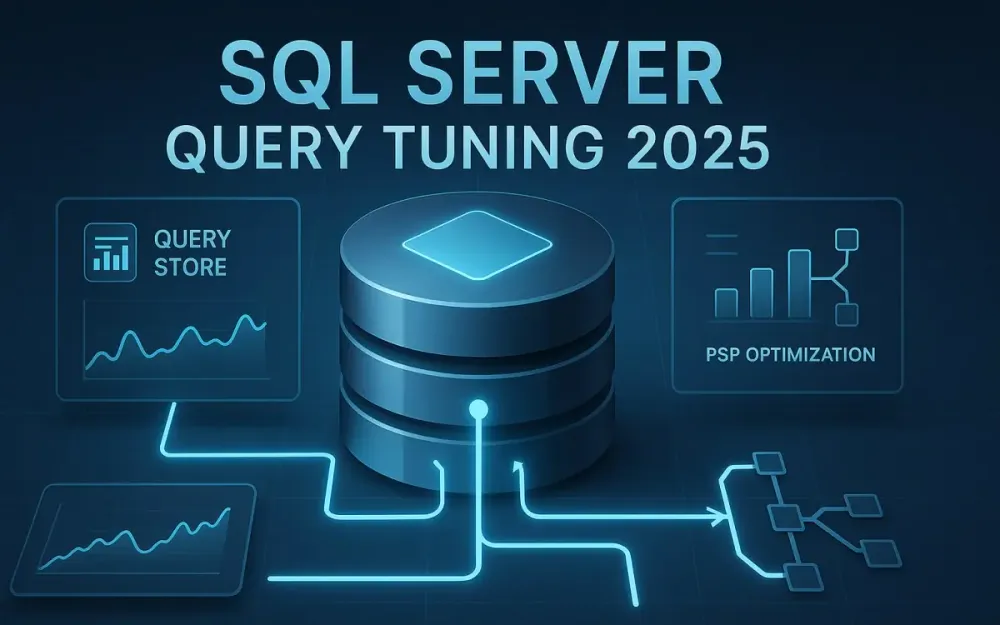
1 Introduction: The New Era of SQL Server Performance Tuning
SQL Server performance tuning in 2025 is not what it was a decade ago. For years, DBAs and architects leaned heavily on classic counters like Buffer Cache Hit Ratio or Page Life Expectancy to judge whether a system was healthy. These numbers once provided useful signals, but today they are more misleading than helpful. Modern workloads are hybrid, diverse, and bursty: they mix OLTP, analytics, and APIs, and they run in environments that range from on-premises to multi-cloud. The tuning challenges we face are no longer about simply making queries faster; they are about creating systems that adapt, stay resilient, and scale predictably.
The goal of this playbook is straightforward: to arm you with a step-by-step, modern methodology for diagnosing and fixing performance issues in SQL Server. You’ll learn why traditional approaches fail, how to use Query Store as your “flight recorder,” and how to harness Parameter Sensitive Plan (PSP) optimization to resolve one of the most common query tuning villains: parameter sniffing. Along the way, you’ll see scripts, execution plan analysis, incorrect vs. correct examples, and a repeatable workflow you can trust in production.
1.1 Beyond the Old Guard: Why legacy metrics like Buffer Cache Hit Ratio and Page Life Expectancy are no longer sufficient for today’s complex workloads
For decades, performance troubleshooting often started with PerfMon counters. If Buffer Cache Hit Ratio was high, we celebrated. If Page Life Expectancy was above 300, we assumed memory pressure was fine. But these metrics are relics of a different era.
Why?
- Workload Diversity: A single SQL Server instance might host a transactional workload in the morning and serve analytics queries in the afternoon. High cache hit ratios mean little when a large analytic query legitimately causes massive page churn.
- Modern Hardware: SSDs, tiered storage, and massive RAM allocations change the dynamics of I/O bottlenecks. A “bad” Page Life Expectancy doesn’t necessarily indicate a real performance issue.
- Virtualization and Cloud: In Azure SQL Database or SQL Managed Instance, physical counters are abstracted. You might not even have access to PLE or buffer metrics. Instead, you need query-level insights.
Pro Tip: Replace reliance on system-level counters with query-centric views. Focus on wait statistics and query runtime patterns captured by Query Store. These provide actionable insights tied directly to workload behavior, not outdated heuristics.
1.2 The Modern Architect’s Mandate: Shifting from a reactive, fire-fighting approach to a proactive, data-driven tuning strategy
Traditional tuning often looked like this: a user complains that “the system is slow,” a DBA scrambles to find blocking sessions or CPU spikes, and the fix is reactive — recompile a stored procedure, add an index, restart a service. This firefighting approach creates fragility: the same issue reappears days later under different conditions.
The modern architect’s mandate is different. You’re expected to:
- Be Proactive: Detect regressions before they trigger support calls.
- Use Data, Not Guesswork: Query Store and Intelligent Query Processing provide rich telemetry about which queries changed, why, and how to fix them.
- Build Resilience: Instead of quick fixes, create systems where the database adapts automatically to workload variability (e.g., PSP optimization for parameter sniffing).
- Collaborate with Development: Performance tuning is not just the DBA’s job anymore. Developers and architects must design applications with predictable query performance in mind.
Note: Microsoft’s roadmap clearly pushes SQL Server toward “self-tuning” through features like Cardinality Estimation Feedback, Memory Grant Feedback, and PSP. Our job is not to fight automation, but to guide and validate it.
1.3 Meet the Modern Toolkit: A high-level introduction to the game-changing features in the Intelligent Query Processing (IQP) family, with a focus on Query Store as the foundation and PSP as the primary tool for parameter-sensitive problems
Intelligent Query Processing (IQP) is the umbrella term for features introduced in SQL Server 2017 and expanded in 2019, 2022, and beyond. These features help SQL Server adapt to changing data and workload conditions without code changes.
Some highlights:
- Adaptive Joins: Queries can switch between nested loop and hash joins at runtime based on row counts.
- Batch Mode on Rowstore: Accelerates analytic queries even on traditional B-tree indexes.
- Memory Grant Feedback: Adjusts memory allocation for queries across executions to avoid spills or wasted memory.
- Table Variable Deferred Compilation: Improves plan quality by compiling with actual cardinality, not a default estimate of one row.
- Parameter Sensitive Plan (PSP) Optimization: Stores multiple execution plans for the same query, depending on parameter values. This finally addresses the parameter sniffing problem head-on.
At the center of this toolkit sits Query Store. Think of it as your black box flight recorder: it continuously captures query texts, plans, and runtime statistics. With Query Store, you can identify regressions, compare before-and-after performance, and even force stable plans when needed.
Pitfall: Many teams enable Query Store with default settings and forget about it. Without proper configuration, it can bloat storage or miss critical queries. This guide will show you how to configure it for production safely.
1.4 Who This Article is For: A playbook designed for architects, senior DBAs, and developers responsible for designing and maintaining scalable, high-performance database systems
This article is not for beginners learning their first SELECT statement. It’s for:
- Architects who design multi-tier systems and need predictable performance under varied workloads.
- Senior DBAs responsible for keeping mission-critical databases healthy and stable.
- Developers who own stored procedures, APIs, and query logic, and want to avoid performance landmines.
- Decision Makers evaluating whether to adopt SQL Server 2022+ or Azure SQL Database features for better performance.
The tone will be practical. Expect real T-SQL scripts, not hand-wavy theory. You’ll see how to move from diagnosing system-level waits, to drilling into Query Store for problematic queries, to applying PSP optimization without rewriting application code.
1.5 What You Will Learn: A summary of the key takeaways, including a repeatable workflow, practical scripts, and a comprehensive tuning checklist
By the end of this playbook, you’ll have a clear, repeatable methodology you can apply in your own environment:
- Identify Bottlenecks with Wait Stats: Learn which wait types matter and how to connect them to workload issues.
- Establish a Query Baseline: Use Query Store to capture “before” metrics like CPU, duration, and logical reads.
- Read Execution Plans Effectively: Spot red flags such as scans, key lookups, spills, and parameter sniffing patterns.
- Detect Parameter Sensitivity: Confirm when a single query is producing unstable performance due to parameter sniffing.
- Apply the Modern Fix (PSP Optimization): Enable and verify PSP so SQL Server maintains multiple plans per parameter set.
- Leverage Query Store Hints When Needed: Apply surgical fixes at the database level without touching application code.
- Validate and Quantify the Win: Use Query Store comparisons to prove the impact of your tuning changes.
- Adopt a Proactive Mindset: Automate monitoring and alerts, and manage Query Store effectively in large environments.
Final Promise: You won’t just know how to troubleshoot a slow query. You’ll be able to implement a resilient, modern workflow where your SQL Server environment adapts to workload variability, scales cleanly, and avoids regressions.
2 Foundational Pillars: Mastering the Modern Toolkit
If the introduction showed why SQL Server performance tuning has changed, this section explains the “what” and “how” behind the most important tools in our modern arsenal. We’ll focus on Query Store, which acts as a database’s flight recorder, and the Parameter Sensitive Plan (PSP) optimization, which finally gives us a native fix for parameter sniffing. Understanding these two pillars unlocks a systematic and sustainable approach to performance tuning.
2.1 Query Store: Your Database’s Flight Data Recorder
The Query Store is often described as the black box of SQL Server. Just as flight data recorders capture critical information about how an aircraft performs during its journey, Query Store continuously records queries, execution plans, and runtime statistics in your database. This persistent store transforms performance tuning from guesswork into data-driven analysis.
2.1.1 What is Query Store? Understanding its architecture and why it’s the cornerstone of modern performance tuning
Query Store is composed of three primary layers:
- Query Text Store: Captures the exact SQL text of queries (normalized for comparison).
- Query Plan Store: Keeps every execution plan generated for those queries.
- Runtime Stats Store: Records runtime metrics like duration, CPU time, and reads per execution.
These layers are exposed through system views and persisted in internal tables inside the user database, not in tempdb. This persistence is critical: it means data survives restarts, unlike traditional Dynamic Management Views (DMVs) that reset when SQL Server restarts.
Imagine troubleshooting a sudden performance regression. Without Query Store, you’re often stuck wondering, What plan was running yesterday? How did the runtime compare before the patch?. With Query Store, you can answer these questions with certainty.
Pro Tip: Think of Query Store not as optional but as mandatory in modern production environments. Without it, you’re flying blind.
2.1.2 Configuration is Key: Best practices for enabling and configuring Query Store in production environments
Query Store must be carefully configured to balance insight with overhead. Poor defaults can cause bloating or missed data. Let’s look at critical settings.
ALTER DATABASE SalesDB
SET QUERY_STORE = ON
(
    OPERATION_MODE = READ_WRITE,                -- Enable capture
    DATA_FLUSH_INTERVAL_SECONDS = 900,          -- 15 minutes
    MAX_STORAGE_SIZE_MB = 2048,                 -- Cap storage
    QUERY_CAPTURE_MODE = AUTO                   -- Intelligent capture
);- OPERATION_MODE: Use
READ_WRITEin production to continuously capture. Switch toREAD_ONLYif you need to pause capture without losing historical data. - DATA_FLUSH_INTERVAL_SECONDS: Determines how frequently in-memory stats are flushed to disk. Too frequent can add overhead; too infrequent risks data loss in case of crash. 15–30 minutes is a solid balance.
- MAX_STORAGE_SIZE_MB: Prevents uncontrolled growth. On a busy database, 2–5 GB is common, but always monitor usage.
- QUERY_CAPTURE_MODE: Choose
AUTOto let SQL Server intelligently skip trivial queries (e.g., constant lookups). This keeps Query Store focused on high-value queries.
Pitfall: Leaving QUERY_CAPTURE_MODE at ALL will flood Query Store with trivial one-off queries, bloating storage and making analysis harder.
Trade-off: Lowering DATA_FLUSH_INTERVAL_SECONDS ensures fresher data but increases write I/O. For VLDBs, lean toward longer intervals unless troubleshooting live regressions.
2.1.3 Visual Analysis: Navigating the key reports in SQL Server Management Studio (SSMS)
SSMS provides built-in reports for Query Store that simplify analysis without requiring custom queries.
Key reports include:
- Regressed Queries: Shows queries whose average duration or CPU worsened over time. This is your go-to for spotting performance regressions after a deployment.
- Top Resource Consuming Queries: Lists queries ranked by resource usage (CPU, duration, I/O). This helps prioritize tuning efforts.
- Overall Resource Consumption: Visualizes trends in query resource use across time intervals. Useful for correlating performance issues with workload spikes.
For example, when a release introduces slower query performance, the “Regressed Queries” report lets you see exactly which queries degraded and what plan changes triggered it.
Note: Don’t treat these reports as final analysis. Use them as your entry point, then validate with DMVs or execution plans.
2.1.4 Going Deeper with DMVs: How to query the Query Store DMVs for powerful custom analysis and automation
While SSMS reports are helpful, true power comes from Query Store DMVs. These include:
sys.query_store_query– Query metadata.sys.query_store_plan– Execution plan details.sys.query_store_runtime_stats– Captured runtime statistics per interval.sys.query_store_runtime_stats_interval– Time ranges for stats collection.
Example: finding top 5 queries by average CPU time.
SELECT TOP 5
    qsq.query_id,
    qt.query_sql_text,
    AVG(rs.avg_cpu_time) AS avg_cpu_time_ms
FROM sys.query_store_query qsq
JOIN sys.query_store_plan qsp
    ON qsq.query_id = qsp.query_id
JOIN sys.query_store_runtime_stats rs
    ON qsp.plan_id = rs.plan_id
JOIN sys.query_store_query_text qt
    ON qsq.query_text_id = qt.query_text_id
GROUP BY qsq.query_id, qt.query_sql_text
ORDER BY avg_cpu_time_ms DESC;
Pro Tip: Build automation around these DMVs to alert on regressions. For instance, flag when average duration for a query_id doubles between two runtime intervals.
2.1.5 What’s New in SQL Server 2022 and Beyond
SQL Server 2022 elevated Query Store with several enhancements:
-
Query Store Hints: You can now apply query hints (like forcing join type or MAXDOP) directly through Query Store, without changing application code.
EXEC sys.sp_query_store_set_hints @query_id = 12345, @value = N'OPTION (MAXDOP 1)'; -
Read-Only Replica Support: Query Store can now capture data on secondary replicas in Availability Groups. This helps diagnose workload issues even on reporting secondaries.
-
Improved Capture Modes: Smarter filtering reduces noise from trivial queries.
Trade-off: Query Store Hints are powerful but should be used surgically. They can mask underlying design issues and introduce fragility if overused.
2.2 The Classic Performance Villain: Understanding Parameter Sniffing
Parameter sniffing has haunted DBAs for years. It’s the scenario where SQL Server compiles an execution plan based on one parameter value, then reuses it for other parameter values that need a different plan. Sometimes it works perfectly. Other times, it devastates performance.
2.2.1 A Real-World Analogy: Explaining parameter sniffing in simple, relatable terms
Imagine hiring a taxi to take you across town. The driver checks the traffic once when you first get in and decides the “best” route. Now imagine every future passenger is forced to take the same route, regardless of whether it’s rush hour, midnight, or raining. That’s parameter sniffing: the plan chosen for one case is reused even when conditions change drastically.
For small parameter values, a nested loop join may be fastest. For large parameter values, a hash join is more efficient. But parameter sniffing locks you into one plan.
2.2.2 The Root Cause: How non-uniform data distribution leads to suboptimal plan reuse
Parameter sniffing isn’t inherently bad. It works well when data is evenly distributed or when one plan serves all cases efficiently. The problem arises with skewed data distribution.
Example:
- 95% of customers are “Retail”. Queries filtering on
CustomerType = 'Retail'return millions of rows. - 5% of customers are “VIP”. Queries filtering on
CustomerType = 'VIP'return just a few rows.
If the first plan compiled was for 'VIP', SQL Server might use a nested loop join expecting few rows. Run the same query for 'Retail' and performance tanks as the loop join processes millions of rows.
Note: This skew is common in real systems — think “active vs. inactive users,” “current vs. historical orders,” or “hot vs. cold product categories.”
2.2.3 The Old Ways (And Why They’re Flawed)
Before PSP, DBAs had a bag of tricks for parameter sniffing, but each had downsides.
-
WITH RECOMPILE
CREATE PROCEDURE GetOrders
    @CustomerType NVARCHAR(20)
AS
SELECT *
FROM Orders
WHERE CustomerType = @CustomerType
OPTION (RECOMPILE);
Forces a fresh plan every time. Effective, but costly: compilation overhead adds up, and plans aren’t reusable.
-
OPTION (OPTIMIZE FOR …)
SELECT *
FROM Orders
WHERE CustomerType = @CustomerType
OPTION (OPTIMIZE FOR (@CustomerType = 'Retail'));
Hard-codes optimization for one value. This stabilizes performance but punishes queries for other values.
-
Plan Guides These allowed forcing specific hints without code changes. Rarely used because they are difficult to maintain and often brittle.
Pitfall: These fixes focus on avoiding variability, not solving it. They either force recompilation or lock the query into a single plan, leaving some executions always disadvantaged.
2.3 The Modern Solution: Parameter Sensitive Plan (PSP) Optimization
SQL Server 2022 introduced Parameter Sensitive Plan optimization, the long-awaited native fix for parameter sniffing. Instead of being stuck with one plan, SQL Server can now store and use multiple plans for the same query, depending on the parameter values supplied.
2.3.1 How PSP Works: The concept of storing multiple active execution plans for a single parameterized statement
When a query with skewed data distribution is compiled, SQL Server’s optimizer recognizes the variability. Instead of producing a single plan, it creates multiple query variants, each optimized for a subset of parameter values.
At runtime, a lightweight dispatcher plan determines which variant is best for the current parameter and routes execution accordingly. This allows small parameter values to use efficient seeks and nested loops, while large parameter values use scans and hash joins.
Pro Tip: PSP is fully transparent. You don’t need to rewrite code or add hints. SQL Server decides when it’s beneficial to apply PSP.
2.3.2 Under the Hood: A conceptual look at Dispatcher Plans and Query Variants
Think of PSP as a two-level architecture:
- Dispatcher Plan: The control mechanism. This plan contains logic to evaluate parameter values at runtime and choose the right path.
- Query Variants: The actual execution plans optimized for specific data ranges. Each variant is stored alongside the dispatcher in the plan cache.
For example, a query might get three variants:
- Variant A:
CustomerType = 'VIP'(few rows → seek + nested loop). - Variant B:
CustomerType = 'Retail'(millions of rows → scan + hash join). - Variant C: Edge case handling (e.g., rare categories).
Note: This approach avoids the all-or-nothing trade-offs of the old methods.
2.3.3 Ideal Use Cases: How to identify the exact scenarios where PSP will provide the most benefit
Not every query needs PSP. It shines in scenarios with:
- Highly Skewed Data Distribution: Large differences in row counts between parameter values.
- Reusable Queries: Stored procedures or parameterized queries executed frequently with different values.
- Critical Performance Sensitivity: Queries central to business workloads where regressions are costly.
Example: A procedure GetOrdersByRegion where Region = 'North America' returns 10 million rows, while Region = 'Antarctica' returns none. Without PSP, one plan fits poorly for both extremes. With PSP, both scenarios run optimally.
Trade-off: PSP adds some overhead in plan cache size. Each variant consumes memory, so monitor carefully in environments with thousands of parameterized queries.
2.3.4 Prerequisites and Enablement: The importance of Database Compatibility Level 160+ and how to verify PSP is active
PSP is available starting in SQL Server 2022 and Azure SQL Database. To use it, your database must be at compatibility level 160 or higher.
ALTER DATABASE SalesDB
SET COMPATIBILITY_LEVEL = 160;
To verify if PSP is active for a query:
-
Check the execution plan XML for
<DispatcherPlan>and multiple<QueryVariant>nodes. -
Use Extended Events: capture
query_variant_createdto observe PSP behavior. -
Query DMVs:
SELECT cp.plan_handle, cp.objtype, qs.*
FROM sys.dm_exec_cached_plans cp
CROSS APPLY sys.dm_exec_query_plan(cp.plan_handle) qs
WHERE qs.query_plan LIKE '%DispatcherPlan%';
Pro Tip: Always test queries after upgrading compatibility. Some workloads may not trigger PSP immediately — it activates only where the optimizer deems it beneficial.
Pitfall: Simply being on SQL Server 2022 isn’t enough. If compatibility is left at 150 (SQL Server 2019), PSP will not be available. Many teams upgrade the engine but forget to bump compatibility.
3 The Repeatable Tuning Playbook: A Step-by-Step Workflow
Theory is helpful, but what practitioners truly need is a repeatable methodology. The following playbook is designed as a guided workflow you can apply every time performance issues arise. It is intentionally systematic: start broad at the system level, progressively narrow down to queries, then dive into execution plans and fixes. Think of it as moving from satellite view to street-level view—never guess, always measure.
This section covers the first two phases: identifying system-wide bottlenecks with wait statistics and establishing a detailed performance baseline with Query Store.
3.1 Step 1: Identify the Global Bottleneck with Wait Stats
Wait statistics are SQL Server’s way of telling you where it spends time when queries are not actively executing instructions. Every millisecond that SQL Server waits is categorized and logged. Instead of chasing symptoms like high CPU or disk usage, wait stats let you identify the true limiting factor across the whole server.
3.1.1 Listening to the Server: An introduction to wait statistics as the ultimate source of truth for performance issues
Waits are the “voice of the engine.” When a query cannot proceed, SQL Server records the reason—whether it’s waiting for CPU scheduling, disk I/O, log flushes, or parallelism synchronization. By aggregating this data, you get a clear picture of where resources are constrained.
For example:
- A dominance of PAGEIOLATCH_SH waits indicates storage latency for data page reads.
- High WRITELOG waits point to transaction log bottlenecks.
- Excessive CXPACKET or CXCONSUMER waits suggest parallelism imbalances.
- Significant SOS_SCHEDULER_YIELD means CPU pressure.
Pro Tip: Don’t panic at every wait type. Some, like WAITFOR or BROKER_TASK_STOP, are benign. Always focus on the top contributors by percentage of wait time.
3.1.2 The Wait Stats Query: A robust T-SQL script for analyzing sys.dm_os_wait_stats
The dynamic management view sys.dm_os_wait_stats accumulates wait statistics since the last SQL Server restart (or manual reset). Here’s a script to rank the most impactful waits:
WITH Waits AS
(
    SELECT
        wait_type,
        wait_time_ms / 1000.0 AS WaitS,
        (wait_time_ms - signal_wait_time_ms) / 1000.0 AS ResourceS,
        signal_wait_time_ms / 1000.0 AS SignalS,
        waiting_tasks_count AS WaitCount,
        100.0 * wait_time_ms / SUM(wait_time_ms) OVER() AS Percentage
    FROM sys.dm_os_wait_stats
    WHERE wait_type NOT IN
    (
        'BROKER_EVENTHANDLER', 'BROKER_RECEIVE_WAITFOR',
        'BROKER_TASK_STOP', 'BROKER_TO_FLUSH',
        'BROKER_TRANSMITTER', 'CHECKPOINT_QUEUE',
        'CLR_AUTO_EVENT', 'CLR_MANUAL_EVENT',
        'DISPATCHER_QUEUE_SEMAPHORE', 'FT_IFTS_SCHEDULER_IDLE_WAIT',
        'HADR_FILESTREAM_IOMGR_IOCOMPLETION',
        'LAZYWRITER_SLEEP', 'LOGMGR_QUEUE',
        'REQUEST_FOR_DEADLOCK_SEARCH', 'XE_TIMER_EVENT',
        'XE_DISPATCHER_WAIT'
    )
)
SELECT TOP 10
    W1.wait_type,
    CAST(W1.WaitS AS DECIMAL(12,2)) AS Wait_Sec,
    CAST(W1.ResourceS AS DECIMAL(12,2)) AS Resource_Sec,
    CAST(W1.SignalS AS DECIMAL(12,2)) AS Signal_Sec,
    W1.WaitCount,
    CAST(W1.Percentage AS DECIMAL(12,2)) AS Percentage
FROM Waits W1
ORDER BY W1.WaitS DESC;
This returns the top waits since the last reset, giving you a ranked list of pain points.
Pitfall: Don’t forget to contextualize. A high percentage of CXPACKET may look alarming, but it often indicates parallel queries functioning normally. Always validate whether the waits match a real performance issue.
Trade-off: Resetting wait stats (with DBCC SQLPERF('sys.dm_os_wait_stats', CLEAR)) before a tuning session provides a cleaner view but removes historical data. Use with caution in production.
3.1.3 Connecting Waits to Queries: How to use Query Store to correlate system-wide waits to specific high-impact queries
Wait stats tell you the “what” but not the “who.” You know the server spends 40% of its time waiting on PAGEIOLATCH_SH, but which queries are driving that? That’s where Query Store bridges the gap.
You can query runtime stats in Query Store and look for queries with high physical reads or log writes, correlating them with the dominant wait types. Example:
SELECT TOP 10
    qt.query_sql_text,
    SUM(rs.avg_physical_io_reads) AS avg_phys_reads,
    SUM(rs.avg_logical_io_reads) AS avg_logical_reads,
    SUM(rs.avg_log_bytes_used) AS avg_log_bytes,
    SUM(rs.avg_duration) AS avg_duration_ms
FROM sys.query_store_query_text qt
JOIN sys.query_store_query qsq
    ON qt.query_text_id = qsq.query_text_id
JOIN sys.query_store_plan qsp
    ON qsq.query_id = qsp.query_id
JOIN sys.query_store_runtime_stats rs
    ON qsp.plan_id = rs.plan_id
GROUP BY qt.query_sql_text
ORDER BY avg_phys_reads DESC;
This highlights which queries are most I/O heavy, explaining high PAGEIOLATCH_SH waits.
Note: A single query can distort system waits. If one ETL query is responsible for 90% of physical reads, optimizing that query alone can radically improve system performance.
3.2 Step 2: Establish a Performance Baseline with Query Store
Once you know the broad system bottleneck, the next step is to capture a precise baseline for the queries you want to tune. Without a “before” snapshot, you can’t prove improvement or detect regressions later.
3.2.1 Finding the “Heavy Hitters”: Using Query Store to identify the top queries by CPU, duration, and logical reads
In Query Store, the “heavy hitters” are the queries consuming the most resources. You want to tune these first, because they yield the greatest return on effort.
Use a query like this to find the top consumers:
SELECT TOP 10
    qsq.query_id,
    qt.query_sql_text,
    SUM(rs.avg_cpu_time * rs.count_executions) / 1000 AS total_cpu_ms,
    SUM(rs.avg_duration * rs.count_executions) / 1000 AS total_duration_ms,
    SUM(rs.avg_logical_io_reads * rs.count_executions) AS total_logical_reads
FROM sys.query_store_query qsq
JOIN sys.query_store_plan qsp
    ON qsq.query_id = qsp.query_id
JOIN sys.query_store_runtime_stats rs
    ON qsp.plan_id = rs.plan_id
JOIN sys.query_store_query_text qt
    ON qsq.query_text_id = qt.query_text_id
GROUP BY qsq.query_id, qt.query_sql_text
ORDER BY total_cpu_ms DESC;
This ranks queries by cumulative CPU, but you can sort by duration or logical reads depending on your priority.
Pro Tip: Don’t just look at averages. Multiply by execution count to find queries that hurt overall workload the most, not just queries that are occasionally expensive.
3.2.2 Documenting the “Before” State: A systematic approach
Establishing a baseline involves capturing:
- Query Text – The actual SQL.
- Execution Plan – The graphical or XML plan currently in use.
- Runtime Metrics – Duration, CPU, reads, writes, execution count.
Best practice is to save both human-readable and raw data:
- Export plans as
.sqlplanfiles for easy visual inspection. - Store query metrics in a central repository or baseline table for long-term tracking.
Example process:
- Identify target query_id with high CPU/duration.
- Export its current execution plan from SSMS.
- Run a baseline script to save metrics into a DBA-owned schema table like
PerformanceBaselines.QueryMetrics.
Pitfall: Skipping baselines makes it impossible to prove tuning effectiveness. Always capture “before” and “after” snapshots.
3.2.3 Baseline Capture Script: A template T-SQL script
Here’s a script you can adapt to capture metrics for a single query_id and store them in a baseline table.
First, create the table if not already present:
CREATE SCHEMA PerformanceBaselines;
GO

CREATE TABLE PerformanceBaselines.QueryMetrics
(
    CaptureDate DATETIME2 NOT NULL DEFAULT SYSUTCDATETIME(),
    QueryId INT,
    PlanId INT,
    AvgDurationMs DECIMAL(18,2),
    AvgCpuMs DECIMAL(18,2),
    AvgLogicalReads BIGINT,
    ExecutionCount BIGINT,
    QueryText NVARCHAR(MAX)
);
Now, insert the baseline snapshot:
DECLARE @QueryId INT = 12345; -- Replace with your query_id

INSERT INTO PerformanceBaselines.QueryMetrics
(QueryId, PlanId, AvgDurationMs, AvgCpuMs, AvgLogicalReads, ExecutionCount, QueryText)
SELECT
    qsq.query_id,
    qsp.plan_id,
    rs.avg_duration,
    rs.avg_cpu_time,
    rs.avg_logical_io_reads,
    rs.count_executions,
    qt.query_sql_text
FROM sys.query_store_query qsq
JOIN sys.query_store_plan qsp
    ON qsq.query_id = qsp.query_id
JOIN sys.query_store_runtime_stats rs
    ON qsp.plan_id = rs.plan_id
JOIN sys.query_store_query_text qt
    ON qsq.query_text_id = qt.query_text_id
WHERE qsq.query_id = @QueryId;
This provides a permanent record of the query’s performance characteristics before you make any changes.
Pro Tip: Schedule this script to run daily for your top 20 queries. Over time, you’ll build a powerful performance history you can analyze for trends, regressions, and seasonal patterns.
Note: In regulated industries, baselines also serve as evidence for compliance—showing that tuning changes were measured, intentional, and tested.
3.3 Step 3: Analyze the Execution Plan
With a baseline in place, the next move is to look under the hood: the execution plan. Query plans are like blueprints—showing exactly how SQL Server intends to retrieve and process data. Reading plans effectively separates expert tuners from casual troubleshooters. This step is about translating complex graphical plans into a clear narrative of what SQL Server is doing, why it chose that path, and where inefficiencies lie.
3.3.1 Anatomy of a Plan: Reading a graphical execution plan from right-to-left and understanding data flow
Execution plans can be overwhelming at first glance. Dozens of colorful icons connected by arrows might look like abstract art rather than actionable data. But once you know how to read them systematically, they reveal powerful insights.
- Direction of Reading: Plans flow from right to left. The operators on the right fetch rows (e.g., Index Seek, Table Scan). As you move left, operators transform and combine those rows (e.g., Joins, Aggregates).
- Arrows: The arrows represent row flow. Their thickness indicates volume: the thicker the arrow, the more rows passed.
- Cost Percentages: Each operator has a relative cost percentage, based on the optimizer’s estimate. These percentages don’t always match reality but help spot where SQL Server thinks the cost lies.
- Properties Window: Right-clicking an operator and checking “Properties” is essential. This reveals actual vs. estimated row counts, I/O operations, and memory usage.
Pro Tip: Always check both estimated plans (available without running the query) and actual plans (with runtime metrics). The gap between them often reveals cardinality estimation issues.
3.3.2 Common Red Flags to Look For
When scanning a plan, some patterns immediately warrant attention:
-
Scans where Seeks are expected:
- Red Flag: A
Clustered Index ScanorTable Scanon a table with selective predicates. - Cause: Missing or non-covering indexes, parameter sniffing, or bad statistics.
- Red Flag: A
-
Costly Key/RID Lookups:
- Red Flag:
Key Lookup (Clustered)repeated thousands of times. - Cause: Narrow nonclustered indexes requiring repeated lookups into the clustered index.
- Fix: Add covering indexes or refactor queries.
- Red Flag:
-
Thick Arrows:
- Red Flag: An operator unexpectedly returning millions of rows.
- Cause: Poor cardinality estimates, parameter sniffing, or missing filters.
-
Estimated vs. Actual Rows Mismatch:
- Red Flag: Estimate = 1 row, actual = 1,000,000 rows.
- Cause: Bad statistics, outdated histograms, or skewed parameter values.
-
High-cost operators:
- Sorts: Expensive in-memory and may spill to tempdb if under-granted memory.
- Hash Matches: Can be efficient but costly for skewed distributions.
- Spills: Temporary spills to disk (e.g.,
Spill to tempdb) indicate insufficient memory grants.
Pitfall: Don’t assume the operator with the highest estimated cost is the actual culprit. Always cross-check with actual runtime metrics.
3.3.3 Practical Example: A detailed walkthrough of a “before” execution plan for a query suffering from parameter sniffing
Let’s say we have a stored procedure:
CREATE PROCEDURE GetOrdersByRegion
    @Region NVARCHAR(50)
AS
BEGIN
    SELECT o.OrderId, o.CustomerId, o.OrderDate, c.Region
    FROM Orders o
    JOIN Customers c
        ON o.CustomerId = c.CustomerId
    WHERE c.Region = @Region;
END
Scenario:
- When
@Region = 'Antarctica', there are 0 rows. The optimizer builds a plan with an Index Seek + Nested Loops Join, expecting few rows. - When
@Region = 'North America', there are millions of rows. SQL Server still uses the nested loops plan, resulting in painfully slow performance.
Execution plan red flags:
- Clustered Index Seek + Nested Loops: Great for small row counts, disastrous for millions.
- Estimated vs. Actual Rows: Estimate = 1, Actual = 1,000,000.
- Thick Arrows: The join operator shows unexpectedly huge flow.
- Spills: The Sort operator downstream spills to tempdb because the plan expected tiny rowsets.
Pro Tip: In SSMS, hover over arrows. The tooltip shows estimated vs. actual row counts. This is often the fastest way to spot parameter sniffing problems.
3.4 Step 4: Detect and Confirm Parameter Sensitivity
After spotting red flags in execution plans, the next step is to confirm whether parameter sensitivity (classic parameter sniffing) is the real culprit. This involves looking for multiple competing plans, forcing the issue deliberately, and comparing behaviors.
3.4.1 Using the “Tracked Queries” view in Query Store to visualize multiple, competing plans for a single query
Query Store’s Tracked Queries view is perfect for spotting parameter-sensitive queries. It shows all plans generated for the same query_id over time.
Steps in SSMS:
- Open Query Store > Reports > Tracked Queries.
- Enter the query_id of the stored procedure.
- Review the chart: multiple plans for the same query are visible, often with wildly different performance metrics.
For example, you may see:
- Plan A: CPU = 50 ms, used for
@Region = 'Antarctica'. - Plan B: CPU = 30,000 ms, used for
@Region = 'North America'.
Note: Multiple plans in Query Store are not always bad—adaptive features may generate variants. But extreme variation tied to parameters is a smoking gun for parameter sniffing.
3.4.2 Forcing the Issue: A script to demonstrate the problem by clearing the plan cache
To reproduce and confirm, you can simulate sniffing by clearing cached plans and executing with different parameters.
-- Clear cached plan for this procedure only
DECLARE @procid INT = OBJECT_ID('dbo.GetOrdersByRegion');
DBCC FREEPROCCACHE (@procid);

-- "Good" parameter (small dataset)
EXEC GetOrdersByRegion @Region = 'Antarctica';

-- "Bad" parameter (large dataset)
EXEC GetOrdersByRegion @Region = 'North America';
Then, check execution plans for both executions.
What you’ll see:
- The plan compiled on the first execution (
Antarctica) is reused for the second (North America), even though it’s unsuitable. - If you reverse the order, the opposite happens: the large-region plan is reused for the small-region query, which may also underperform.
Pitfall: Never run DBCC FREEPROCCACHE indiscriminately in production—it clears plans for all queries, hurting performance. Use the procedure-specific overload shown above.
3.4.3 Comparing the “good” and “bad” plans side-by-side to prove parameter sensitivity is the root cause
Once both executions are captured, open the plans side-by-side in SSMS (Ctrl + Alt + P for plan comparison).
Key differences to look for:
- Join Strategy: One uses Nested Loops, the other Hash Match.
- Estimated vs. Actual Rows: Drastic mismatches for the reused plan.
- Cost Distribution: Operators in the “bad” plan dominate runtime metrics.
Example:
- Good Plan: Estimated = 1 row, Actual = 1 row. Duration = 5 ms.
- Bad Plan: Estimated = 1 row, Actual = 1,000,000 rows. Duration = 30,000 ms.
This confirms parameter sensitivity: one parameter value triggers an efficient plan, but another value forces SQL Server to reuse that plan to disastrous effect.
Pro Tip: Keep screenshots or exported .sqlplan files of both good and bad cases. They provide undeniable evidence for tuning discussions with developers, managers, or auditors.
Trade-off: Identifying parameter sniffing proves the problem, but fixing it requires careful choice. Do you apply the modern fix (PSP), a hint, or an index change? That decision comes in the next step of the playbook.
3.5 Step 5: Implement the Modern Fix
After proving that parameter sensitivity is the root cause, it’s time to fix it. Unlike the old era, where DBAs had to choose between recompilation, hard-coded hints, or brittle plan guides, SQL Server 2022+ offers native, elegant options. The modern workflow starts with letting Parameter Sensitive Plan (PSP) Optimization do the heavy lifting. If that isn’t enough, Query Store Hints provide a surgical way to enforce better plans without touching application code. Only in extreme edge cases should you fall back on the legacy methods.
3.5.1 The Primary Solution: Let PSP Do the Work
PSP Optimization is automatic—but only if you’ve enabled it. The simplest and most powerful step is to make sure the database compatibility level is 160 or higher.
ALTER DATABASE SalesDB
SET COMPATIBILITY_LEVEL = 160;
Once enabled, PSP will analyze parameterized queries and, where it detects skewed cardinality, generate a dispatcher plan with multiple query variants. Each variant is optimized for a subset of parameter values.
To confirm PSP is active for a specific query, you have two options:
- Check the plan cache:
SELECT cp.plan_handle, qs.query_plan
FROM sys.dm_exec_cached_plans cp
CROSS APPLY sys.dm_exec_query_plan(cp.plan_handle) qs
WHERE qs.query_plan LIKE '%DispatcherPlan%';- Use Extended Events: Monitor the
query_variant_createdevent to see PSP generating new variants during compilation.
Note: You don’t control when PSP is applied. The optimizer decides based on parameter distribution. That’s the beauty—PSP only kicks in when it’s likely to deliver real performance benefits.
Pro Tip: If you upgrade an application database to SQL Server 2022 but leave the compatibility level at 150 (SQL Server 2019), you won’t get PSP. Always validate compatibility after migrations.
3.5.2 The Surgical Solution: Query Store Hints
Sometimes, PSP doesn’t activate or doesn’t fully solve the problem. Maybe the query is critical, and you know exactly which hint will stabilize performance. In the past, you’d need to modify application code or deploy fragile plan guides. Now, Query Store Hints provide a middle ground.
Suppose you want a specific stored procedure to always recompile, ensuring fresh plans without touching code. You can do:
EXEC sys.sp_query_store_set_hints
    @query_id = 56789,
    @value = N'OPTION (RECOMPILE)';
Other useful hints include MAXDOP 1, forcing a specific join type, or even locking a query into a specific compatibility level.
Pitfall: Query Store Hints are not a silver bullet. Overuse creates technical debt and makes workloads less predictable. Use them sparingly and document the rationale behind each hint.
Trade-off: Query Store Hints stabilize problem queries quickly, but they override the optimizer’s adaptive intelligence. Consider them a scalpel for surgical fixes, not a hammer for every nail.
3.5.3 The Last Resort: When older methods might still be necessary
Despite advances, there are still rare cases where legacy fixes make sense:
- WITH RECOMPILE: For rarely used but highly variable procedures, recompilation may still be preferable.
- OPTIMIZE FOR: Useful if you know 95% of executions use one parameter and want to lock optimization for that case.
- Plan Guides: Still relevant in environments where Query Store is disabled or not permitted (e.g., legacy third-party apps).
Note: These methods come with clear costs—higher CPU, brittle assumptions, or maintenance complexity. They’re not wrong, but they should be the exception, not the norm.
3.6 Step 6: Validate the Improvement and Quantify the Win
Tuning without validation is like fixing a car engine without a test drive. Once you’ve applied PSP or Query Store Hints, the final step is to rerun the workload, capture the “after” state, and prove the results. This step ensures confidence and creates a measurable record of the win.
3.6.1 Rerunning the workload and capturing the “After” state from Query Store
After implementing the fix, run the workload again under realistic conditions. This might mean replaying captured queries, executing stored procedures with representative parameter values, or simply letting the production workload continue.
Then, capture the after-state from Query Store. Example:
SELECT
    qsq.query_id,
    qt.query_sql_text,
    AVG(rs.avg_duration) AS avg_duration_ms,
    AVG(rs.avg_cpu_time) AS avg_cpu_ms,
    AVG(rs.avg_logical_io_reads) AS avg_logical_reads
FROM sys.query_store_query qsq
JOIN sys.query_store_plan qsp
    ON qsq.query_id = qsp.query_id
JOIN sys.query_store_runtime_stats rs
    ON qsp.plan_id = rs.plan_id
JOIN sys.query_store_query_text qt
    ON qsq.query_text_id = qt.query_text_id
WHERE qsq.query_id = 56789
GROUP BY qsq.query_id, qt.query_sql_text;
This query shows the average runtime characteristics of the tuned query after your fix.
Pro Tip: Always compare against the baseline captured earlier. Without a before-and-after delta, your success is anecdotal, not provable.
3.6.2 Before-and-After Comparison: A clear, data-driven comparison
Build a side-by-side comparison of key metrics:
| Metric | Before PSP | After PSP | Improvement |
|---|---|---|---|
| Avg Duration (ms) | 30,000 | 500 | 98% faster |
| Avg CPU (ms) | 25,000 | 400 | 98% lower |
| Logical Reads | 5,000,000 | 100,000 | 95% fewer |
When presented like this, even non-technical stakeholders understand the impact. Numbers speak louder than screenshots.
Note: If performance doesn’t improve as expected, revisit whether PSP was applied. Check dispatcher plans and query variants. Sometimes additional indexing or statistics updates are needed.
3.6.3 Analyzing the “After” execution plan(s)
Now review the execution plan again:
- If PSP is active, you should see a dispatcher plan with multiple variants. Each variant will show optimal join strategies for different parameter ranges.
- If using a Query Store Hint, confirm the enforced behavior (e.g., recompile, forced join).
For example:
- Plan Variant A: Nested Loop Seek for
@Region = 'Antarctica'. - Plan Variant B: Hash Join Scan for
@Region = 'North America'.
The key difference now is both plans coexist and are chosen intelligently at runtime.
Pro Tip: Export the new plans and keep them alongside the “bad” plans for documentation. Showing the difference builds credibility with stakeholders and teammates.
3.6.4 Re-checking Wait Stats to confirm the dominant wait types have been reduced or eliminated
Finally, circle back to where you started: wait statistics. If tuning was effective, system-level waits should reflect it.
Example:
- Before: 40%
PAGEIOLATCH_SH, 30%CXPACKET. - After: 10%
PAGEIOLATCH_SH, balanced distribution of benign waits.
Use the same wait stats query from Step 1 to compare results. If bottleneck waits drop significantly, you know the system as a whole benefits—not just one query.
Pitfall: Don’t expect all waits to disappear. Every SQL Server always has waits. The goal is to minimize harmful waits, not achieve zero.
Trade-off: In some cases, fixing one bottleneck exposes another. Reducing I/O waits might highlight CPU contention. This is a natural progression—address one limiting factor at a time.
4 Advanced Topics and Architectural Considerations
With the repeatable playbook established, it’s time to zoom out to the broader architectural level. Real-world systems are rarely single-instance, small-database scenarios. They involve high-availability clusters, read-only replicas, massive data volumes, and the need for continuous monitoring. In this section, we’ll explore how Query Store and PSP behave in these advanced contexts and how to maintain a sustainable performance tuning strategy.
4.1 Tuning Read-Only Workloads: Leveraging Query Store on Availability Group secondary replicas
Historically, Query Store was limited to the primary replica in an Availability Group. This posed a problem: many organizations offload reporting or analytics workloads to read-only secondaries, yet Query Store data wasn’t collected there. Starting with SQL Server 2022, Query Store now supports read-only replicas.
This enhancement means you can finally capture query texts, plans, and runtime stats directly on the secondary without impacting the primary. For a reporting workload running nightly on a secondary replica, this is game-changing—you no longer have to guess at plan behavior or try to replay queries on the primary.
Example configuration:
ALTER DATABASE SalesDB
SET QUERY_STORE = ON
(
    OPERATION_MODE = READ_WRITE,
    SECONDARY_ROLE_ALLOW_CONNECTIONS = ALL
);
Once enabled, you can open Query Store reports in SSMS while connected to the secondary, giving you direct visibility into reporting query performance.
Pro Tip: Use this to baseline reporting workloads separately from transactional workloads. Queries optimized for transactional throughput often differ significantly from those driving reports.
Pitfall: Query Store data from secondaries isn’t automatically merged with the primary. Treat each replica as having its own Query Store perspective. This is an opportunity to tune workloads in isolation, but it also means you need to manage retention policies carefully.
4.2 The Bigger Picture: How PSP interacts with other Intelligent Query Processing features
Parameter Sensitive Plan (PSP) is not an island. It lives within the broader Intelligent Query Processing (IQP) ecosystem, where multiple adaptive features work together.
-
Cardinality Estimation (CE) Feedback: If PSP creates multiple variants, CE Feedback can still adjust estimates over time, refining predictions within each variant. This synergy ensures plan quality improves beyond the first run.
-
Degree of Parallelism (DOP) Feedback: Imagine PSP creates a variant for large parameter values. On first execution, the optimizer grants a parallel plan with too many threads, leading to high CXPACKET waits. DOP Feedback then adjusts, finding a more balanced parallelism level for future runs.
-
Memory Grant Feedback: Within each query variant, SQL Server tracks memory usage. If spills occur, memory grants can be increased for subsequent executions without recompilation.
Example: A PSP dispatcher produces three variants for a stored procedure. Variant B handles large data ranges. Over multiple runs, CE Feedback refines row count estimates, DOP Feedback balances parallelism, and Memory Grant Feedback prevents spills. Together, these features produce a self-correcting plan ecosystem.
Note: Don’t assume enabling PSP alone solves every parameter issue. It’s the interplay of IQP features that delivers consistent, adaptive performance.
Trade-off: With so much automation, diagnosing issues becomes more complex. A plan may evolve silently through CE or Memory Grant Feedback, making baselines harder to interpret. Build processes that track these changes over time.
4.3 Proactive Monitoring: Setting up automated alerts for query regressions using Query Store data
Query Store isn’t just a troubleshooting tool—it’s a proactive monitoring platform. By querying its DMVs regularly, you can detect regressions before users complain.
Example: set up an alert when average duration for a query doubles compared to its historical baseline.
WITH Recent AS
(
    SELECT query_id,
           AVG(avg_duration) AS avg_duration_recent
    FROM sys.query_store_runtime_stats rs
    JOIN sys.query_store_plan p ON rs.plan_id = p.plan_id
    WHERE rs.first_execution_time > DATEADD(hour, -1, SYSUTCDATETIME())
    GROUP BY query_id
),
Baseline AS
(
    SELECT query_id,
           AVG(avg_duration) AS avg_duration_baseline
    FROM sys.query_store_runtime_stats rs
    JOIN sys.query_store_plan p ON rs.plan_id = p.plan_id
    WHERE rs.first_execution_time BETWEEN DATEADD(day, -7, SYSUTCDATETIME())
                                      AND DATEADD(day, -1, SYSUTCDATETIME())
    GROUP BY query_id
)
SELECT r.query_id,
       r.avg_duration_recent,
       b.avg_duration_baseline
FROM Recent r
JOIN Baseline b ON r.query_id = b.query_id
WHERE r.avg_duration_recent > 2 * b.avg_duration_baseline;
This query flags regressions where average duration in the last hour is more than double the 7-day baseline.
Pro Tip: Integrate this into SQL Agent jobs or external monitoring systems (e.g., Grafana, Azure Monitor). Automated detection drastically reduces mean time to resolution.
Pitfall: Regression alerts can be noisy if baselines are not representative. Always design thresholds that reflect workload patterns (e.g., ignore spikes from nightly batch jobs).
4.4 Managing Query Store Overhead: Strategies for very large, busy databases (VLDBs)
On massive databases with thousands of queries per second, Query Store overhead and storage usage become real concerns. Poor configuration can lead to bloated Query Store tables, impacting both performance and manageability.
Key strategies:
- Use AUTO Capture Mode:
ALTER DATABASE SalesDB
SET QUERY_STORE (QUERY_CAPTURE_MODE = AUTO);
This avoids capturing trivial or infrequent queries.
- Limit Retention:
ALTER DATABASE SalesDB
SET QUERY_STORE (CLEANUP_POLICY = (STALE_QUERY_THRESHOLD_DAYS = 15));
Keep only 2–3 weeks of data unless regulatory needs require longer history.
-
Size Appropriately: Increase
MAX_STORAGE_SIZE_MBproactively to prevent forced cleanup mid-investigation. -
Partition Analysis: For VLDBs, capture baselines for only the top N queries rather than the entire workload. Use filtering in monitoring jobs to focus on critical queries.
Note: Query Store overhead is usually low (1–2% CPU), but in poorly configured environments, it can spike. Regularly review its DMV sys.database_query_store_options to confirm health.
Trade-off: Tight retention policies reduce overhead but may limit your ability to analyze regressions that emerge slowly. Balance retention against operational requirements.
4.5 The Architect’s Tuning Checklist: A concise, quick-reference summary
At this point, we’ve covered a lot of ground. To make it actionable, here’s a condensed checklist you can keep at hand:
-
Identify the bottleneck
- Use
sys.dm_os_wait_statsto find dominant waits. - Correlate with Query Store to identify culprit queries.
- Use
-
Capture a baseline
- Save query text, plan, and runtime stats for top offenders.
- Store data in a baseline table for comparison.
-
Analyze the plan
- Read right-to-left.
- Look for scans, lookups, mismatched row counts, spills.
-
Confirm parameter sensitivity
- Use Query Store Tracked Queries view.
- Force cache clears to reproduce “good” vs. “bad” plans.
-
Apply the fix
- Primary: PSP optimization via compatibility level 160+.
- Secondary: Query Store Hints for surgical enforcement.
- Last resort: legacy options (RECOMPILE, OPTIMIZE FOR).
-
Validate improvements
- Compare before-and-after metrics in Query Store.
- Review execution plans to confirm PSP or hints applied.
- Recheck wait stats to verify system-level improvement.
-
Architectural practices
- Use Query Store on secondaries for reporting workloads.
- Monitor regressions proactively with automated queries.
- Manage Query Store size and retention carefully.
Pro Tip: Print this checklist or embed it into your team’s runbook. A disciplined, step-by-step approach eliminates guesswork and ensures repeatable success.
Pitfall: Skipping steps leads to false conclusions—like applying hints without baselines or declaring success without validation. Always follow the full cycle.
5 Conclusion: The Future is Automated
The journey through SQL Server query tuning in 2025 reveals a powerful truth: the era of firefighting with ad hoc fixes is over. What matters now is adopting workflows and technologies that make performance predictable, resilient, and adaptive. Query Store and Parameter Sensitive Plan (PSP) optimization give us the tools to achieve this, but it’s our methodology that turns them into lasting value. The future of tuning is about automation guided by human oversight, not manual hacks that solve one problem only to create another.
5.1 Summary of the Modern Workflow: A recap of the repeatable playbook
The repeatable playbook we’ve built can be summarized in seven disciplined steps:
- Identify the bottleneck with wait stats: Let the engine tell you where it’s spending time. Always start with system-wide visibility before drilling down.
- Establish a baseline with Query Store: Capture query text, plans, and runtime metrics before changing anything. A baseline is your truth anchor.
- Analyze execution plans: Read them right-to-left, pay attention to row counts, and highlight inefficiencies like scans, lookups, or spills.
- Confirm parameter sensitivity: Reproduce good vs. bad cases, compare plans side by side, and prove parameter sniffing is at play.
- Implement the modern fix: Enable PSP at compatibility level 160+, use Query Store Hints when surgical precision is needed, and reserve old methods as a last resort.
- Validate improvements: Compare before-and-after metrics, review plans, and confirm reduced wait stats to quantify success.
- Embed architectural practices: Configure Query Store correctly, use it on replicas, manage overhead, and monitor proactively for regressions.
Pro Tip: This checklist is not just a troubleshooting guide—it’s a cultural shift. Adopt it as part of your team’s standard operating procedure, and tuning becomes less of an art and more of a science.
5.2 The Road Ahead: The industry shift towards self-tuning, feedback-driven database optimization
SQL Server and Azure SQL Database are steadily evolving toward self-tuning systems. Features like Memory Grant Feedback, CE Feedback, DOP Feedback, and PSP illustrate Microsoft’s commitment to letting the database adapt automatically. In parallel, Query Store acts as both the historical record and the enforcement mechanism, bridging human expertise with machine-driven optimization.
This trend mirrors the broader industry shift in data platforms: fewer knobs for DBAs to tweak, more automated corrections guided by telemetry. Instead of hand-optimizing queries endlessly, architects will focus on designing schemas, indexes, and workloads that cooperate with the optimizer rather than fight against it.
Note: Self-tuning does not mean “DBAs are obsolete.” It means DBAs evolve into performance architects, monitoring the feedback loops, validating automation outcomes, and ensuring the database’s decisions align with business goals.
Trade-off: As automation grows, visibility into “why” a plan changed can become murkier. That’s why Query Store and extended monitoring remain essential—to keep human oversight active in a self-adjusting system.
5.3 Final Thoughts: Empowering architects to design and build systems that are not only fast by default but are also resilient to performance degradation over time
The real win of modern SQL Server tuning isn’t just speed—it’s resilience. A fast system that degrades under parameter skew or regression isn’t truly performant. Resilience means the system adapts, maintains stability, and provides predictable performance without constant intervention.
Query Store and PSP give architects and DBAs the ability to build databases that remain stable across workload changes, deployments, and growth. Instead of firefighting, you’re engineering for longevity. And that is the hallmark of true database craftsmanship.
Pro Tip: Think of every tuning effort as designing a system immune to future regressions, not just fixing today’s complaint. That mindset shift ensures your work scales with the business.
6 Appendices
6.1 Appendix A: Glossary of Terms
- Cardinality Estimation (CE): The optimizer’s prediction of row counts for query operators.
- Dispatcher Plan: In PSP, the overarching plan that directs execution to the appropriate variant.
- Dynamic Management Views (DMVs): Views that expose SQL Server’s internal state.
- Execution Plan: A roadmap of how SQL Server retrieves and processes data for a query.
- Intelligent Query Processing (IQP): A family of features designed to make SQL Server adaptive and self-correcting.
- Parameter Sniffing: The phenomenon where SQL Server reuses a plan compiled for one parameter value across all values, sometimes causing regressions.
- Parameter Sensitive Plan (PSP): A SQL Server 2022 feature that creates multiple plan variants for parameterized queries.
- Query Store: A SQL Server feature that persists query texts, execution plans, and runtime statistics in the database.
- Query Store Hints: Hints applied through Query Store to influence execution without changing application code.
- Wait Statistics: Metrics showing why SQL Server threads are idle or waiting, providing insights into system bottlenecks.
6.2 Appendix B: Master T-SQL Script Library
Top Wait Stats Query
WITH Waits AS
(
    SELECT
        wait_type,
        wait_time_ms / 1000.0 AS WaitS,
        (wait_time_ms - signal_wait_time_ms) / 1000.0 AS ResourceS,
        signal_wait_time_ms / 1000.0 AS SignalS,
        waiting_tasks_count AS WaitCount,
        100.0 * wait_time_ms / SUM(wait_time_ms) OVER() AS Percentage
    FROM sys.dm_os_wait_stats
)
SELECT TOP 10
    W1.wait_type,
    CAST(W1.WaitS AS DECIMAL(12,2)) AS Wait_Sec,
    CAST(W1.ResourceS AS DECIMAL(12,2)) AS Resource_Sec,
    CAST(W1.SignalS AS DECIMAL(12,2)) AS Signal_Sec,
    W1.WaitCount,
    CAST(W1.Percentage AS DECIMAL(12,2)) AS Percentage
FROM Waits W1
ORDER BY W1.WaitS DESC;
Top Queries by CPU
SELECT TOP 10
    qsq.query_id,
    qt.query_sql_text,
    SUM(rs.avg_cpu_time * rs.count_executions) / 1000 AS total_cpu_ms
FROM sys.query_store_query qsq
JOIN sys.query_store_plan qsp
    ON qsq.query_id = qsp.query_id
JOIN sys.query_store_runtime_stats rs
    ON qsp.plan_id = rs.plan_id
JOIN sys.query_store_query_text qt
    ON qsq.query_text_id = qt.query_text_id
GROUP BY qsq.query_id, qt.query_sql_text
ORDER BY total_cpu_ms DESC;
Baseline Capture Script
INSERT INTO PerformanceBaselines.QueryMetrics
(QueryId, PlanId, AvgDurationMs, AvgCpuMs, AvgLogicalReads, ExecutionCount, QueryText)
SELECT
    qsq.query_id,
    qsp.plan_id,
    rs.avg_duration,
    rs.avg_cpu_time,
    rs.avg_logical_io_reads,
    rs.count_executions,
    qt.query_sql_text
FROM sys.query_store_query qsq
JOIN sys.query_store_plan qsp
    ON qsq.query_id = qsp.query_id
JOIN sys.query_store_runtime_stats rs
    ON qsp.plan_id = rs.plan_id
JOIN sys.query_store_query_text qt
    ON qsq.query_text_id = qt.query_text_id
WHERE qsq.query_id = @QueryId;
Apply Query Store Hint
EXEC sys.sp_query_store_set_hints
    @query_id = 12345,
    @value = N'OPTION (MAXDOP 1)';
Check PSP Dispatcher Plans
SELECT cp.plan_handle, qs.query_plan
FROM sys.dm_exec_cached_plans cp
CROSS APPLY sys.dm_exec_query_plan(cp.plan_handle) qs
WHERE qs.query_plan LIKE '%DispatcherPlan%';
6.3 Appendix C: Further Reading and Resources
-
Microsoft Documentation:
-
Community Blogs:
- Brent Ozar: Practical tuning guides and Query Store deep dives.
- Erin Stellato: Query Store analysis techniques.
- Paul White: Deep internals of the SQL Server optimizer.
-
Tools:
- SQL Server Management Studio (SSMS) – Native execution plan visualization and Query Store reports.
- Azure Data Studio – Cross-platform query analysis with extensions.
- sp_BlitzCache (from Brent Ozar’s First Responder Kit) – Quick analysis of cached plans.
Pro Tip: Always cross-reference community blogs with official documentation. Community posts often highlight real-world pitfalls, while Microsoft docs ensure you know what’s officially supported.