1 Introduction: The Convergence of Pro-Code and Low-Code
1.1 The Modern Enterprise IT Landscape
Over the past decade, the IT landscape has shifted significantly. The emergence and maturation of low-code/no-code (LCNC) platforms like Microsoft Power Platform has redefined how business solutions are built, deployed, and maintained. What once was the exclusive domain of IT—building software, automating workflows, integrating data—has expanded. LCNC is no longer just for “citizen developers” building simple apps. Enterprises now leverage these platforms for mission-critical processes.
Why this shift? Speed and agility. Organizations need solutions faster, without waiting months for traditional development cycles. At the same time, the complexity and scale of digital transformation mean that LCNC apps must often connect deeply with core enterprise systems, legacy data, and business logic managed by professional developers—usually in .NET.
1.2 The .NET Architect’s Role
As a .NET architect or technical leader, your responsibilities are evolving. No longer is your focus limited to building robust APIs or monolithic applications. You are now expected to enable, govern, and support a hybrid ecosystem where professional code and low-code platforms work together.
You are the bridge—designing APIs not just for developers, but also for Power Platform users. You must provide secure, scalable, and well-documented endpoints that are accessible, discoverable, and resilient enough to underpin enterprise-scale low-code solutions. It’s a tall order: empowering business agility while maintaining governance and security.
1.3 What This Guide Covers
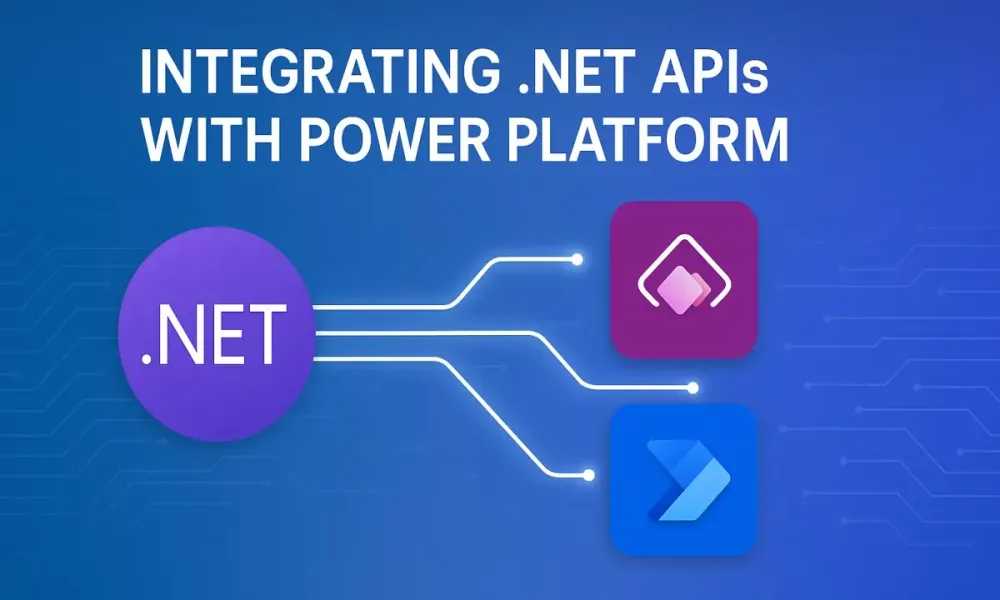
This guide delivers a practical roadmap for .NET architects seeking to integrate custom ASP.NET Core Web APIs with the Microsoft Power Platform. We’ll move from foundational API design—focused on discoverability, clarity, and scalability—to advanced integration strategies, including OpenAPI documentation and real-world architectural patterns. Expect hands-on examples, insights into best practices, and actionable guidance for building secure, enterprise-ready solutions.
2 The Foundation: Building a “Power Platform-Ready” ASP.NET Core Web API
Before discussing connectors, authentication, or integration patterns, you need a solid foundation: a modern Web API built to be consumed by both developers and low-code makers.
2.1 Architectural Principles: Designing for Power Platform
What makes an API “Power Platform-ready”? The key lies in predictability, clarity, and discoverability. Unlike developer consumers, Power Platform connectors generate their user interface and actions based on your API’s schema and documentation. Any ambiguity, inconsistency, or poor documentation translates directly to confusion for end users.
Design Principles:
- Clarity: Use consistent naming, logical grouping, and intuitive resource models.
- Discoverability: Favor explicit routes and rich metadata. Make it easy to “guess” what endpoints do.
- Robustness: Ensure input validation and comprehensive error handling. LCNC apps can’t handle vague errors.
- Self-documentation: Leverage tools and annotations to provide rich, up-to-date API documentation.
- Idempotence: Whenever possible, design endpoints to be idempotent—especially for operations that might be retried by connectors.
- Granular Security: Segment endpoints with fine-grained authentication and authorization.
Practical Example:
Suppose you need to expose customer data to Power Apps or Power Automate. Your API should reflect clear entity naming, with straightforward actions and intuitive URLs:
GET /api/customers
GET /api/customers/{id}
POST /api/customers
PUT /api/customers/{id}
DELETE /api/customers/{id}
2.2 RESTful API Best Practices for Power Platform
Let’s focus on conventions that help both human developers and LCNC platforms:
Naming Conventions
- Plural Nouns: Use plural resource names (
/customers,/products). - Consistent Case: Stick to camelCase or PascalCase for JSON properties.
- Descriptive Actions: For non-CRUD operations, use verbs (
/customers/{id}/activate).
HTTP Verbs and Status Codes
- GET: Retrieve resources.
- POST: Create new resources.
- PUT: Update or replace resources.
- PATCH: Partial updates.
- DELETE: Remove resources.
Respond with standard HTTP status codes:
- 200 OK: Successful read.
- 201 Created: Resource created.
- 204 No Content: Successful update or delete.
- 400 Bad Request: Input validation errors.
- 404 Not Found: Resource does not exist.
- 500 Internal Server Error: Unexpected failures.
Consistent Error Handling
Return structured error objects, not just raw strings. This ensures Power Platform can present meaningful feedback:
{
  "error": {
    "code": "InvalidCustomerId",
    "message": "The customer ID provided does not exist."
  }
}
2.3 The Power of OpenAPI (Swagger)
2.3.1 Why OpenAPI Specification Matters
For Power Platform integration, a comprehensive OpenAPI (formerly Swagger) definition is not optional—it’s essential. Power Platform uses your OpenAPI definition to scaffold custom connectors. This drives everything: endpoint discovery, input validation, user interface in Power Apps, and even error handling.
A vague or incomplete OpenAPI schema leads to confusing connectors and frustrated makers. Conversely, a detailed schema with rich metadata produces a highly usable, low-friction experience.
2.3.2 Using Swashbuckle in ASP.NET Core
Swashbuckle remains the de facto library for generating OpenAPI docs in ASP.NET Core. It auto-generates a live, interactive Swagger UI from your code and supports deep customization.
Getting Started:
Install Swashbuckle via NuGet:
dotnet add package Swashbuckle.AspNetCoreConfigure in Program.cs:
var builder = WebApplication.CreateBuilder(args);

builder.Services.AddEndpointsApiExplorer();
builder.Services.AddSwaggerGen(options =>
{
    options.SwaggerDoc("v1", new OpenApiInfo
    {
        Title = "Customer API",
        Version = "v1",
        Description = "API for managing customers, designed for Power Platform integration."
    });

    // Enable XML comments if needed
    var xmlFile = $"{Assembly.GetExecutingAssembly().GetName().Name}.xml";
    var xmlPath = Path.Combine(AppContext.BaseDirectory, xmlFile);
    options.IncludeXmlComments(xmlPath);
});

var app = builder.Build();

if (app.Environment.IsDevelopment())
{
    app.UseSwagger();
    app.UseSwaggerUI();
}
2.3.3 Architect’s Tip: Self-Documenting APIs
The richness of your OpenAPI definition depends on your code’s annotations. Invest in clear, descriptive comments and use attributes like [ProducesResponseType], [SwaggerOperation], and [SwaggerResponse] for each endpoint.
Example:
/// <summary>
/// Retrieves a list of all customers.
/// </summary>
/// <returns>A list of customer objects.</returns>
[HttpGet]
[Route("api/customers")]
[ProducesResponseType(typeof(List<CustomerDto>), 200)]
[ProducesResponseType(500)]
[SwaggerOperation(
    Summary = "Get all customers",
    Description = "Returns a list of all customers in the system."
)]
public async Task<IActionResult> GetCustomers()
{
    // ... your logic here
}
This not only improves developer experience but directly impacts the quality and usability of custom connectors in Power Platform.
2.4 Initial API Scaffolding: A Practical Example
Let’s scaffold a simple “Products” API in ASP.NET Core. We’ll use .NET 8, minimal APIs for brevity, and structure it with best practices for Power Platform readiness.
2.4.1 Define the Data Model
public record ProductDto(
    Guid Id,
    string Name,
    string Description,
    decimal Price,
    int Stock);
2.4.2 Implement the API Endpoints
Add these to your Program.cs:
var products = new List<ProductDto>();

app.MapGet("/api/products", () =>
{
    return Results.Ok(products);
})
.WithName("GetProducts")
.Produces<List<ProductDto>>(StatusCodes.Status200OK)
.WithSummary("Retrieve all products")
.WithDescription("Returns a list of all available products.");

app.MapGet("/api/products/{id:guid}", (Guid id) =>
{
    var product = products.FirstOrDefault(p => p.Id == id);
    return product is not null
        ? Results.Ok(product)
        : Results.NotFound(new { error = "Product not found." });
})
.WithName("GetProductById")
.Produces<ProductDto>(StatusCodes.Status200OK)
.Produces(StatusCodes.Status404NotFound)
.WithSummary("Get a product by ID")
.WithDescription("Retrieves a product using its unique identifier.");

app.MapPost("/api/products", (ProductDto product) =>
{
    products.Add(product);
    return Results.Created($"/api/products/{product.Id}", product);
})
.WithName("CreateProduct")
.Produces<ProductDto>(StatusCodes.Status201Created)
.Produces(StatusCodes.Status400BadRequest)
.WithSummary("Create a new product")
.WithDescription("Creates a new product in the catalog.");
2.4.3 Enable XML Comments
In your project file, enable XML documentation:
<PropertyGroup>
  <GenerateDocumentationFile>true</GenerateDocumentationFile>
  <NoWarn>$(NoWarn);1591</NoWarn>
</PropertyGroup>
This allows Swashbuckle to extract and display your endpoint summaries and parameter docs in Swagger UI—and by extension, in Power Platform custom connectors.
3 The Bridge: Creating Your First Custom Connector
Bridging your .NET API with the Microsoft Power Platform is where the theoretical foundations meet practical integration. For many architects, the “custom connector” is the inflection point—turning an API into a reusable, governed asset in the low-code world.
3.1 What is a Custom Connector?
Think of the custom connector as a translator. Your API “speaks” HTTP, using JSON over REST, with its own conventions, naming, and authentication model. Power Platform, on the other hand, expects clear definitions of operations, parameters, and outputs that its designer UI can consume, surface, and automate. The custom connector serves as a wrapper and interpreter, providing that translation layer.
Custom connectors are essentially metadata-rich, reusable definitions built on top of your OpenAPI specification. They enable Power Apps and Power Automate flows to interact with external services (your .NET API, in this case) as if those services were native, first-class citizens of the Power Platform. With a well-designed connector, app builders do not need to understand raw HTTP, headers, or custom authentication flows—they simply drag and drop actions and work with strongly-typed data.
The custom connector isn’t just a technical necessity; it is a design opportunity. Its quality and clarity will define the developer and maker experience for every integration you deliver.
3.2 Step-by-Step Guide: From OpenAPI to a Working Connector
A reliable connector begins with a well-defined OpenAPI document. The Power Platform’s import tools use this definition to scaffold the connector, identify available operations, and prompt you for necessary authentication and connection details. Let’s walk through the steps.
3.2.1 Importing Your ASP.NET Core API’s OpenAPI Definition
After confirming that your API is up and running (preferably over HTTPS, with a stable, accessible endpoint), export your OpenAPI (Swagger) JSON file from Swashbuckle. In most setups, this will be available at /swagger/v1/swagger.json.
To import into Power Platform:
- Open the Power Apps or Power Automate portal.
- Navigate to Data > Custom Connectors.
- Select + New custom connector, then choose Import an OpenAPI file.
- Upload your OpenAPI file. Assign a meaningful name (e.g.,
ProductsApiConnector).
The platform parses your definition and presents an initial configuration interface for the connector.
3.2.2 Configuring General Information
You are prompted to provide several pieces of critical information:
- Host: The fully qualified domain of your API (e.g.,
api.yourcompany.com). - Base URL: The base path under which your endpoints are exposed (e.g.,
/api). - Schemes: Always select
httpsfor production APIs; avoidhttpexcept for local testing.
Add a detailed description of your connector—this appears in the Power Platform UI and helps future users understand its purpose and capabilities.
3.2.3 Deep Dive into Authentication
Security is foundational. Power Platform supports several authentication models, but the choice impacts both security posture and developer experience. Let’s clarify your options:
No Authentication
Best for prototypes, public data, or internal development. Never use for production APIs that expose sensitive data or business logic.
- Pro: Simplest to configure; no tokens or keys required.
- Con: No security. Anyone with the connector or API URL can access your endpoints.
API Key
Often used for partner integrations or simple scenarios where each connector instance authenticates with a static key.
- Pro: Easy to implement; keys can be rotated if compromised.
- Con: Lacks user context; difficult to revoke keys individually. Keys can leak and provide broad access if mishandled.
OAuth 2.0 (Recommended for Enterprise)
The enterprise standard, providing delegated access and single sign-on (SSO) using Microsoft Entra ID (formerly Azure Active Directory).
- Pro: Enables strong, user-based access control, supports conditional access policies, and integrates seamlessly with Power Platform’s security model.
- Con: More complex to configure (detailed in Section 4), but essential for production-grade, secure integrations.
Note: Even for initial development, design your API and connector with eventual OAuth 2.0 support in mind. Upgrading later can be disruptive.
3.2.4 Defining Actions, Triggers, and Responses
Once authentication is configured, you’ll review and adjust how your API’s endpoints are surfaced in Power Platform:
- Actions: Map to HTTP methods on your API (GET, POST, PUT, DELETE). Each action represents a “verb” the connector exposes to Power Apps or flows.
- Triggers: For Power Automate, these are endpoints that can start a flow (e.g., webhooks, new data events). Triggers require specific setup in your API and OpenAPI definition.
- Responses: Ensure that output schemas are well-typed and include descriptions. This impacts how outputs are displayed and available for further logic in Power Apps or flows.
Practical Tips:
- Group related actions logically.
- Rename actions in the connector to use plain-English, business-friendly terminology (e.g., “Create Product” instead of “POST /api/products”).
- Adjust required and optional parameters for usability.
3.2.5 Architect’s Tip: Enhancing the Connector UI with x-ms Extensions
OpenAPI extensions (like x-ms-summary, x-ms-visibility, etc.) offer finer control over how your connector is presented in Power Platform. They’re not standard OpenAPI features, but Microsoft’s Power Platform and Logic Apps fully support them.
Use Cases:
- x-ms-summary: Provides a concise description shown in the UI, distinct from the longer operation description.
- x-ms-visibility: Controls whether an action appears as ‘important’, ‘advanced’, or is hidden from casual users.
Example (in OpenAPI):
paths:
  /api/products:
    get:
      summary: Get all products
      x-ms-summary: List Products
      x-ms-visibility: important
Well-applied, these extensions make your connector more intuitive and user-friendly—reducing training time for business users and minimizing confusion.
3.3 Testing the Connector
Before rolling out a connector to a broader audience, validate that it works as expected:
- Use the Test tab in the connector configuration UI.
- Authenticate as a real user.
- Trigger actions with sample data and verify responses.
Power Platform will show both the raw request/response and the interpreted outputs. Address errors or schema mismatches here, not later in production.
Common issues at this stage include:
- Incorrect base URL or host settings.
- Authentication misconfiguration.
- Missing or mis-typed parameters.
- Unexpected response structures not matching OpenAPI.
Troubleshooting Tips:
- Always check your API’s logs for incoming requests and error messages during tests.
- If authentication fails, ensure your client registration and scopes are correct (see Section 4).
- Use tools like Postman or curl outside of Power Platform to isolate whether issues are in the API, OpenAPI spec, or connector configuration.
3.4 Sharing and Lifecycle Management
A robust connector is not just a development asset—it is a strategic enterprise component. Its management lifecycle matters.
Understanding Environments and Solutions
Power Platform environments (e.g., Development, Test, Production) provide isolation and governance. When you create a connector, it lives within a specific environment. To promote connectors through environments:
- Package them as part of a Solution (a logical container for customizations).
- Export and import Solutions to move connectors between environments, retaining configuration and references.
- Adjust connector configuration, especially endpoints and authentication, as you move up the lifecycle.
Versioning Connectors
- Plan for breaking changes. Always version your API and your connector. Use semantic versioning in your OpenAPI definition and connector name/description.
- Document changes and communicate to downstream users when a connector update requires changes to Power Apps or flows.
Access Control and Sharing
- Connectors can be shared with individual users, security groups, or across an entire environment.
- Govern who can create, edit, or delete connectors via Power Platform admin roles and policies.
- Audit connector usage regularly, using built-in analytics and logging.
4 Enterprise-Grade Security: OAuth 2.0 and Microsoft Entra ID
When integrating your .NET APIs with Power Platform, security cannot be an afterthought. In the enterprise, this means using OAuth 2.0 with Microsoft Entra ID for robust, scalable, and auditable access control.
4.1 The “Why”: Secure, Delegated Access
Power Platform apps are often built by business users, but they access sensitive data and perform critical operations. You must ensure:
- Only authorized users can invoke your API.
- Access is auditable, aligned with corporate policies (MFA, conditional access, role-based restrictions).
- Data access can be delegated and scoped appropriately.
- Credentials are never embedded in apps or shared insecurely.
OAuth 2.0, using Entra ID (the modern evolution of Azure AD), provides this security foundation, enabling “single sign-on” (SSO) and delegated authorization. Every API call from a Power App carries a user’s identity and claims, which your .NET API can inspect and enforce.
4.2 Architecting the Auth Flow: OAuth 2.0 Authorization Code Grant
Let’s clarify the moving pieces in a secure Power Platform integration:
4.2.1 The Actors
- User: The person initiating a Power App or flow.
- Power App (Client): The front-end, which requests access tokens from Entra ID.
- Microsoft Entra ID (Authorization Server): Issues tokens based on app and user permissions.
- ASP.NET Core API (Resource Server): Validates tokens, enforces authorization, and executes business logic.
4.2.2 Registering the Applications in Entra ID
This process involves registering both your API and the Power Platform connector as applications in Entra ID. Here’s how:
1. Register the API:
- In the Azure portal, go to Microsoft Entra ID > App registrations > New registration.
- Name your API registration (e.g.,
ContosoProductsAPI). - Set the redirect URI (for APIs, typically not used—leave blank or set to a placeholder).
- After creation, note the Application (client) ID and Directory (tenant) ID.
2. Expose the API and Define Scopes:
-
Under your API registration, select Expose an API.
-
Set the Application ID URI (e.g.,
api://contosoproducts). -
Define custom scopes for fine-grained access (e.g.,
Products.Read,Products.Write). Example scope:- Scope name:
Products.Read - Admin consent display name:
Read product data - Admin consent description:
Allows reading product information
- Scope name:
-
Save your changes.
3. Register the Power Platform Connector (Client App):
- In App registrations, create a new registration (e.g.,
PowerPlatformProductsConnector). - For redirect URIs, use
https://global.consent.azure-apim.net/redirect(the required URI for custom connectors). - After creation, note the client ID and client secret (create a secret under Certificates & secrets).
4. Grant API Permissions:
-
In the connector’s app registration, under API permissions, add a permission:
- APIs my organization uses > Select your API app registration.
- Add the necessary delegated permissions (e.g.,
Products.Read).
-
Admin consent may be required depending on tenant policies.
4.2.3 Configuring the ASP.NET Core API
Your API must validate and enforce JWT tokens from Entra ID. The Microsoft.Identity.Web library streamlines this.
Install NuGet Packages:
dotnet add package Microsoft.Identity.Web
dotnet add package Microsoft.Identity.Web.Api
Configure in Program.cs:
builder.Services.AddAuthentication(JwtBearerDefaults.AuthenticationScheme)
    .AddMicrosoftIdentityWebApi(builder.Configuration.GetSection("AzureAd"));

builder.Services.AddAuthorization(options =>
{
    options.AddPolicy("ReadAccess", policy =>
        policy.RequireClaim("scp", "Products.Read"));
    options.AddPolicy("WriteAccess", policy =>
        policy.RequireClaim("scp", "Products.Write"));
});

var app = builder.Build();

app.UseAuthentication();
app.UseAuthorization();
In appsettings.json:
"AzureAd": {
  "Instance": "https://login.microsoftonline.com/",
  "Domain": "yourdomain.com",
  "TenantId": "xxxxxxxx-xxxx-xxxx-xxxx-xxxxxxxxxxxx",
  "ClientId": "xxxxxxxx-xxxx-xxxx-xxxx-xxxxxxxxxxxx",
  "Audience": "api://contosoproducts"
}
Protect Endpoints with Policies:
[Authorize(Policy = "ReadAccess")]
[HttpGet]
public async Task<IActionResult> GetProducts() { ... }

[Authorize(Policy = "WriteAccess")]
[HttpPost]
public async Task<IActionResult> CreateProduct(ProductDto product) { ... }
This ensures only valid, scoped tokens can invoke each API operation.
4.2.4 Configuring the Custom Connector
Back in the Power Platform custom connector UI:
- Authentication Type: OAuth 2.0
- Identity Provider: Azure Active Directory
- Client ID: From the connector’s app registration
- Client Secret: As generated
- Authorization URL:
https://login.microsoftonline.com/{tenantId}/oauth2/v2.0/authorize - Token URL:
https://login.microsoftonline.com/{tenantId}/oauth2/v2.0/token - Refresh URL: Same as token URL (optional)
- Scopes: Your exposed API scopes, e.g.,
api://contosoproducts/Products.Read api://contosoproducts/Products.Write
The redirect URI must match the one registered in the client app (https://global.consent.azure-apim.net/redirect).
Once configured, when users add a connection in Power Apps or Power Automate, they are prompted to log in with their organizational credentials. Tokens are issued, and all API calls flow with the user’s delegated permissions.
4.3 The End-to-End Result: Seamless SSO
With OAuth 2.0 configured:
- Every request from the Power App to your API is authenticated with a user-scoped token.
- Your API knows the caller’s identity, roles, and permissions—enabling true delegated access.
- Single sign-on is automatic; no user secrets or keys are ever exposed in apps or flows.
- You benefit from centralized governance: Conditional Access, multifactor authentication, audit logging, and access revocation are all handled in Entra ID.
This approach is scalable, auditable, and meets the compliance requirements of modern enterprises.
4.4 Architect’s Tip: The On-Behalf-Of (OBO) Flow
In many enterprise scenarios, your API needs to call downstream APIs—such as Microsoft Graph, SharePoint, or other internal services—using the context of the original user. This is where the OAuth 2.0 “On-Behalf-Of” (OBO) flow comes into play.
Example Scenario: A Power App user triggers an operation that must fetch data from Microsoft Graph via your API. You want the downstream call to respect the user’s permissions and audit trail.
How OBO Works:
- The incoming JWT access token from Power Platform is validated by your API.
- Your API exchanges the token for a new access token targeting the downstream API, via Entra ID’s
/tokenendpoint and the OBO grant type. - Your API then uses this new token to call the downstream resource—always acting as the user, not as itself.
Implementation:
- Use the
IConfidentialClientApplicationinterface fromMicrosoft.Identity.Clientto perform the token exchange. - Ensure both your API and the downstream API are registered in Entra ID, and correct permissions are granted.
- Cache downstream tokens for efficiency.
Sample Token Exchange (C#):
var cca = ConfidentialClientApplicationBuilder
    .Create(clientId)
    .WithClientSecret(clientSecret)
    .WithAuthority(authority)
    .Build();

string[] scopes = { "https://graph.microsoft.com/.default" };
var userAssertion = new UserAssertion(incomingAccessToken);
var result = await cca.AcquireTokenOnBehalfOf(scopes, userAssertion).ExecuteAsync();
Benefits:
- Preserves the user’s identity and permissions across chained service calls.
- No long-lived credentials or shared secrets needed.
- Centralizes authentication and auditability.
5 Beyond the Basics: Advanced Integration Patterns with Azure
Connecting your .NET APIs directly to Power Platform through custom connectors is efficient for many use cases. But as your solutions mature and demand scales, you will encounter integration challenges that require more robust architectural patterns. Let’s explore scenarios and solutions that help .NET architects achieve enterprise-grade resilience, scalability, and manageability.
5.1 The Problem with Direct Connections
Directly connecting Power Platform to your .NET APIs via custom connectors is straightforward—until it isn’t. You may find it perfectly adequate for a small, internal tool or proof-of-concept. But in the context of complex, business-critical solutions, this approach reveals its limitations.
Common Issues:
- Complexity Creep: As business logic, endpoints, and consuming apps grow, so does the complexity of managing changes and dependencies.
- Throttling: Power Platform, like any SaaS, enforces strict throttling and concurrency limits. When hundreds of users or flows invoke your API simultaneously, unmediated calls can saturate your backend, leading to failures or degraded performance.
- Lack of Resilience: Direct calls lack mechanisms for retries, circuit-breaking, or graceful fallback. A single failure in your API can surface as an outage in every dependent app or flow.
- Limited Observability: Diagnosing issues across dozens of Power Apps and flows that all call your API directly is challenging, especially when requests bypass centralized logging or monitoring.
Recognizing these patterns early allows you to architect solutions that are resilient, maintainable, and observable at scale.
5.2 Pattern 1: Azure API Management as the Front Door
Azure API Management (APIM) is designed for exactly these challenges. It acts as a façade, brokering, securing, and observing traffic between your consumers (including Power Platform) and backend APIs.
5.2.1 Why API Management?
APIM provides a controlled, governed entry point for all API consumers. It allows you to:
- Abstract and Secure: Hide backend APIs behind a single public endpoint. Remove direct exposure to the Internet, even from trusted platforms like Power Platform.
- Apply Policies: Enforce throttling, quotas, caching, transformations, and security checks without modifying your API code.
- Centralize Monitoring: Collect, analyze, and alert on usage and error patterns from one place.
- Accelerate Change: Decouple API consumers from backend changes (versioning, migrations, re-architectures) by insulating them through APIM’s endpoint.
For organizations with multiple APIs or where security, observability, and lifecycle management are priorities, APIM becomes an essential layer.
5.2.2 Implementation: Integrating .NET APIs with APIM
Step 1: Importing Your .NET API into APIM
- In the Azure Portal, navigate to your APIM instance.
- Use the APIs blade to import your .NET API, preferably using your OpenAPI (Swagger) definition.
- Assign a clear, business-relevant API name and version.
Step 2: Applying Policies
Policies in APIM are XML-based constructs that execute at various stages of the request/response pipeline.
Common Examples:
-
Rate Limiting:
<rate-limit calls="100" renewal-period="60" />Limits users to 100 calls per minute.
-
JWT Validation:
<validate-jwt header-name="Authorization" failed-validation-httpcode="401" failed-validation-error-message="Unauthorized" /> -
Request/Response Transformation: Change headers, shape payloads, or enforce standard formats without touching API code.
-
CORS Enforcement: Enable or restrict cross-origin requests as needed.
Step 3: Configuring Power Platform to Use APIM
- Update your custom connector’s host and base URL to point to the APIM endpoint, not directly to your .NET API.
- Re-import or refresh the OpenAPI definition in your custom connector if the endpoint paths have changed.
- Authentication and policies (such as OAuth 2.0 validation) can now be enforced at the APIM level.
Code Example: Protecting Your API with APIM Policy
Suppose your backend API only expects trusted calls from APIM. Insert an APIM policy to add a subscription key or custom header, and configure your API to validate it before processing any request.
5.2.3 Benefit: Decoupling Consumers from Implementation
By placing APIM in front of your APIs, you create a critical decoupling layer. Power Platform (and any other client) never knows the true URL, structure, or even technology stack of your backend services. Migrations, upgrades, or wholesale rewrites of backend services can occur without disrupting dependent apps, as long as the APIM contract remains stable.
This is enterprise-grade architecture: loose coupling, governed access, and resilience.
5.3 Pattern 2: Azure Logic Apps for Complex, Asynchronous Workflows
As business processes grow in sophistication, so do their orchestration needs. While Power Automate is effective for straightforward automations within the Power Platform ecosystem, there are times when you need more.
5.3.1 When to Choose Logic Apps Over Power Automate
Azure Logic Apps offer several advantages in certain scenarios:
- Stateful, Long-Running Processes: Logic Apps can run for days or weeks, managing state, waiting for external events, or handling human approvals.
- Advanced Error Handling: Logic Apps offer granular, graphical error handling—retry policies, exception branches, and durable compensation logic.
- Integration Breadth: Logic Apps provide hundreds of connectors (often more advanced than their Power Automate counterparts) and native support for hybrid integration, B2B protocols, and custom connectors.
- Complex Orchestration: Logic Apps are well-suited for processes that require branching, loops, timeouts, parallelism, and sub-flows.
5.3.2 Implementation: Orchestrating with Logic Apps
A typical pattern:
-
A Power App Triggers a Flow: The user action in Power Apps invokes a Power Automate flow.
-
Power Automate Makes an HTTP Call to Logic App: The flow sends data to a Logic App HTTP request trigger endpoint.
-
Logic App Orchestrates the Process: The Logic App can now:
- Call multiple APIs (internal or external).
- Evaluate business rules.
- Handle approvals or external signals.
- Perform long-running or resource-intensive tasks.
-
Logic App Calls Your .NET API: The Logic App interacts with your custom .NET API using its custom connector or direct HTTP action, benefiting from all the policies and security of APIM if used.
-
Returning the Result: The Logic App can return a status or payload back to Power Automate or log the outcome for audit and monitoring.
Code Sample: Logic App HTTP Trigger (Partial JSON Schema)
{
  "type": "object",
  "properties": {
    "customerId": { "type": "string" },
    "orderAmount": { "type": "number" }
  }
}
This schema defines what the Logic App expects from Power Automate.
5.3.3 Benefit: Resilient and Scalable Orchestration
This pattern offloads complex or high-latency operations from Power Platform, ensuring that Power Apps remain responsive and Power Automate flows don’t fail on transient backend issues. Logic Apps’ monitoring, alerting, and state management give architects peace of mind that processes won’t “fall through the cracks” during failures or outages.
By orchestrating through Logic Apps, you can layer in more advanced integration and resilience patterns—such as compensating transactions, external notifications, or “saga” orchestration—using only configuration and minimal code.
6 Handling Data: Performance and Large Payloads
Power Platform democratizes data access and workflow creation, but it comes with important technical constraints—especially around data volumes and efficiency. Understanding these limits, and architecting your APIs for delegation and performance, is essential for any .NET architect supporting enterprise-scale solutions.
6.1 The 2,000-Item Limit
One of the most well-known (and sometimes frustrating) constraints in Power Apps is the delegation limit. By default, Power Apps only delegates queries that can be executed server-side up to 2,000 items (previously 500). This cap exists to protect client devices from being overloaded and to preserve user experience.
What does this mean? If a Power App user tries to load or filter a large data set (say, 10,000 customer records), the app will only see the first 2,000, even if more are available server-side. All further filtering, sorting, or searching is done client-side, leading to incomplete or incorrect results.
For data-rich enterprise scenarios, this is a serious concern—and a frequent source of user complaints if not addressed proactively.
6.2 Server-Side Filtering and Pagination in Your .NET API
To overcome the delegation limit, your API must support efficient server-side operations. This means exposing endpoints that allow Power Platform to query, filter, and page through data without retrieving everything at once.
6.2.1 Implementing OData-Style Query Parameters
Adopt widely-recognized conventions, such as the OData query language, even if your API is not a full OData service. At a minimum, support these parameters:
$filter: Apply server-side filtering (e.g.,/api/products?$filter=price gt 100)$top: Limit the number of results (e.g.,/api/products?$top=100)$skip: Implement paging (e.g.,/api/products?$skip=200&$top=100)$orderby: Sort results (e.g.,/api/products?$orderby=name asc)
Example: Minimal API Endpoint in .NET 8
app.MapGet("/api/products", (int? top, int? skip, string? filter, string? orderby) =>
{
    var query = products.AsQueryable();

    if (!string.IsNullOrWhiteSpace(filter))
    {
        // Example: apply simple filter logic (for production, use a parser)
        query = query.Where(p => p.Name.Contains(filter));
    }

    if (!string.IsNullOrWhiteSpace(orderby))
    {
        // Example: use dynamic ordering
        query = query.OrderBy(p => EF.Property<object>(p, orderby));
    }

    if (skip.HasValue)
        query = query.Skip(skip.Value);

    if (top.HasValue)
        query = query.Take(top.Value);

    return Results.Ok(query.ToList());
});
6.2.2 Architect’s Tip: Using Libraries or Middleware
For production APIs, consider:
- OData.net: Microsoft’s official library for OData support. Adds full OData query support, model binding, and type safety.
- Custom Middleware: For APIs not requiring full OData compliance, implement a lightweight parser and validator for common query parameters.
By supporting these parameters, your API empowers Power Apps to delegate as much filtering and paging as possible, respecting the delegation model and delivering accurate results.
6.3 Configuring the Custom Connector for Delegation
For your Power Platform connector to support delegation, the exposed actions must explicitly declare the parameters ($filter, $top, etc.) in the OpenAPI definition.
- Mark these as “delegable” in the connector’s configuration.
- Test with Power Apps’ delegation warnings enabled, ensuring your actions do not trigger client-side delegation limits.
Tip: Always document which actions in your connector support delegation and communicate this to app builders to avoid confusion or misuse.
6.4 Strategies for Non-Delegable Scenarios
Some operations or data sets will never fit neatly into the delegation model—either due to business logic, data size, or Power Apps limitations. Here are patterns to mitigate such cases.
6.4.1 Using Search-Driven Patterns
Instead of displaying entire data sets, require users to filter or search first. For example, present a search box where the user enters a partial name or ID, then invoke your API with a server-side filter.
- Reduces data transferred.
- Keeps client-side operations within delegation limits.
- Delivers faster, more relevant results.
6.4.2 Loading Data Incrementally
Implement “Load More” buttons or infinite scrolling patterns in your Power App, where each click or scroll retrieves the next page of results using $skip and $top. This approach mimics familiar consumer app patterns and aligns well with Power Platform’s capabilities.
- Avoids loading massive datasets upfront.
- Enables smoother UX for large data sources.
- Empowers users to explore as much or as little as needed.
6.4.3 Advanced: Staging Data in Dataverse via Power Automate
For truly massive data sets or scenarios requiring complex pre-processing, use a Power Automate flow:
- Flow is Triggered (by user or schedule).
- Flow Calls Your API Repeatedly: Fetches data in manageable chunks using paging parameters.
- Flow Writes Data to a Dataverse Table: Staged for fast, client-side consumption by Power Apps.
- Power App Reads from Dataverse: Benefits from full indexing, relational queries, and local performance.
This hybrid approach leverages the strengths of each platform: your API for scalable, secure access; Power Automate for orchestration; and Dataverse for optimized data presentation.
7 Governance and Lifecycle Management: An Architect’s Responsibility
Enabling seamless connectivity between .NET APIs and the Microsoft Power Platform is only the beginning. True enterprise readiness demands ongoing governance and thoughtful lifecycle management. Without this, even the best-designed integration patterns can devolve into a tangled web of dependencies, technical debt, and operational surprises.
7.1 The Challenge: Navigating a Web of Dependencies
As Power Platform adoption grows within an organization, the number of dependent apps and flows consuming a single API increases—sometimes exponentially. What begins as a simple integration supporting one Power App can, within a year, underpin dozens of mission-critical solutions built by various teams across business units.
This scenario introduces several risks and complexities:
- Change Management: Updating an API (fixing a bug or adding a feature) may inadvertently break unknown or undocumented consumers.
- Communication Gaps: Makers and pro developers often operate on different cadences and with different tooling; important updates can go unnoticed or misunderstood.
- Operational Blind Spots: Incidents may arise without a clear understanding of the downstream impact or affected apps, especially when governance is weak.
For .NET architects, anticipating and managing these dependencies is not optional—it is a core responsibility.
7.2 Versioning Your APIs
A disciplined versioning strategy is essential to maintain agility without sacrificing stability. It ensures that new features, improvements, and breaking changes can be introduced without disrupting existing consumers.
7.2.1 Strategy: URL-Based Versioning
For integrations with Power Platform, URL-based versioning (e.g., /api/v1/products, /api/v2/products) is the most effective and transparent approach. It’s easy for both APIs and custom connectors to handle and makes the version in use obvious at a glance.
Why not query parameters or headers? While header-based or query parameter versioning is supported in some API frameworks, these approaches can introduce ambiguity and are harder to enforce consistently within Power Platform custom connectors, which are built around clear, path-based endpoint definitions.
Example:
- Existing API:
https://api.company.com/api/v1/products - New version:
https://api.company.com/api/v2/products
7.2.2 The Rollout Plan
Successfully rolling out a new API version, while minimizing disruption, follows a repeatable lifecycle:
-
Develop and Deploy the New API Version
- Introduce breaking or substantial changes in a new route (e.g.,
/v2). - Ensure both versions run side-by-side to support migration.
- Introduce breaking or substantial changes in a new route (e.g.,
-
Create a New Custom Connector
- Publish a new connector in Power Platform (e.g.,
ProductsApiConnectorV2) pointing to the new API version. - Import the updated OpenAPI definition and verify all actions.
- Publish a new connector in Power Platform (e.g.,
-
Communicate with Power Platform Makers
- Proactively inform all makers, app owners, and stakeholders about the new version, outlining changes and migration steps.
- Provide guidance and timelines for updating their apps or flows to use the new connector.
-
Monitor Usage on the Old Version
- Leverage API Management (APIM) analytics, Application Insights, or backend logs to identify which apps are still calling the old version.
- Contact remaining consumers and offer support for migration.
-
Deprecate and Retire the Old Version
- Set a clear deprecation date and enforce it.
- After migration, remove the old connector and endpoints, freeing up maintenance resources and reducing risk.
Architect’s Note: Resist the temptation to leave old versions running indefinitely. This increases your maintenance surface and can perpetuate technical debt.
7.3 Environment and Solution Management
Managing environments is foundational for consistent, predictable deployments and integrations across development, test, and production stages. Disconnected environments introduce risk and make troubleshooting difficult.
7.3.1 Aligning .NET Deployment with Power Platform Environments
Power Platform supports distinct environments (e.g., Development, Test, Production). Mature organizations align their .NET deployment pipeline to mirror these environments:
- Development: Used by both .NET teams and Power Platform makers to prototype, experiment, and validate.
- Test/UAT: Mirrors production closely, allowing for realistic integration and user acceptance testing.
- Production: Stable, highly governed, with changes introduced only after thorough validation.
Practice:
- Deploy your .NET APIs to matching environment URLs (e.g.,
api-dev.company.com,api-test.company.com,api.company.com). - Provision Power Platform environments with clear naming and ownership.
- Deploy custom connectors and other assets as part of Power Platform Solutions, which group related resources and simplify lifecycle management.
7.3.2 Using Environment Variables in Custom Connectors
Environment variables in Power Platform allow connectors to adapt to different backend URLs or configurations without manual edits for each environment.
- Example:
Set a variable such as
ApiBaseUrlper environment, referenced by the connector at runtime. - Benefit: Makers and administrators no longer need to update connectors when promoting apps between environments—reducing risk and manual effort.
Architect’s Guidance: Document and automate environment variable management as part of your DevOps pipeline, ensuring repeatable, error-free deployments.
7.4 Monitoring and Alerting
A robust integration is not just about successful function—it’s about early detection of issues, rapid root cause analysis, and minimizing business impact.
7.4.1 Tracing Transactions End-to-End
Application Insights (App Insights) provides powerful, real-time observability across .NET APIs, APIM, Logic Apps, and beyond. For Power Platform-integrated solutions, aim to trace a single user transaction from:
- The Power App or Flow (trigger and input)
- The custom connector (request/response, errors)
- Through APIM (policies applied, API routing)
- To your .NET API (request logs, exceptions, performance)
- Downstream systems, if applicable
Practice:
- Use correlation IDs: Pass a unique ID through each call, from Power Platform into custom headers, propagated by APIM and logged by your API.
- Instruct app makers to surface error messages and request IDs in the UI for easier support.
7.4.2 Setting Up Alerts
Proactive alerting enables you to catch issues before they escalate. Key areas to monitor:
-
API Errors: Alert on spikes in 4xx/5xx errors, particularly for endpoints consumed by Power Platform.
-
Performance Degradation: Monitor response times and throughput. Alert if latency exceeds thresholds, especially for business-critical endpoints.
-
Unusual Usage Patterns: Detect sudden surges in usage, which may indicate a runaway flow, a bug in an app, or misuse.
-
Connector Failures: Set up notifications for failed connector authentications, throttling events, or high rates of failed actions in Power Apps/Automate.
Example with App Insights (C#):
var telemetry = new TelemetryClient();
telemetry.TrackTrace("PowerPlatformRequest", new Dictionary<string, string>
{
    ["CorrelationId"] = correlationId,
    ["UserId"] = userId,
    ["Action"] = actionName
});
By establishing a feedback loop between your integration, monitoring, and support processes, you significantly reduce downtime and improve user trust.
8 Conclusion: From Enabler to Strategic Partner
8.1 Summary of Key Architectural Principles
As the .NET architect, your mandate is much more than “making the API work.” You are the orchestrator who ensures that every integration is secure, consumable, governable, and ready to adapt to the unknowns of tomorrow’s enterprise landscape.
Principles Recap:
- Security-First: Use OAuth 2.0 with Microsoft Entra ID as the standard. Design for delegated access, auditability, and zero trust.
- Design for Consumption: Make APIs discoverable, well-documented, and intuitive for both pro developers and low-code makers. Invest in OpenAPI and custom connector design.
- Leverage the Azure Ecosystem: Use APIM, Logic Apps, Application Insights, and Dataverse not just as add-ons, but as strategic enablers for resilience, scalability, and monitoring.
- Plan for Scale: Anticipate and manage dependencies. Govern environments, automate deployments, and implement rigorous versioning and lifecycle management.
8.2 The Future of Integration
The pace of integration is accelerating. Several trends are shaping the next horizon for .NET architects and Power Platform enablers:
- Power Platform Command-Line Tools (PAC CLI): These tools enable scripting, automation, and integration of connector management, solution exports/imports, and environment handling into your DevOps pipelines. The line between traditional application delivery and low-code platforms is fading.
- Deeper Dataverse Integration: APIs and custom connectors are increasingly used to surface rich business data within Dataverse, combining the strengths of pro-code services with low-code relational modeling, security, and analytics.
- AI-Driven Development: With Copilot and AI-assisted app building in Power Platform, APIs that expose clear business semantics and actions will become even more valuable. Pro-code and low-code will increasingly co-create intelligent, adaptive solutions.
Staying abreast of these developments—and proactively shaping your APIs and connectors to exploit them—will differentiate you as a strategic leader, not just a facilitator.
8.3 Final Words: The Architect’s Crucial Role
In a world where business needs outpace IT’s ability to deliver, the fusion of .NET APIs with Microsoft Power Platform is transformative. But this power brings responsibility. As a .NET architect, you are not just building endpoints or wiring up connectors—you are defining the guardrails, the governance, and the foundation for secure, sustainable, and innovative digital transformation.
You enable the business to move faster—confidently and safely—by giving makers and developers the tools, patterns, and guidance to build the solutions they envision. You turn integration into a competitive advantage, bridging the pro-code and low-code worlds with skill, empathy, and foresight.
In mastering the integration of custom .NET APIs with Power Platform, you’re not simply enabling the future—you’re helping to design it.